A POS system — point of sale system — is the till software a shop uses to record every sale. Using one well comes down to ten steps, from setting up the products to closing the drawer at night. This guide walks through each step on real screens from SellarPro; the ideas are the same on any POS.
Quick answer: to use a POS system, add your products and stock, open the cash register with the float, then for each customer scan or search the items, choose the payment method — cash, card or MoMo — and finalise to print the receipt. At the end of the shift, count the drawer and close the register.
Before your first sale
1. Add your products and prices
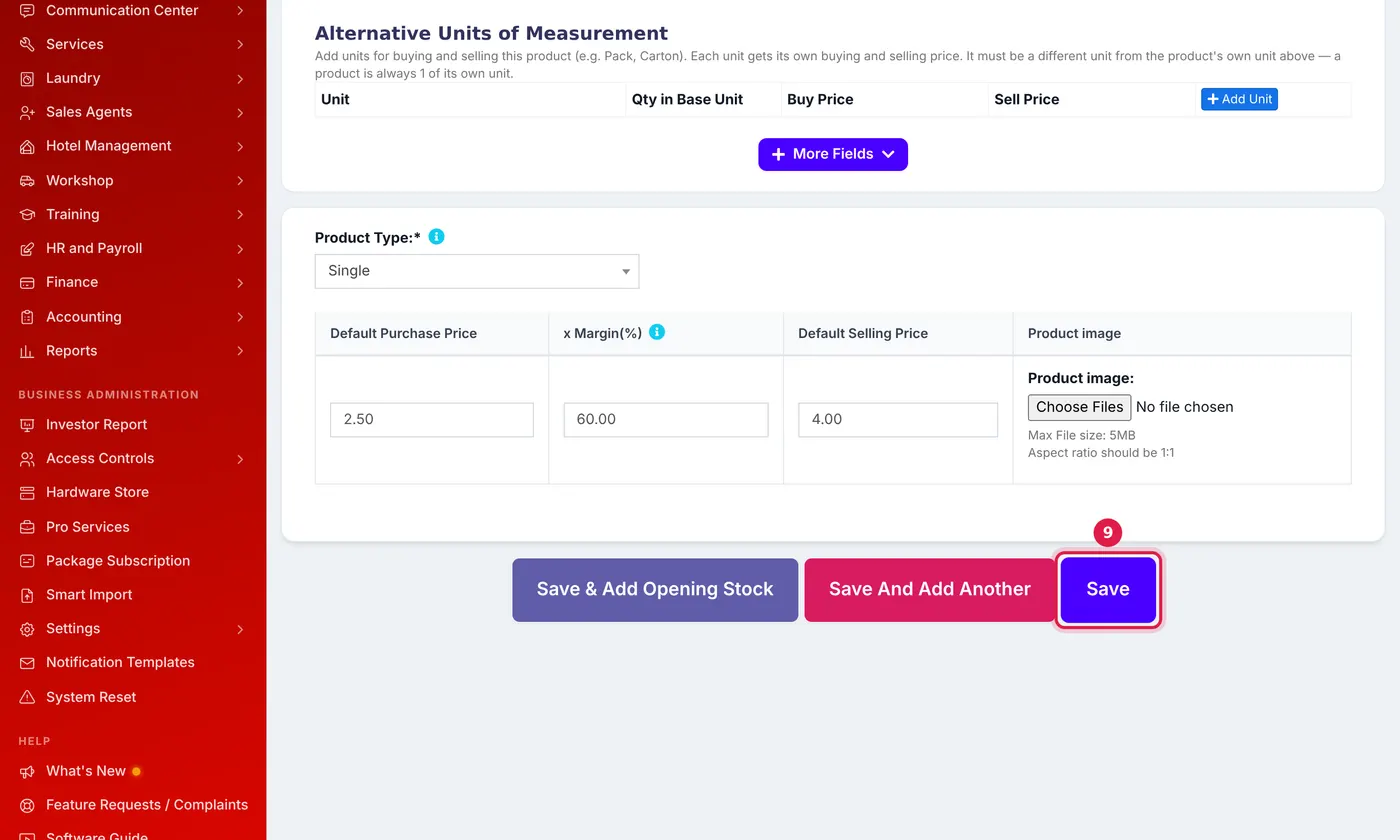
The POS can only sell what it knows about. Each product needs a name, a unit (pieces, cartons, kilos) and a selling price. Add the purchase price too — it is how the system works out your profit later.
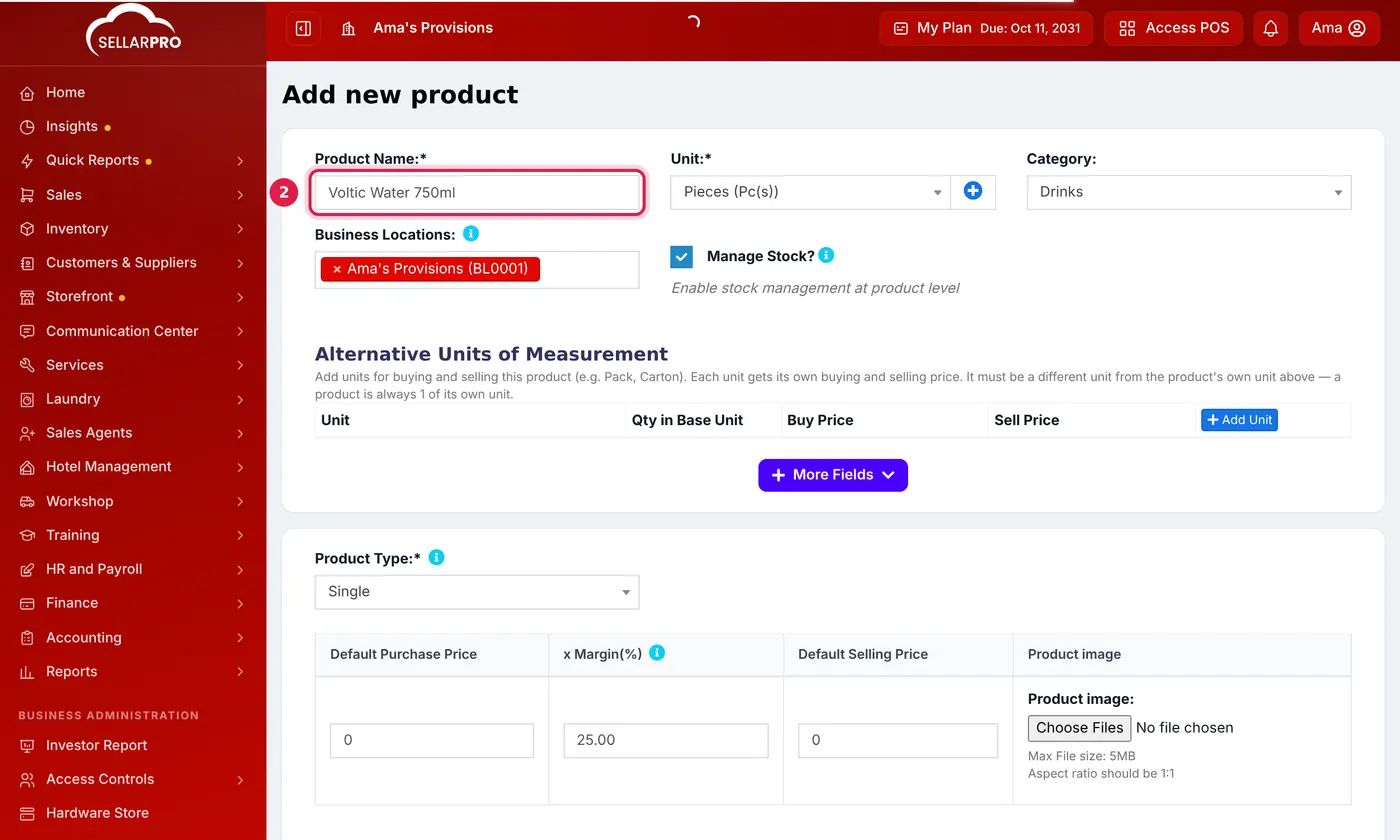
If the product has a barcode, scan it into the SKU field so the scanner will find it at the till. Full steps: how to add a product. Many products at once? Import them from a spreadsheet.
2. Record the stock on your shelf
Enter how many of each product you have right now — the opening stock. Skip this and the POS will sell, but it cannot warn you when something is running out or tell you what should be on the shelf.
3. Open the cash register
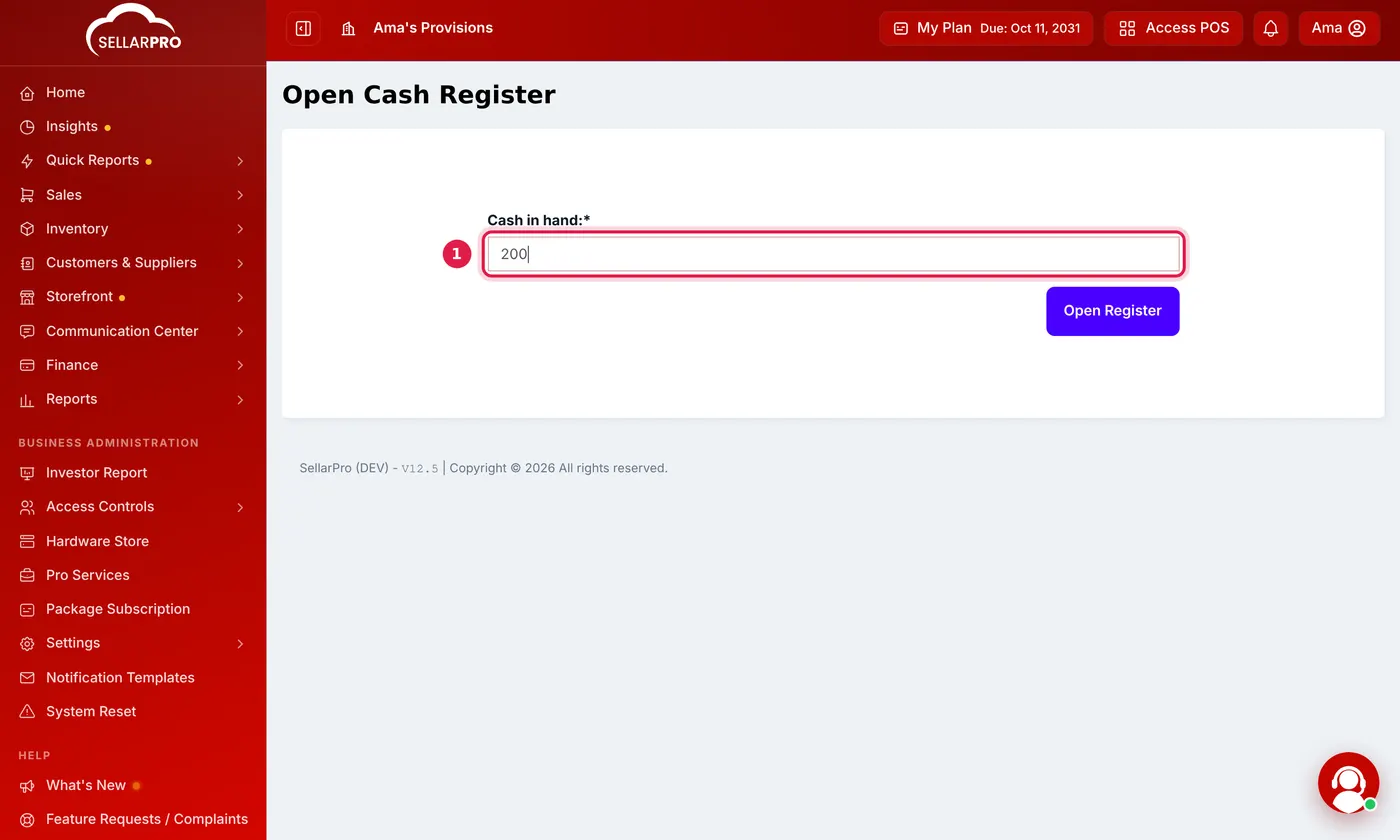
At the start of each shift the cashier opens the register and types the cash already in the drawer — the float. Everything sold afterwards is counted against it, which is what makes the end-of-day count meaningful.
Making a sale
4. Add the items
Open the POS screen. Scan each barcode, or type part of the product name in the search box and press Enter on the right one. Every item becomes a line in the cart; click the quantity to change it.
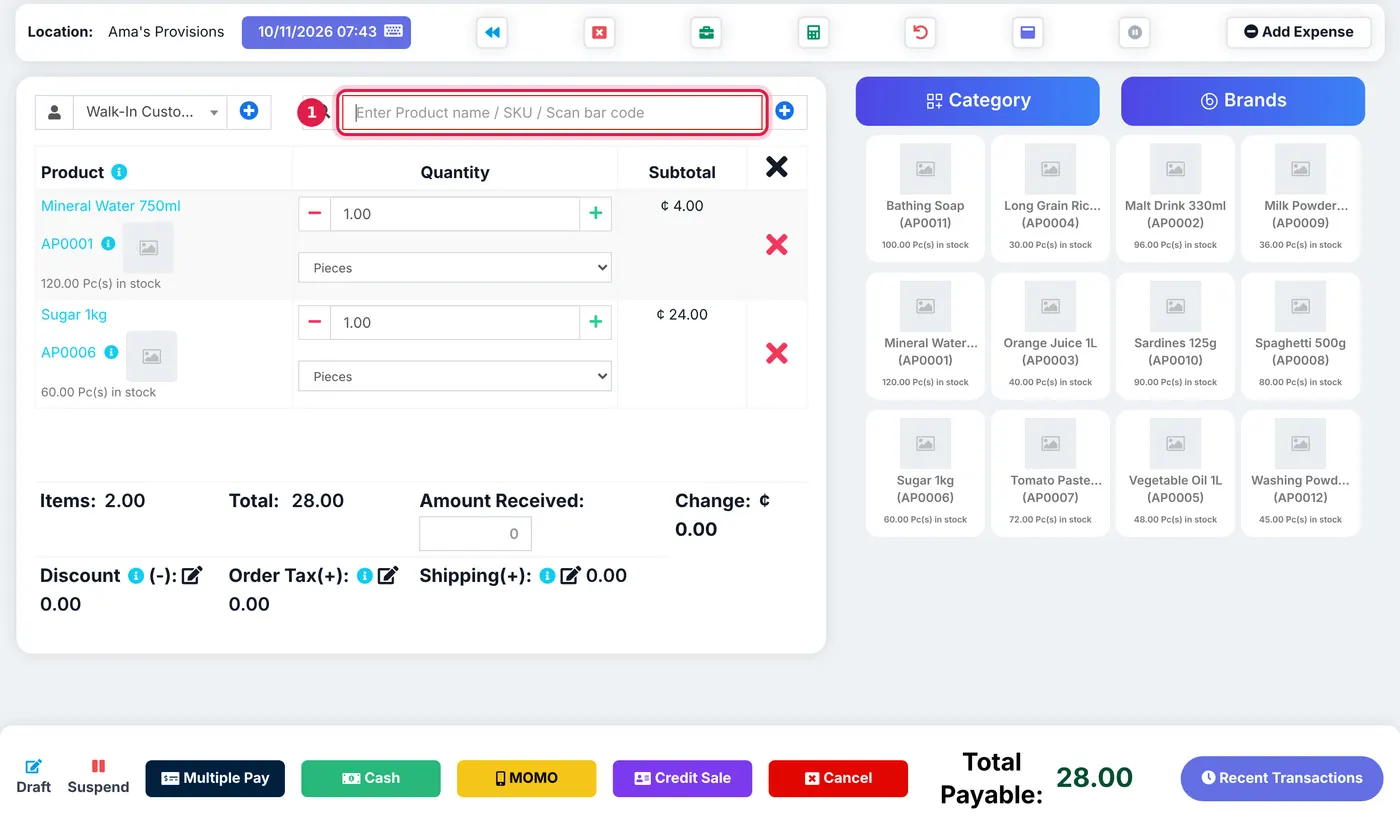
Leave the customer as Walk-In for an ordinary cash sale. Choose the real customer if they are buying on credit — otherwise you will not know who owes the money.
5. Take payment
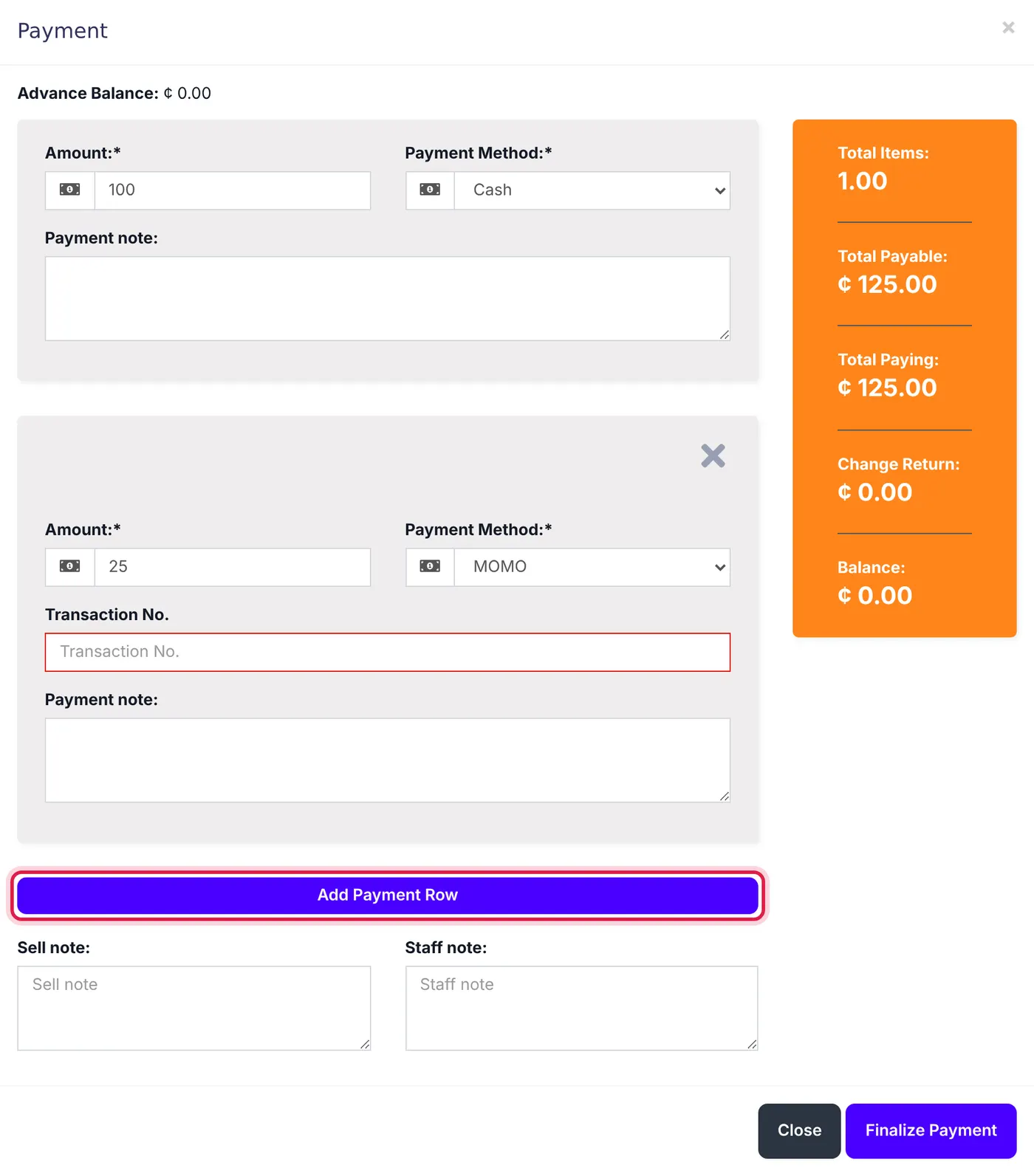
The buttons along the bottom take the whole sale in one tap: Cash, Card or MOMO. For mobile money or card, type the transaction reference so the payment can be matched to your statement later.

Customer paying part cash and part MoMo? Click Multiple Pay, add a row for each method and finalise.
6. Hand over the receipt and change
Finalising the sale saves it, takes the items off stock and prints the receipt. Give the change the screen shows. If the receipt does not print, the printer needs setting up once — see how to connect a receipt printer.
The situations every cashier meets
7. A customer goes back for one more item
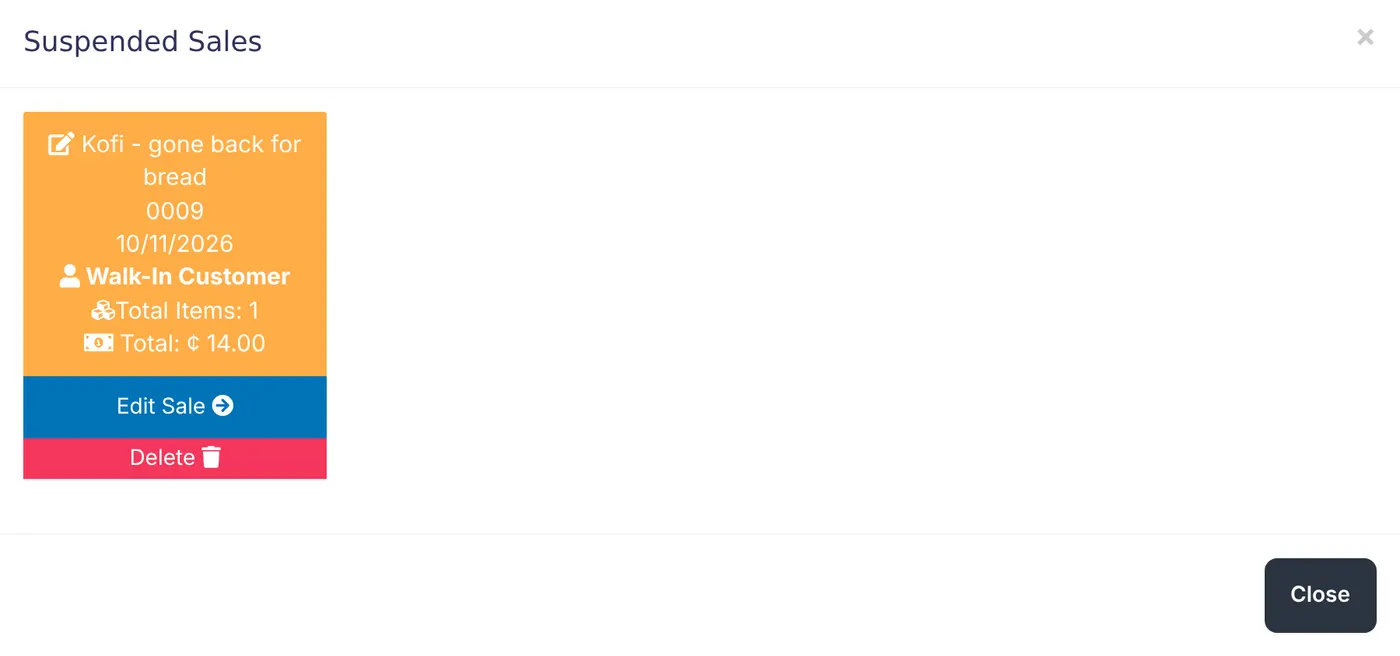
Do not make the queue wait. Suspend the sale, serve the next person, and pick the parked sale up again when the customer returns.
8. A customer returns something
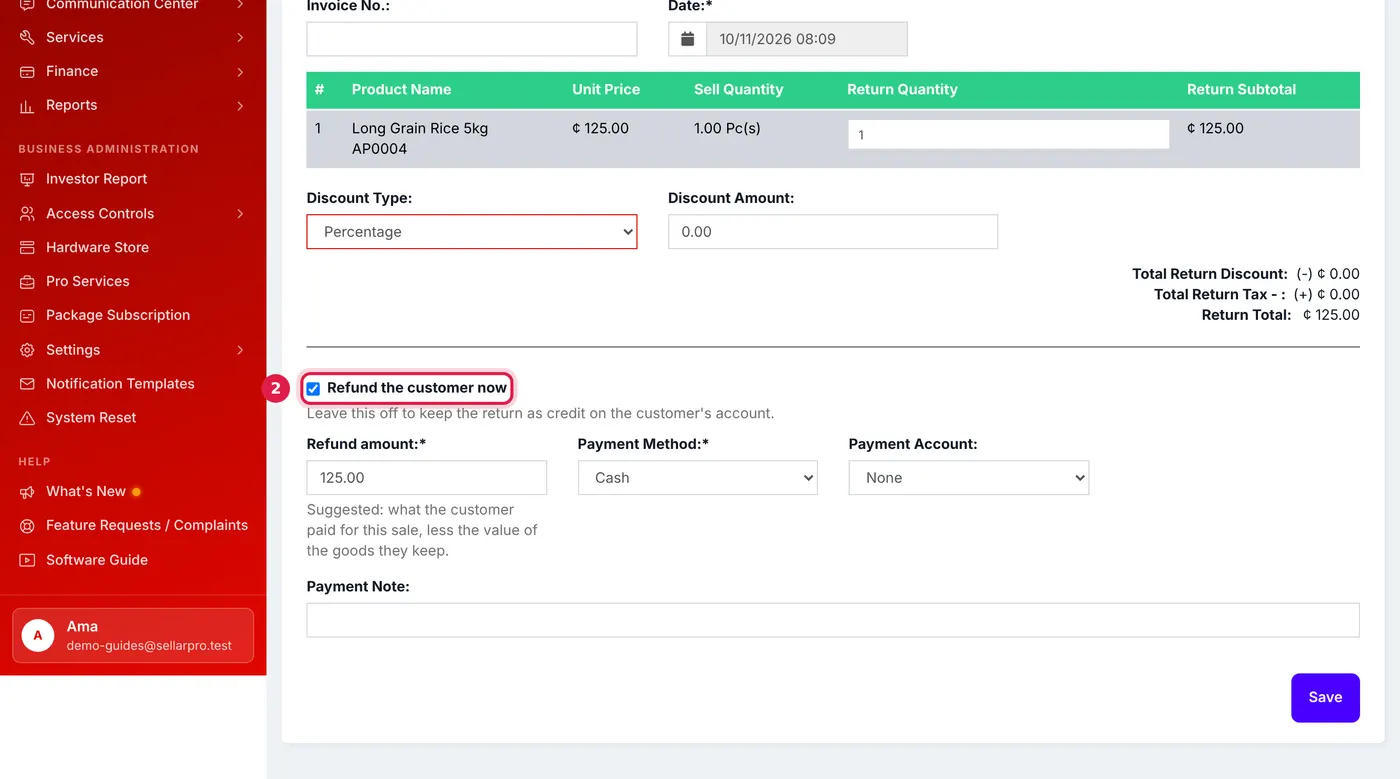
Never delete the original sale to "undo" it. Record a return against it, so the stock goes back on the shelf and the refund is accounted for. Full steps: how to handle a return and refund.
9. The internet goes off
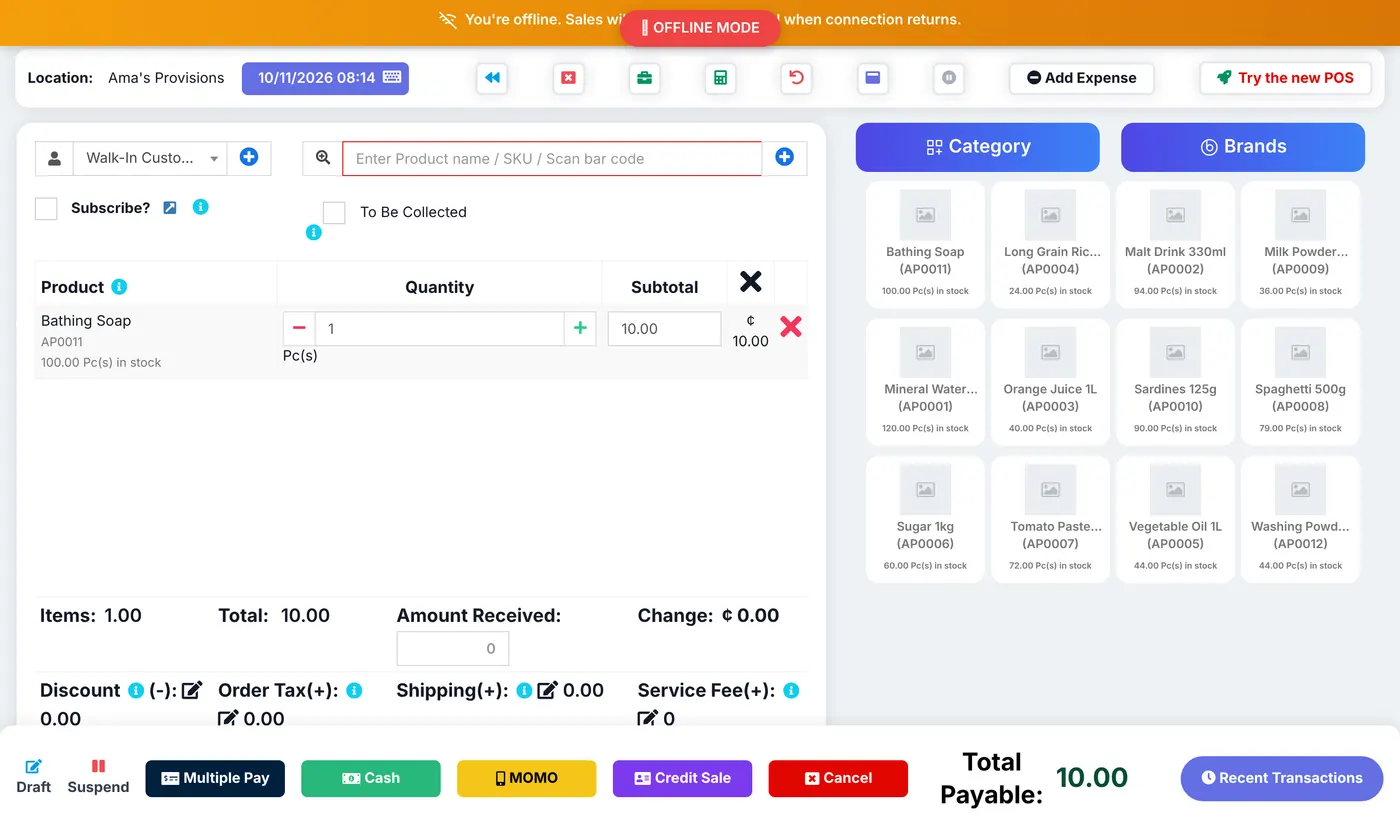
Keep selling. SellarPro switches to offline mode on that device, saves each sale with its receipt, and sends them when the connection returns. Do not close the browser tab while sales are still waiting to send.
Closing the day
10. Count the drawer and close the register
At the end of the shift, count the cash in the drawer and type it in before closing. The difference between what the POS expects and what was counted is your cash shortage or excess for the day — the single most useful number a shop owner can read.
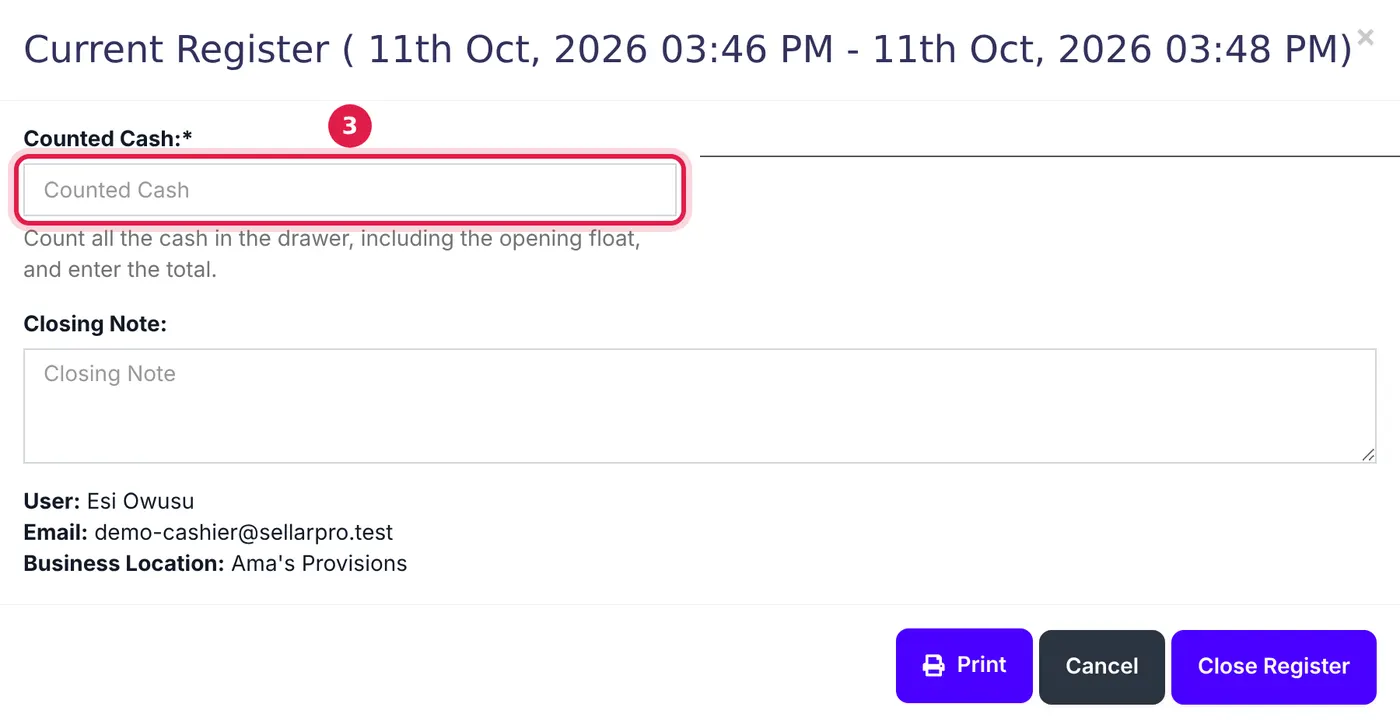
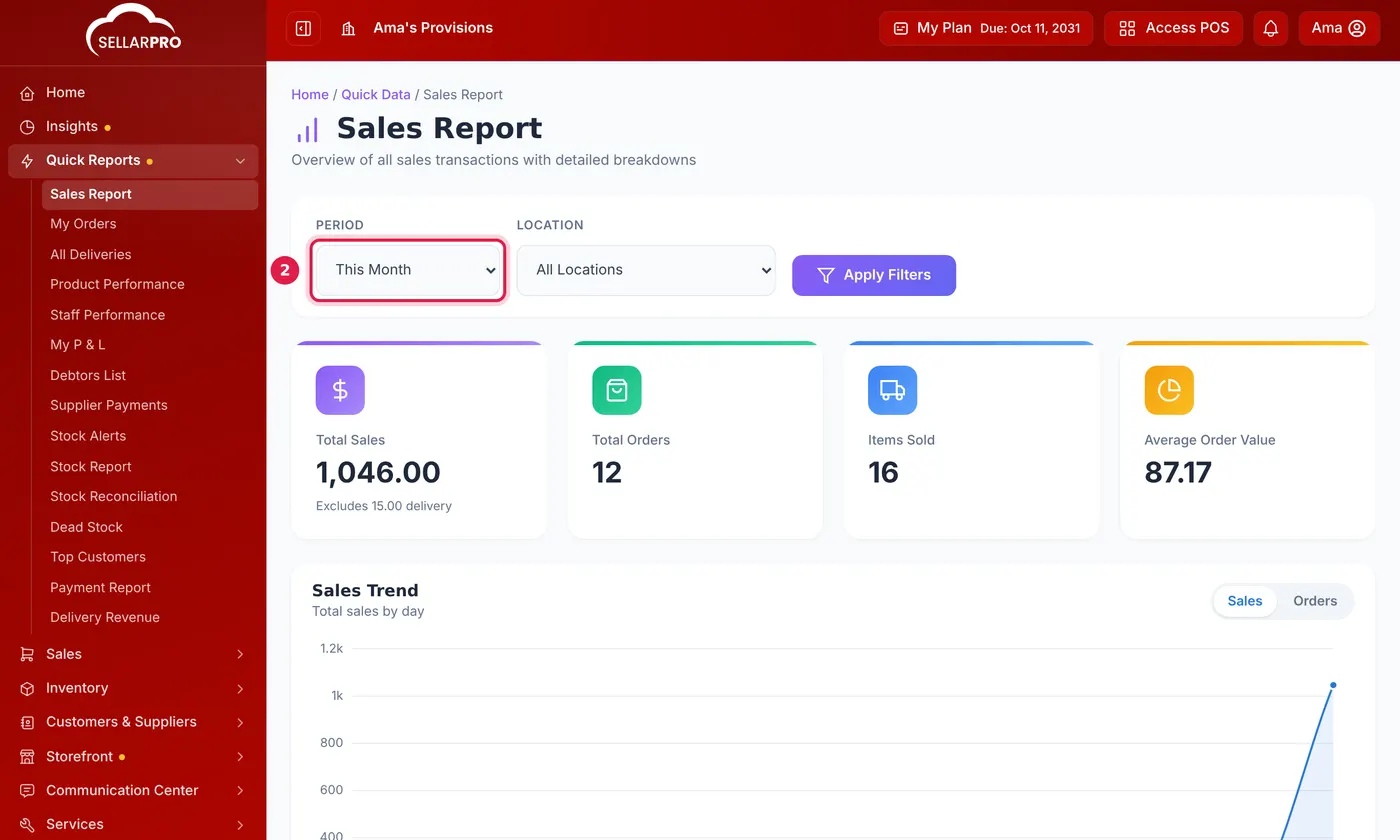
Owners can make the count "blind", so the cashier counts without seeing what the system expects — see how to close a register with a blind count. Then read the day in the sales report.
Five beginner mistakes to avoid
- Selling with no opening stock. The POS works, but stock figures go negative and are useless.
- Credit sales to Walk-In Customer. The debt exists but nobody's name is on it.
- Deleting a sale instead of recording a return. The stock and cash no longer add up.
- One login shared by every cashier. Give each person their own, so every sale and shortage has a name — see how to add a staff member.
- Not closing the register. Without a count, a shortage is discovered weeks later, when nobody can explain it.
What you need to start
POS software and something to run it on. SellarPro runs in a web browser, so a computer you already own will do; a barcode scanner, receipt printer and cash drawer make a busy counter faster. Our guide to the best POS devices in Ghana covers which you need. Every step in this guide, and many more, is in the SellarPro Help Center.