
All help topics
Help topics
- Getting Started
- Sales & POS
- Products & Inventory
- Purchases & Suppliers
- Customers
- Staff & Permissions
- Reports
- Branches
- Hardware
- Payments
- Settings
- Troubleshooting
- Billing & Subscription
- Workshop
- Training
- Sales Agents
- Laundry
- Accounting
- HR & Payroll
- Hotel
- Services
- Communication Center
- Online Store
- CRM
- Restaurant
- F&B Manager
- Production
- Projects
- Asset Management
- All topics
How to Import Products with Smart Import
Open Smart Import and click New Import. Upload your Excel or CSV file in any layout, check how its columns were matched to SellarPro fields, then on the review screen choose the location, how stock is loaded and what happens to products you already have. Import, and check the results.
Smart Import reads a product list from any system, in any layout, and shows you what it will do before anything is saved.
Switch on Smart Import under Settings → Menu & Modules if it is not in your menu.
Step 1: upload
- Open Smart Import and click New Import.
- Click Choose File, or drag the file in: .xlsx, .xls or .csv, up to 20 MB and 20,000 rows.
- Click Upload & Analyze.
Step 2: check the columns
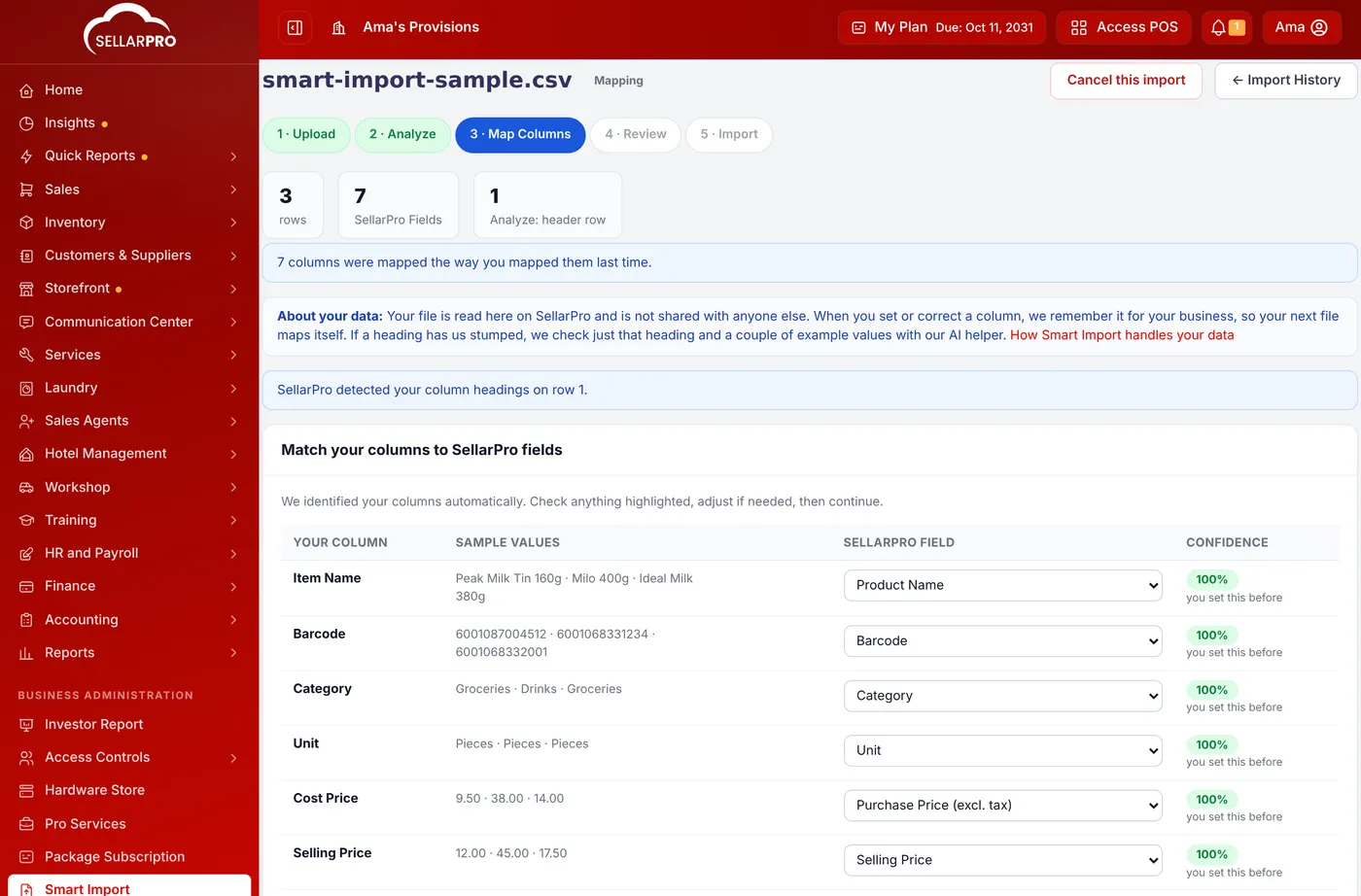
Under Match your columns to SellarPro fields, each column of your file is shown with sample values and the SellarPro field it was matched to, with a confidence score. Change any that are wrong, and set a column you do not want to Ignore this column. Tick Save this mapping for future imports if you will import files like this again. Click Continue.
Step 3: review
- Read the counts: rows ready, rows that need review and errors, and any Problems detected.
- Choose the Location for opening stock.
- Choose Stock at the location: add the file's quantities to what is there, or set stock to the file when the file is a fresh count.
- Choose what happens When a product already exists in SellarPro: keep it as it is (recommended), update it, or create a separate product anyway.
- Tick Generate SKUs automatically if your file has no codes. Click Looks good — continue.
Step 4: import
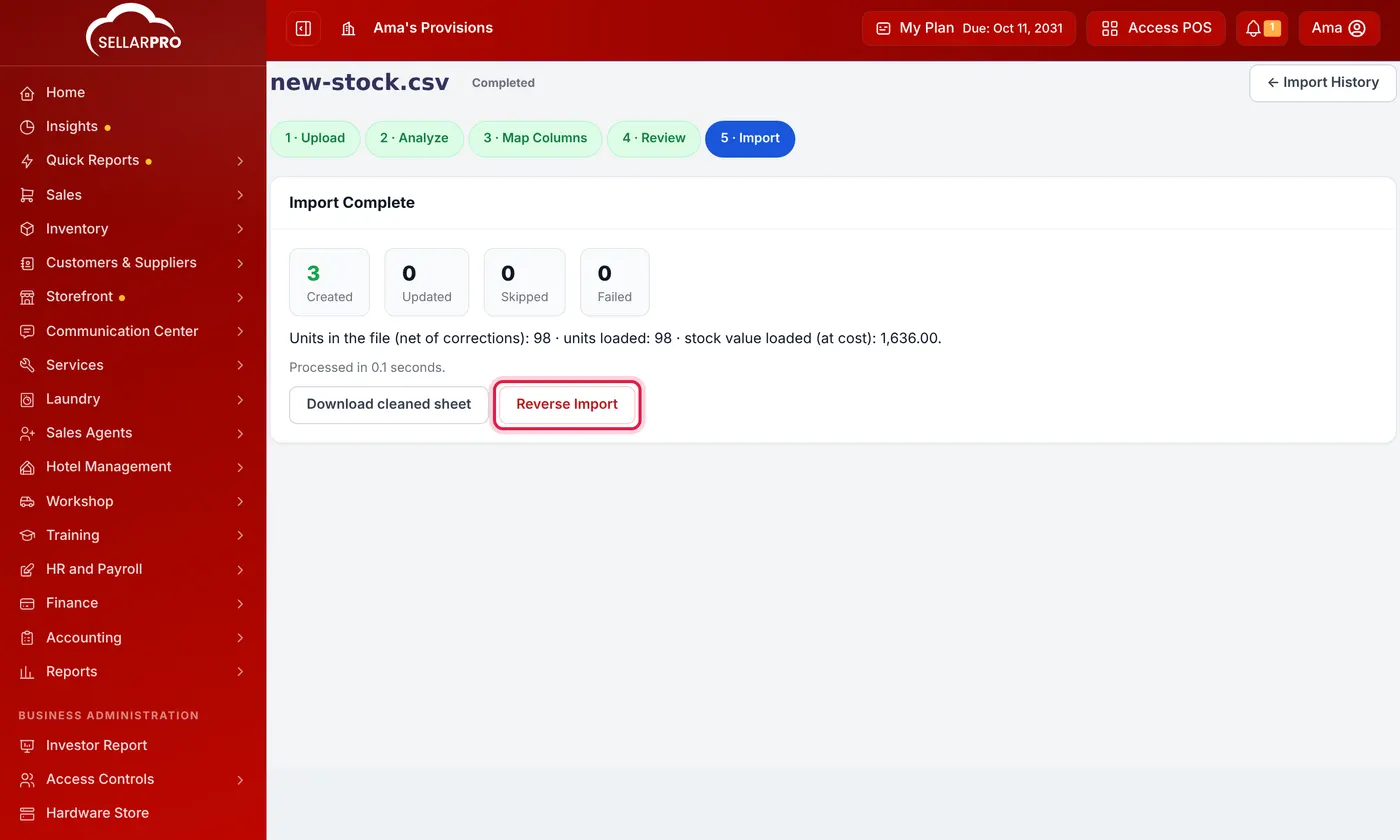
Click Import. The results show how many products were Created, Updated, Skipped or Failed, the units in the file against the units loaded, and the stock value loaded, so you can check it against your sheet.
Common questions
My file has a title row above the headings.
Can I fix the problem rows in Excel?
Was this article helpful?
Thanks — your answer helps us improve this article.
Still need help?
Can’t find the answer you’re looking for? Our support team in Accra can help.