
All help topics
Help topics
- Getting Started
- Sales & POS
- Products & Inventory
- Purchases & Suppliers
- Customers
- Staff & Permissions
- Reports
- Branches
- Hardware
- Payments
- Settings
- Troubleshooting
- Billing & Subscription
- Workshop
- Training
- Sales Agents
- Laundry
- Accounting
- HR & Payroll
- Hotel
- Services
- Communication Center
- Online Store
- CRM
- Restaurant
- F&B Manager
- Production
- Projects
- Asset Management
- All topics
On this page
How to Use the Getting Started Checklist
The Getting Started checklist on your home page lists the eight things to do before you trade: add a product, a customer, a location and a staff member, make a sale and a POS sale, set up a payment method and look at your reports. Most tick themselves as you work.
When you first sign in as the owner, your home page opens with a Getting Started list. It shows how far you have got, as a count and a progress bar, and each task has a button that takes you straight to the right screen.
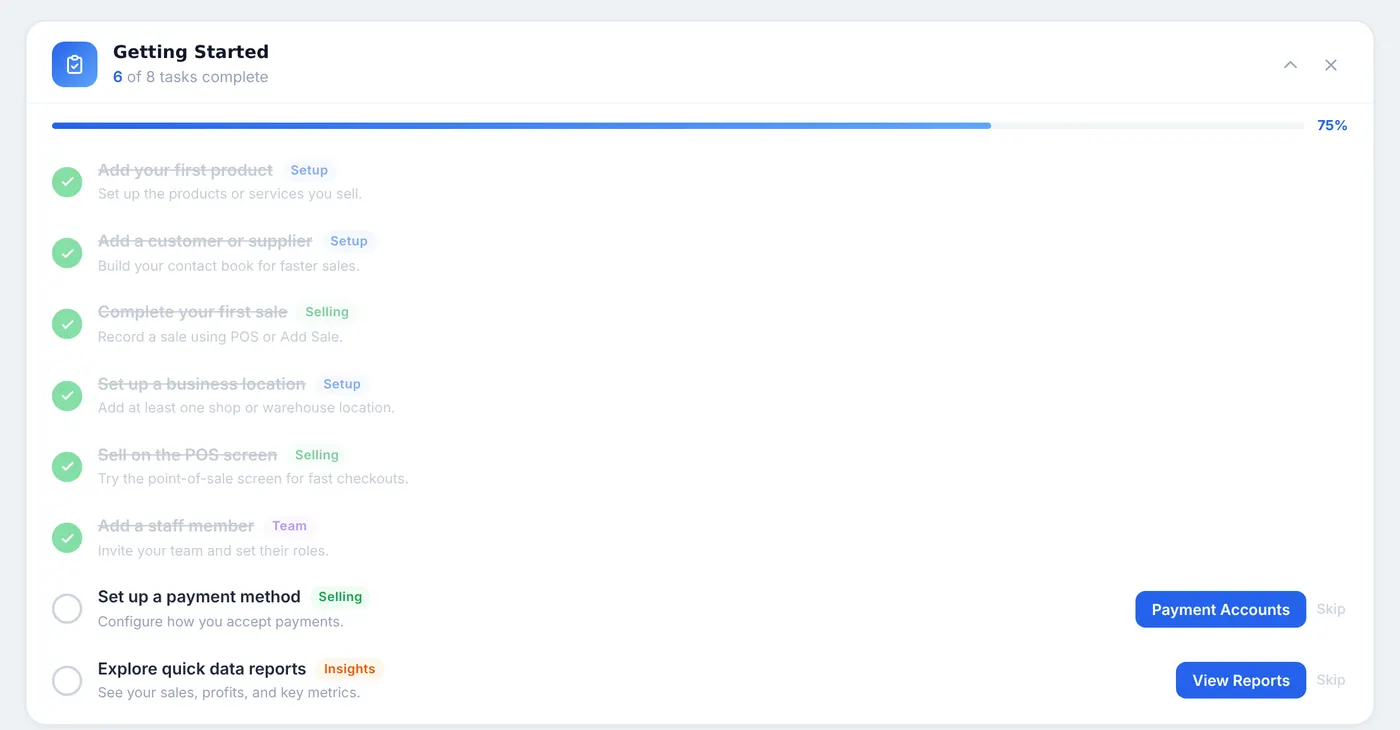
The eight tasks
- Add your first product (Setup).
- Add a customer or supplier (Setup).
- Complete your first sale, on the POS or Add Sale (Selling).
- Set up a business location (Setup).
- Sell on the POS screen (Selling).
- Add a staff member (Team).
- Set up a payment method: your cash, MoMo and bank accounts (Selling). See How to Set Up Payment Accounts.
- Explore quick data reports (Insights).
How tasks are ticked
Most tasks tick themselves as soon as you do them: a product, a customer, a sale, a POS sale, a location or a second user. The others have a Skip link if they do not apply to you.
Use the arrow at the top to fold the list away, or the cross to dismiss it for good. Only the owner and admins see it.
Want a hand? New businesses are offered a free onboarding call on the home page. Book a time, and someone from SellarPro walks you through your set-up.
Common questions
I did a task but it is not ticked.
I dismissed the list. Can I get it back?
Was this article helpful?
Thanks — your answer helps us improve this article.
Still need help?
Can’t find the answer you’re looking for? Our support team in Accra can help.