
All help topics
Help topics
- Getting Started
- Sales & POS
- Products & Inventory
- Purchases & Suppliers
- Customers
- Staff & Permissions
- Reports
- Branches
- Hardware
- Payments
- Settings
- Troubleshooting
- Billing & Subscription
- Workshop
- Training
- Sales Agents
- Laundry
- Accounting
- HR & Payroll
- Hotel
- Services
- Communication Center
- Online Store
- CRM
- Restaurant
- F&B Manager
- Production
- Projects
- Asset Management
- All topics
On this page
How to Set Up the Laundry Module
Switch Laundry on under Settings → Business Settings → Modules. Then open Laundry → Settings to choose your ticket numbers, turnaround time, express service, pickup and delivery fees, the minimum deposit and customer texts, and Laundry → Price list to set your prices.
The Laundry module runs a laundry or dry cleaner in SellarPro: a price list per garment, tickets for every drop-off, a board showing where each ticket is, texts to customers, and handover with a piece count. Every ticket is an ordinary sale, so laundry takings appear in your dashboard, sales reports, profit and customer balances like any other sale.
Step 1: switch Laundry on
- Open Settings → Business Settings and go to Modules.
- Tick Laundry and save.
- A Laundry menu appears in the sidebar, with Board, New drop-off, Uncollected, Reports, All tickets, Price list and Settings.
Step 2: set your prices
Open Laundry → Price list and click Load the starter price list, or type your own. See How to Set Up Your Laundry Price List.
Step 3: choose your settings
Open Laundry → Settings. Everything has a sensible default, so change only what you need:
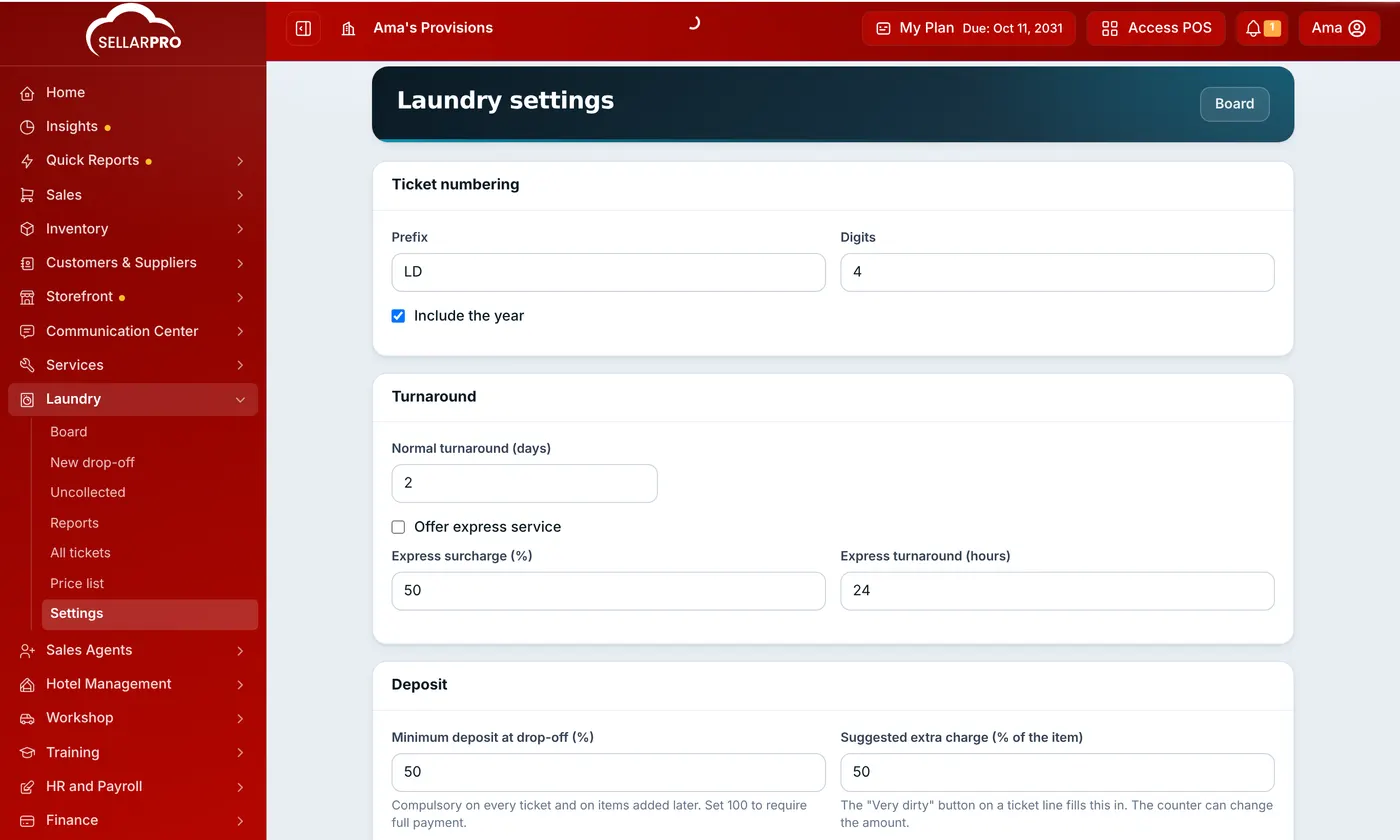
- Ticket numbering: the prefix (LD by default), whether the year is included, and how many digits. Tickets read like LD2026/0001.
- Turnaround: how many days a normal ticket takes. Tick Offer express service to charge a surcharge (a percentage of the garments) for a faster turnaround in hours.
- Deposit: Minimum deposit at drop-off (%). Set 0 to take tickets with no deposit, or 100 to require full payment upfront. Also the Suggested extra charge for very dirty items.
- Pickup & delivery fees: your fees, and How fees are booked. Choose As income if your own staff do pickups and deliveries. Choose As a delivery charge if an outside rider keeps the fee; it is then left out of your sales, like other delivery fees.
- Condition: the condition tags staff tap at the counter (Stained, Torn, Missing button…), one per line.
- Uncollected reminders and Customer SMS: see Customer Texts and Uncollected Clothes.
- Handover: tick Do not hand clothes over while a balance is owed if you never release clothes on credit. Add your Phone numbers on the ticket and the Terms printed on the ticket (for example, how long you keep uncollected items).
Step 4: give your staff access
Business owners can do everything. For staff, open Access Controls → Roles, edit the role and tick what they need under Laundry:
- View the board and tickets,
- Take clothes in and book pickups (the role also needs the sales permission Add POS sell, because every ticket is a sale),
- Move tickets between stages,
- Hand clothes back (taking money also needs Add/Edit/Delete Payments),
- Edit tickets and Delete tickets,
- Change prices and give discounts on a ticket,
- Manage the price list, View Laundry reports and Manage Laundry settings.
Keep Change prices and give discounts on a ticket for supervisors. Counter staff without it charge the price list and cannot give discounts.
Common questions
Does a laundry ticket count as a sale?
Do laundry sales go through the cash register?
Can I use Laundry at more than one branch?
Was this article helpful?
Thanks — your answer helps us improve this article.
Still need help?
Can’t find the answer you’re looking for? Our support team in Accra can help.