
All help topics
Help topics
- Getting Started
- Sales & POS
- Products & Inventory
- Purchases & Suppliers
- Customers
- Staff & Permissions
- Reports
- Branches
- Hardware
- Payments
- Settings
- Troubleshooting
- Billing & Subscription
- Workshop
- Training
- Sales Agents
- Laundry
- Accounting
- HR & Payroll
- Hotel
- Services
- Communication Center
- Online Store
- CRM
- Restaurant
- F&B Manager
- Production
- Projects
- Asset Management
- All topics
On this page
How to Set Up Your Laundry Price List
Open Laundry → Price list. Click Load the starter price list for 90 common garments with typical prices for Wash & Iron, Iron only and Wash only, or list your own garments and services. Type a price in each box you offer and click Save prices; leave a box blank if you do not offer it.
Your price list is a grid: garments down the side (Shirt, Trousers, Duvet…) and services across the top (Wash & Iron, Iron only, Dry clean…). Each price you type becomes a service in your product list, in a Laundry category, so it also sells at the POS and shows in every sales report.
Step 1: load the starter list, or list your own
Open Laundry → Price list.
- Click Load the starter price list to add 90 common garments, from bedsheets and shirts to kente, agbada and wedding gowns, with typical prices for Wash & Iron, Iron only and Wash only. It only fills empty boxes: a price you have already set is never changed, and pressing it twice adds nothing.
- Or type your own under Garments (one per line) and Services (one per line) and click Save rows & columns.
Step 2: type your prices
- In the grid, type a price in every box you offer. Leave a box blank if you do not offer that service for that garment; it will not appear at the counter.
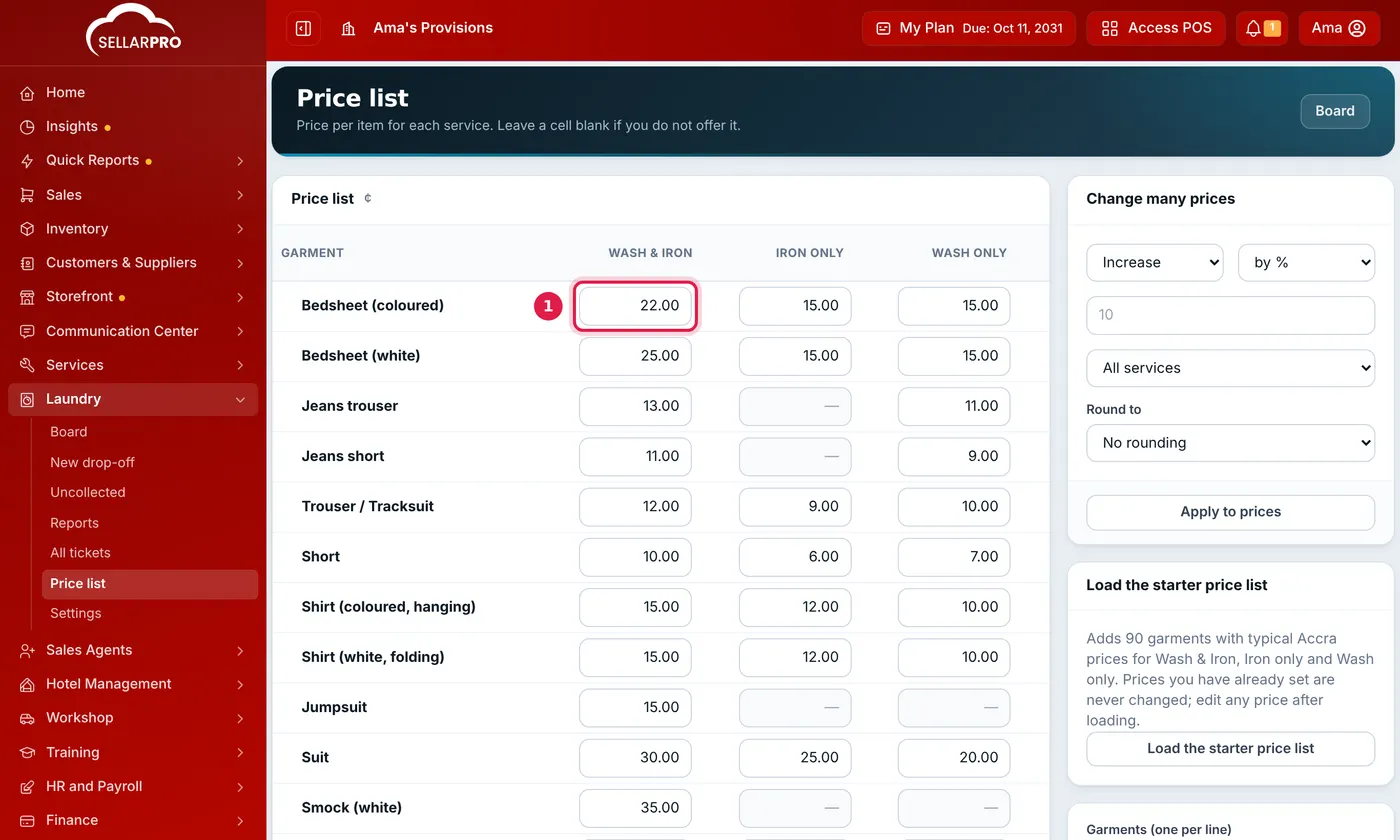
Garments down the side, services across the top. A blank box is not offered. - Click Save prices.
Charge by weight? Add a garment such as "Mixed load (per kg)" with a price per kilo. At the counter, type the kilos (for example 4.5) as the quantity.
Rename a garment or service
Click the name in the grid (a row on the left, or a column heading), type the new name and click Save prices. Its prices follow the new name, and the matching services in your product list are renamed too. Two rows or two columns cannot share a name.
Change many prices at once
- Under Change many prices, choose Increase or Decrease, and by % or by amount.
- Type the value, choose one service or All services, and optionally round to 0.50 or 1.00.
- Click Apply to prices and confirm.
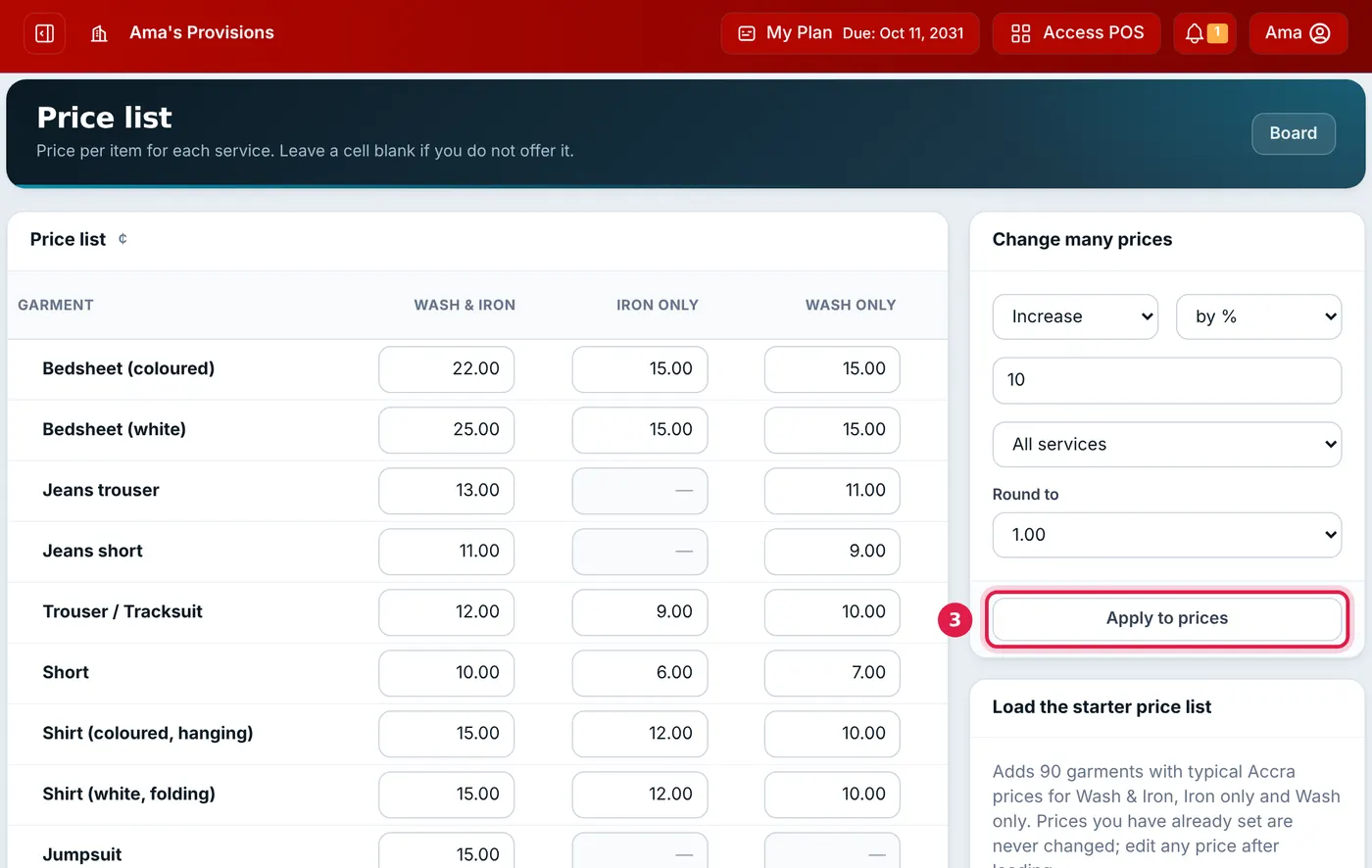
A 10% rise across every service, rounded to the cedi.
Every price change is recorded in the price adjustment log, so you can see who changed what and when.
Common questions
Can I charge a different price for one customer?
Why is a garment on my list but not at the counter?
Does changing a price change old tickets?
Was this article helpful?
Thanks — your answer helps us improve this article.
Still need help?
Can’t find the answer you’re looking for? Our support team in Accra can help.