
All help topics
Help topics
- Getting Started
- Sales & POS
- Products & Inventory
- Purchases & Suppliers
- Customers
- Staff & Permissions
- Reports
- Branches
- Hardware
- Payments
- Settings
- Troubleshooting
- Billing & Subscription
- Workshop
- Training
- Sales Agents
- Laundry
- Accounting
- HR & Payroll
- Hotel
- Services
- Communication Center
- Online Store
- CRM
- Restaurant
- F&B Manager
- Production
- Projects
- Asset Management
- All topics
On this page
How to Transfer Stock Between Branches
Open Inventory → Stock Transfers, add a transfer with the sending and receiving branch and the products, and choose a status. In Transit takes the stock off the sending branch; the receiving branch then approves what actually arrived from Pending Approvals on the same page. Completed moves the stock in one step.
A stock transfer moves products from one branch or warehouse to another, so each location's stock stays correct.
The four statuses
- Pending: the transfer is written up but nothing has moved. Use Dispatch when the goods leave.
- In Transit: the goods have left. Stock is taken off the sending branch, and the receiving branch approves it when it arrives.
- Pending Approval: waiting for the receiving branch to approve.
- Completed: the stock moves out of one branch and into the other at once. Use it when no check at the other end is needed.
Approved, Rejected, Partially approved and Disputed are set by the receiving branch's approval, not chosen by hand.
Steps to send stock
- Open Inventory → Stock Transfers and click Add.
- Choose the location (from) and location (to).
- Search for each product and enter the quantity.
- Choose the status and save.
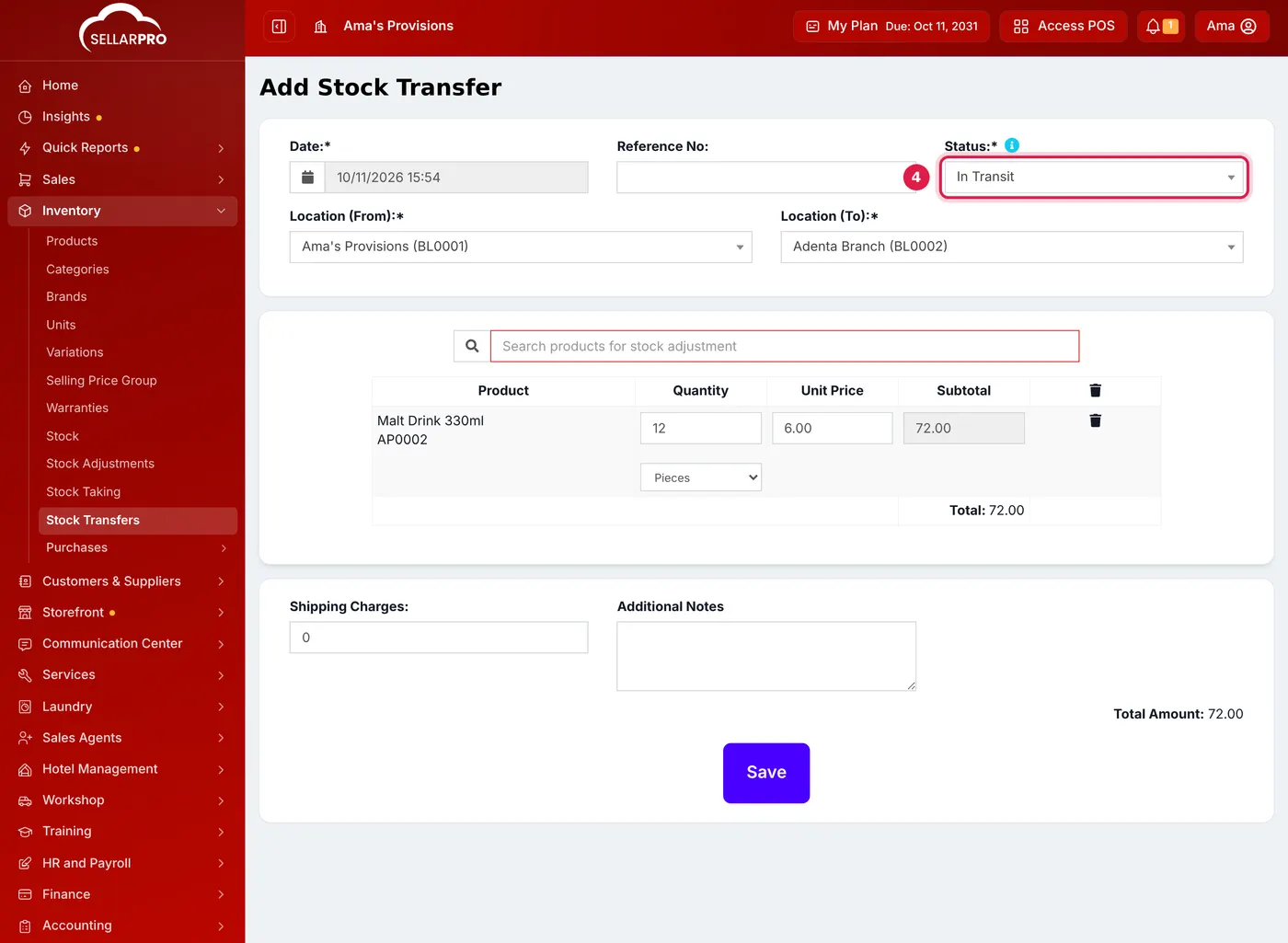
Twelve bottles leaving for the Adenta branch, In Transit until Adenta approves them.
Steps to receive stock
- At the receiving branch, open Inventory → Stock Transfers and click Pending Approvals.
- Open the transfer and enter the Received Quantity for each line, with Receiver Notes if anything was short or damaged.
- Approve it. If less arrived than was sent, the difference is recorded as a variance. Or reject it, and the stock goes back to the sending branch.
Rules that keep stock correct
- A transfer can be edited only until stock has moved. After that, delete it and create a new one.
- Once a transfer has been dispatched, it cannot be set back to Pending.
- A receiving branch cannot record more than was sent.
- Deleting a transfer puts each branch back by what it actually sent and received.
Staff see only their own branches. A user sees and approves only transfers that start or end at a branch they have access to. Users with access to all locations see everything. To give someone a branch, open Access Controls → Users, edit them, and tick the location.
Common problems
"This stock transfer can't be deleted"
Some of the transferred stock has already been sold, adjusted, used or returned at the receiving branch. Transfer the remaining stock back instead.
An approver cannot see a transfer
The transfer is going to a branch they do not have access to. Add that location to their user.
Common questions
When does stock leave the sending branch?
What if fewer items arrive than were sent?
Was this article helpful?
Thanks — your answer helps us improve this article.
Still need help?
Can’t find the answer you’re looking for? Our support team in Accra can help.