
All help topics
Help topics
- Getting Started
- Sales & POS
- Products & Inventory
- Purchases & Suppliers
- Customers
- Staff & Permissions
- Reports
- Branches
- Hardware
- Payments
- Settings
- Troubleshooting
- Billing & Subscription
- Workshop
- Training
- Sales Agents
- Laundry
- Accounting
- HR & Payroll
- Hotel
- Services
- Communication Center
- Online Store
- CRM
- Restaurant
- F&B Manager
- Production
- Projects
- Asset Management
- All topics
On this page
How to Do a Stock Take
Open Inventory → Stock Taking, choose the location, then click Load Products for a full count or use Search Product to count a few items. Enter what you counted in Counted Qty and click Update Stock. Stock goes down where you counted less, and up where you counted more if your business allows it.
A stock take compares what is really on your shelves with what SellarPro thinks is there, and corrects the difference. You can count everything at a location or just a few products.
Before you start
- Decide whether a count may increase stock. By default SellarPro only lowers stock to match a count. To let a higher count raise stock too, turn on Allow stock taking to increase stock in Settings → Business Settings → Product.
- Pause selling the products you are counting if you can, so sales do not happen mid-count.
Steps
- Open Inventory → Stock Taking.
- Choose the location you are counting. Choosing a location does not load anything yet.
- Either:
- click Load Products to list every product at that location, or
- use Search Product to add only the products you are counting, one at a time.
- To narrow a full list, use Filter: With Stock Only or Zero Stock Only. The filter applies to the whole list and to the exported sheet, and keeps the counts you have already typed.
- Prefer paper? Open Stock Count Sheet and choose Print sheet, Download PDF (to print) or Download spreadsheet (CSV). For a blind count, choose Download PDF without system stock, so counters write what is really on the shelf. Count on the printout, then type the figures in.
- Enter each physical count in Counted Qty. The difference and the updated stock are worked out for you.
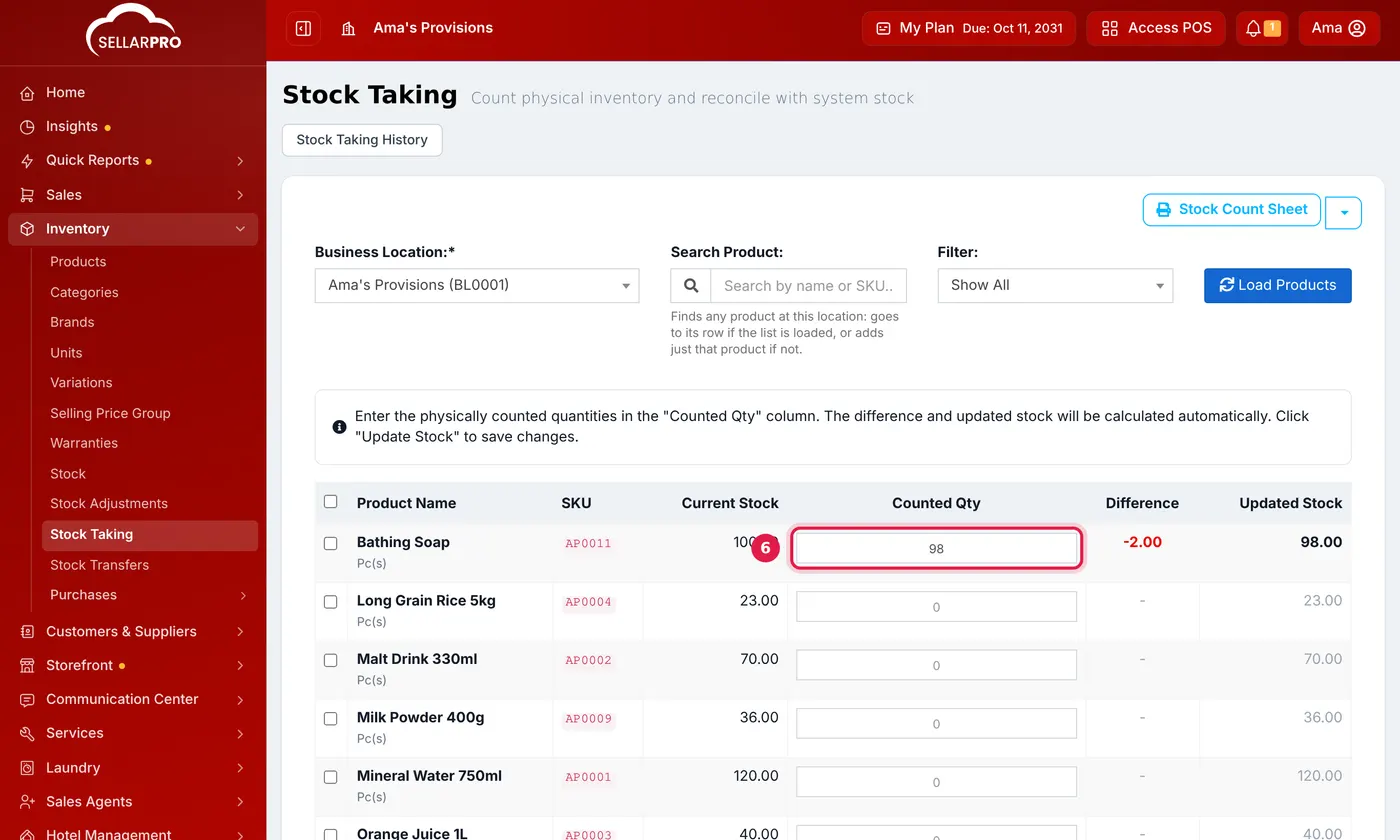
98 counted against 100 on the system: the difference and updated stock fill in as you type. - Click Update Stock.
What happens next
Where you counted less than the system, stock is reduced. Where you counted more, stock is increased if your business allows it. Found stock is brought in at a cost, so fill in Cost if found for any product without a purchase price, or that line is not applied. If it does not, the row says counting higher is switched off and links to the setting, and the save confirmation tells you how many lines will not be applied.
Search Product finds anything. If the full list is loaded, it jumps to the product's row, even if a filter hid it. If not, it adds just that product.
Common problems
I changed location and my counts disappeared
Each count belongs to one location, so changing location clears the sheet. SellarPro asks before clearing anything you have typed.
A higher count did nothing
Your business does not allow stock takes to increase stock. Turn on Allow stock taking to increase stock in Business Settings → Product, or record the extra stock as a purchase.
Common questions
Can I count only a few products?
How often should I do a stock take?
Was this article helpful?
Thanks — your answer helps us improve this article.
Still need help?
Can’t find the answer you’re looking for? Our support team in Accra can help.