
All help topics
Help topics
- Getting Started
- Sales & POS
- Products & Inventory
- Purchases & Suppliers
- Customers
- Staff & Permissions
- Reports
- Branches
- Hardware
- Payments
- Settings
- Troubleshooting
- Billing & Subscription
- Workshop
- Training
- Sales Agents
- Laundry
- Accounting
- HR & Payroll
- Hotel
- Services
- Communication Center
- Online Store
- CRM
- Restaurant
- F&B Manager
- Production
- Projects
- Asset Management
- All topics
On this page
How to Import Each Branch's Opening Stock with Smart Import
Import one spreadsheet per branch with Smart Import. Choose the branch as the Location for opening stock, and choose whether to add the file's quantities to what the branch holds or set the branch's stock to the file. Products that already exist from another branch receive this branch's quantity and price.
When you move several branches onto SellarPro, each branch usually has its own stock sheet. Smart Import loads them one at a time, and never drops a quantity from your file.
Before you start
- Smart Import must be switched on under Settings → Business Settings → Modules. It then appears as Smart Import in the menu.
- Have one Excel or CSV file per branch. It does not need a special layout. Smart Import works out what each column means and shows you before saving anything.
Steps
- Open Smart Import and click New Import.
- Upload the branch's file.
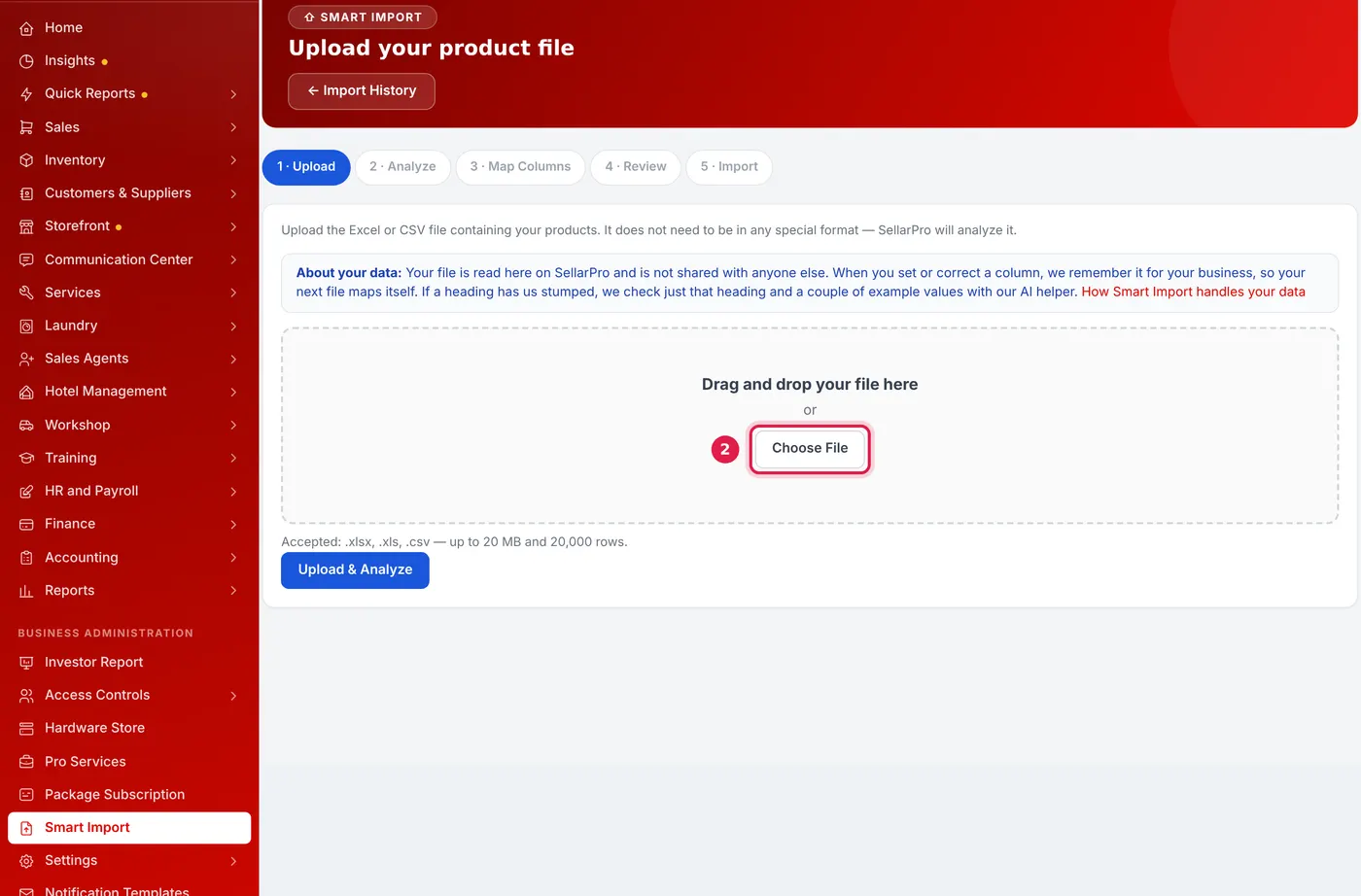
Choose the file, then Upload & Analyze. Nothing is saved until you import on the review screen. - Check the column mapping. Confirm anything marked as a suggestion.
- On the review screen, set Location for opening stock to the branch this file belongs to.
- Choose Stock at the location:
- Add the file's quantities to what the branch already holds. Use this for a branch's first import.
- Set stock to the file: every product the file lists ends up holding exactly the file's quantity at that branch. Use this when the branch already has stock and the file is a fresh count. You can also set to 0 every product at that branch that the file does not list.
- Choose what happens When a product already exists in SellarPro. "Keep it as it is" is recommended.
- Read the review summary, then import.
What happens next
- Products that already exist from another branch's file get this branch's quantity. They are not skipped.
- Each row's selling price is saved as this branch's price, the price its POS sells at, without changing the price your other branches use. The stock report values each branch at its own price.
- Negative quantities from your old system are applied as stock corrections after the positive ones. Anything that would take the branch below zero is reported on its row.
- The results screen compares units in the file with units loaded and shows the stock value loaded, so you can check it against your sheet's total.
Importing the same file twice? Smart Import recognises it and names the earlier import. Choose Update prices only to refresh prices without loading any stock, or import again only if these really are new counts.
Undoing an import
Open the import in Import History and choose Reverse Import. Products are reversed one by one. A product that has since been sold, bought or adjusted is kept as it is, and you can reverse the rest later.
Common problems
Two rows with the same name became two products
Rows are only treated as the same product when their unit, category, brand and code agree. The review screen lists every such decision before you import.
Stock went in at zero value
The row had a quantity but no cost. The review screen flags these rows. Add the cost to the file, or edit the product afterwards.
Common questions
Will importing branch two's file change branch one's prices?
Can I import a category path?
Was this article helpful?
Thanks — your answer helps us improve this article.
Still need help?
Can’t find the answer you’re looking for? Our support team in Accra can help.