
All help topics
Help topics
- Getting Started
- Sales & POS
- Products & Inventory
- Purchases & Suppliers
- Customers
- Staff & Permissions
- Reports
- Branches
- Hardware
- Payments
- Settings
- Troubleshooting
- Billing & Subscription
- Workshop
- Training
- Sales Agents
- Laundry
- Accounting
- HR & Payroll
- Hotel
- Services
- Communication Center
- Online Store
- CRM
- Restaurant
- F&B Manager
- Production
- Projects
- Asset Management
- Device Repair
- Bookings & appointments
- Set up for your industry
- All topics
On this page
How to Track Repairs on the Repair Board
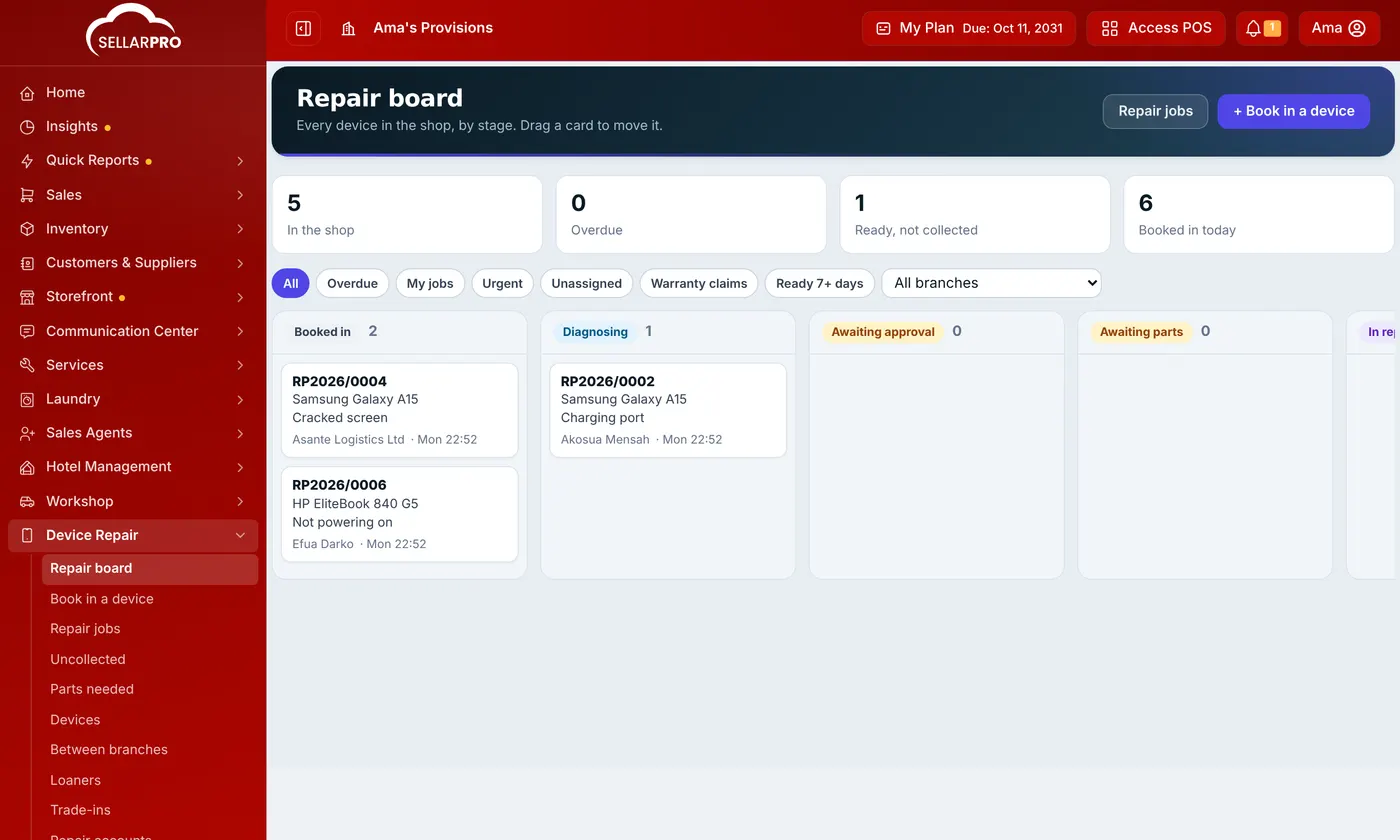
Device Repair → Repair board shows every device in the shop by stage, from Booked in to Ready. Drag a card to move it, filter by overdue, mine, urgent or unassigned, and keep a work log on each job.
The board is the bench's to-do list. Each column is a stage: Booked in, Diagnosing, Awaiting approval, Awaiting parts, In repair, At outside lab, Quality check and Ready. Urgent jobs come first, then the soonest promised.
Move a job
Drag a card to another column, or open the job and use the buttons under Next step. SellarPro refuses moves that would skip a rule (for example starting work that was never approved) and says why. Moving jobs needs Bench work: diagnose, move jobs, quality check.
Three moves have their own buttons because they have their own rules: quality check (see How to Run a Quality Check), Send to outside lab (record who has it and what they charge; move it back when it returns), and Return unrepaired.
Filters
Use Overdue, My jobs, Urgent, Unassigned, Warranty claims and Ready 7+ days. With several branches, choose one.
Work log
On the job page, type under History and click Add to note what was done or found. Every status change is in the same history with who made it and when.
Common questions
What counts as overdue?
Was this article helpful?
Thanks — your answer helps us improve this article.
Still need help?
Can’t find the answer you’re looking for? Our support team in Accra can help.