
All help topics
Help topics
- Getting Started
- Sales & POS
- Products & Inventory
- Purchases & Suppliers
- Customers
- Staff & Permissions
- Reports
- Branches
- Hardware
- Payments
- Settings
- Troubleshooting
- Billing & Subscription
- Workshop
- Training
- Sales Agents
- Laundry
- Accounting
- HR & Payroll
- Hotel
- Services
- Communication Center
- Online Store
- CRM
- Restaurant
- F&B Manager
- Production
- Projects
- Asset Management
- Device Repair
- Bookings & appointments
- Set up for your industry
- All topics
How to Run a Quality Check on a Repaired Device
Move the job to Quality check and run the same tests as at intake, side by side. Pass sends the device to Ready and texts the customer; a pass is refused while anything that worked at intake fails now.
The quality check runs the intake tests again and shows both results side by side, so "it worked when I brought it" is settled by the record.
- When the repair is done, move the job to Quality check.
- Under Tests: intake and quality check, mark each test in the At QC column.
- Add a note if needed and click Pass: ready for customer or Fail: back to repair.
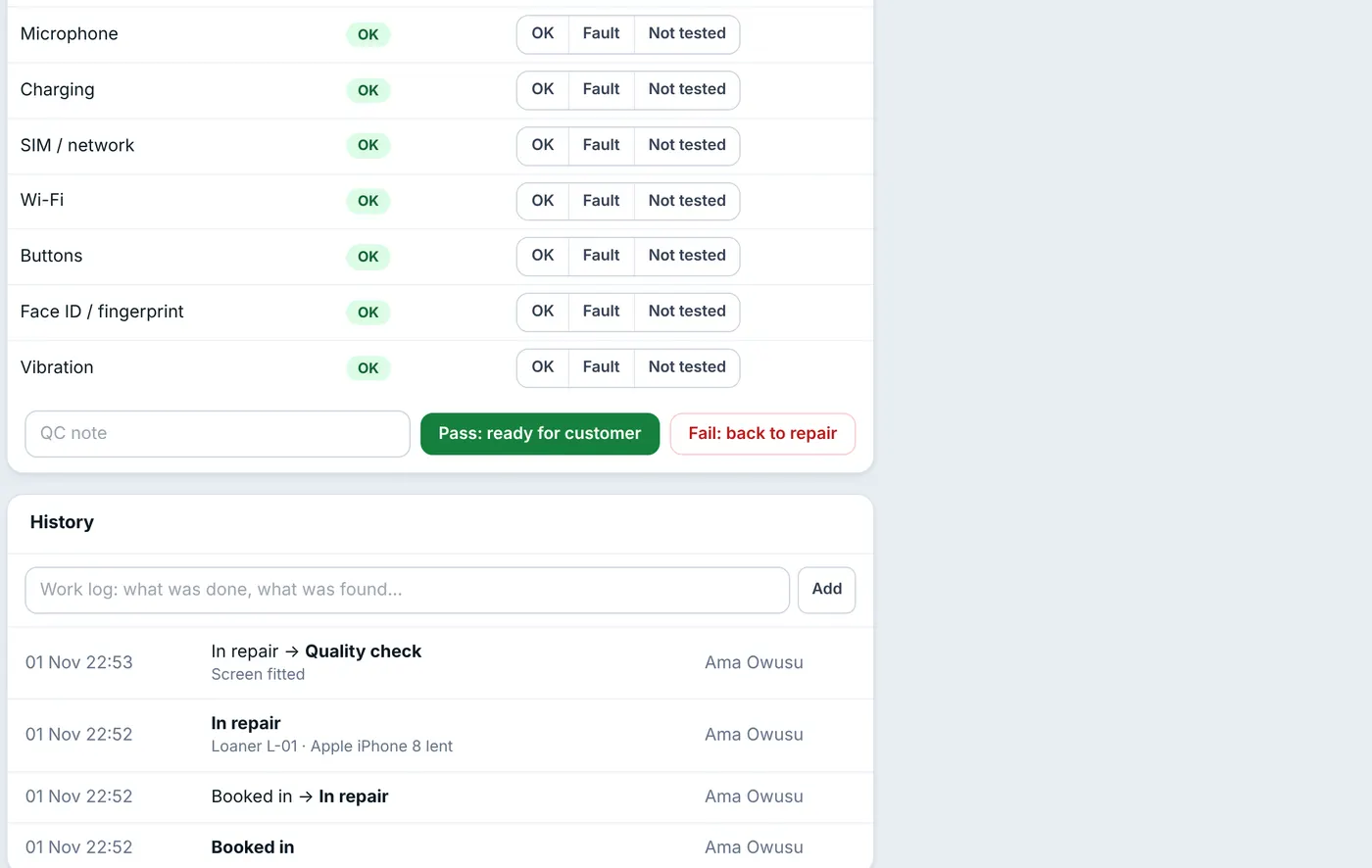
Intake and quality check results side by side.
A pass moves the job to Ready and sends the "Repaired and ready" text. A fail sends it back to In repair.
If a test that was OK at intake is marked Fault at QC, the pass is refused and the test is named. Fix it first, or fail QC. A device can only be Ready after passing QC, unless it is going back unrepaired.
Was this article helpful?
Thanks — your answer helps us improve this article.
Still need help?
Can’t find the answer you’re looking for? Our support team in Accra can help.