
All help topics
Help topics
- Getting Started
- Sales & POS
- Products & Inventory
- Purchases & Suppliers
- Customers
- Staff & Permissions
- Reports
- Branches
- Hardware
- Payments
- Settings
- Troubleshooting
- Billing & Subscription
- Workshop
- Training
- Sales Agents
- Laundry
- Accounting
- HR & Payroll
- Hotel
- Services
- Communication Center
- Online Store
- CRM
- Restaurant
- F&B Manager
- Production
- Projects
- Asset Management
- Device Repair
- Bookings & appointments
- Set up for your industry
- All topics
On this page
How to Book In a Phone, Tablet or Laptop for Repair
Open Device Repair → Book in a device, pick the customer, record the device and IMEI, tick the fault, test what works, count the accessories, note the passcode, quote if you can, take a deposit and print the ticket.
Booking in is where most repair disputes are won or lost. Record what the device is, what is wrong with it, what already does not work, and what came with it, before anyone opens it.
Book a device in
- Open Device Repair → Book in a device.
- Customer: search by name or phone, or click New customer. The walk-in customer cannot be used: a device must go back to a named owner.
- Device: if the customer has been before, their devices appear; tap one. Otherwise choose Phone, Tablet, Laptop or Other, then the Brand and Model (pick from the list or type), the colour and storage.
- IMEI: dial *#06# on the phone and type the number. SellarPro checks the number's check digit and says if it looks wrong. If this handset has been in before, its earlier jobs appear, with any warranty still running. Laptops use the Serial number.
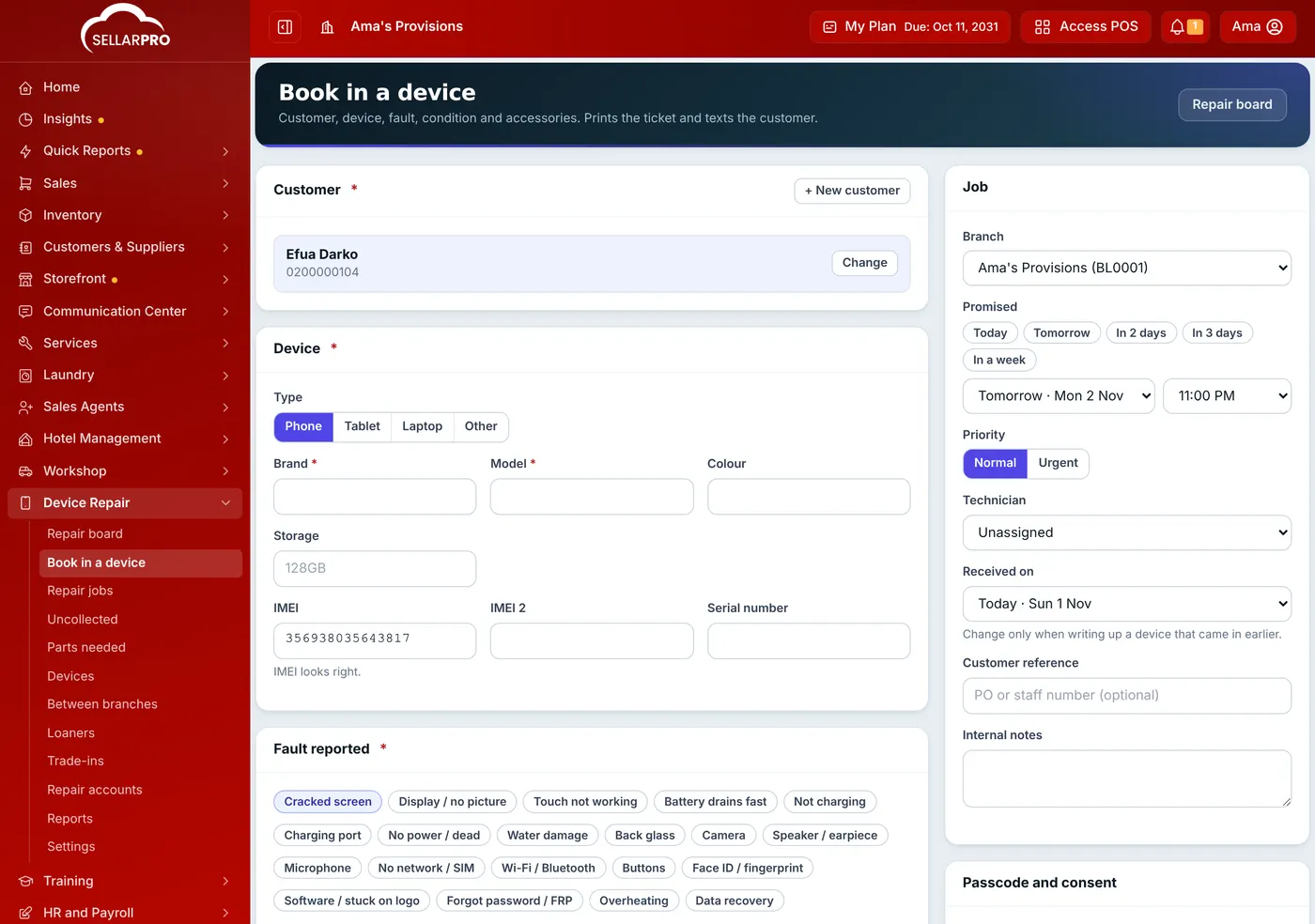
The IMEI is checked as you type. - Fault reported: tap the faults and write what happened in the customer's words.
- Condition and tests: mark each check OK, Fault or Not tested. Use All OK to start from everything working, or Dead / can't test for a device that will not power on. Note scratches and cracks below.
- Accessories received: tap everything handed in (SIM card, case, charger…). They are counted back out at handover.
- Passcode and consent: choose PIN, Password or Pattern (draw the pattern on the dots), record whether the customer backed up their data, and tick that they understand data may be lost and accept your terms.
- Price at the counter (optional): for a repair you can price now, such as a screen, add the part and labour. Tick The customer agreed to this price at the counter if they did.
- Job: set the Promised time, priority and technician.
- Deposit: take any deposit, in one or more payment methods.
- Click Book in and print ticket. Two copies print: the customer's copy with a QR code to track the repair, and the shop copy for their signature. Click Print tag on the job for a sticker to put on the device.
How the passcode is kept
The passcode is stored encrypted. Only staff with See device passcodes can show it (button Show passcode on the job), and every view is logged. It is erased automatically when the device is collected, or when the job is cancelled or closed as abandoned. It is never printed.
A handset last booked in under a different customer is noted in the job's history. Phones change hands, but if the earlier visit was recent, it is worth asking.
Common questions
What if the IMEI fails the check?
Can I book in a device that came in yesterday?
Does the customer get a text?
Was this article helpful?
Thanks — your answer helps us improve this article.
Still need help?
Can’t find the answer you’re looking for? Our support team in Accra can help.