
All help topics
Help topics
- Getting Started
- Sales & POS
- Products & Inventory
- Purchases & Suppliers
- Customers
- Staff & Permissions
- Reports
- Branches
- Hardware
- Payments
- Settings
- Troubleshooting
- Billing & Subscription
- Workshop
- Training
- Sales Agents
- Laundry
- Accounting
- HR & Payroll
- Hotel
- Services
- Communication Center
- Online Store
- CRM
- Restaurant
- F&B Manager
- Production
- Projects
- Asset Management
- All topics
On this page
How to Take Orders on the Restaurant POS
Switch on Restaurant POS and Kitchen under Settings → Menu & Modules. Open Restaurant → Restaurant POS, choose Pickup, Delivery or Dine In, add the items, type any kitchen note, and take payment. Orders with kitchen products go straight to the kitchen and show under Live Kitchen Orders.
The Restaurant POS is a selling screen built for food: each order has a type, a note for the kitchen, and a live view of what the kitchen is working on.
Switch on Restaurant POS and Kitchen (For restaurants) under Settings → Menu & Modules. Then mark the dishes the kitchen prepares: edit each product and tick Kitchen Product.
Steps
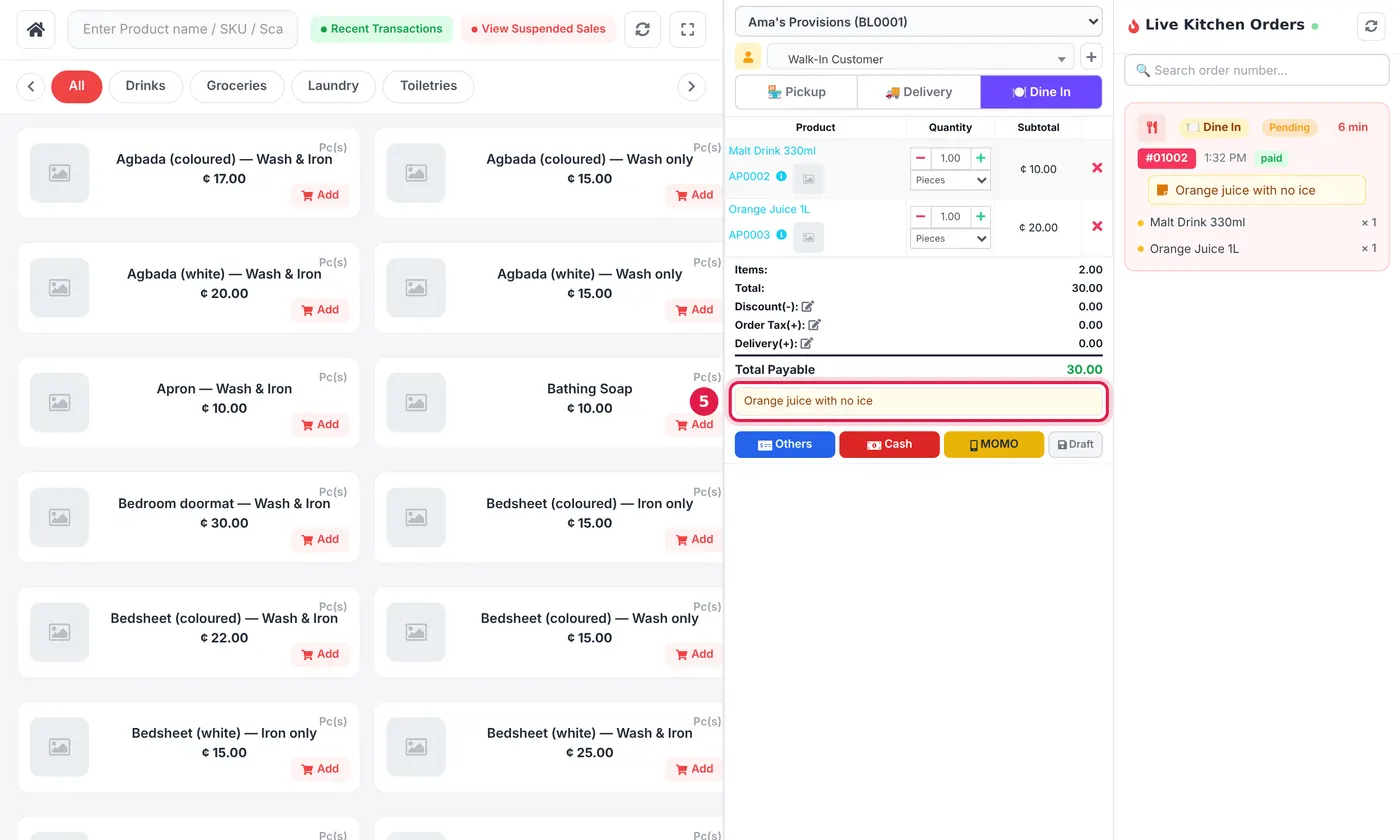
- Open Restaurant → Restaurant POS.
- Choose the order type: Pickup, Delivery or Dine In.
- Choose the customer, or leave Walk-In Customer.
- Tap the dishes on the left, or search for them, to add them.
- Type anything the kitchen must know in Kitchen note, such as "no pepper".
- Take payment with Cash, MOMO or Others, or save it as a Draft to pay later.
What happens next
An order with any kitchen product goes to the kitchen at once. It appears on the Kitchen Display and in Live Kitchen Orders on the right of the POS, so the counter can see when it is ready. See How to Use the Kitchen Display.
Use Recent Transactions to reprint or check an earlier order, and View Suspended Sales for orders saved to finish later.
Common questions
An order did not reach the kitchen.
Where do I choose the table?
Was this article helpful?
Thanks — your answer helps us improve this article.
Still need help?
Can’t find the answer you’re looking for? Our support team in Accra can help.