
All help topics
Help topics
- Getting Started
- Sales & POS
- Products & Inventory
- Purchases & Suppliers
- Customers
- Staff & Permissions
- Reports
- Branches
- Hardware
- Payments
- Settings
- Troubleshooting
- Billing & Subscription
- Workshop
- Training
- Sales Agents
- Laundry
- Accounting
- HR & Payroll
- Hotel
- Services
- Communication Center
- Online Store
- CRM
- Restaurant
- F&B Manager
- Production
- Projects
- Asset Management
- All topics
How to Set Up Tables and Modifiers
Switch on Tables and Modifiers under Settings → Menu & Modules. Add each table under Restaurant → Tables with its branch and name. Add modifier sets such as Extras or Sides under Restaurant → Modifiers, each with its options and prices, and choose the products they apply to.
Tables
- Switch on Tables under Settings → Menu & Modules.
- Open Restaurant → Tables and click Add.
- Choose the Business Location, type the Table name, such as "Table 4" or "Patio", and a Short Description if you like. Save.
On the standard POS, a table box then appears, so each sale is linked to its table. Tables are also chosen on table bookings.
Modifiers
A modifier is something added to a dish, with or without a price: extra cheese, a side of plantain, no onions.
- Switch on Modifiers under Settings → Menu & Modules.
- Open Restaurant → Modifiers and click Add.
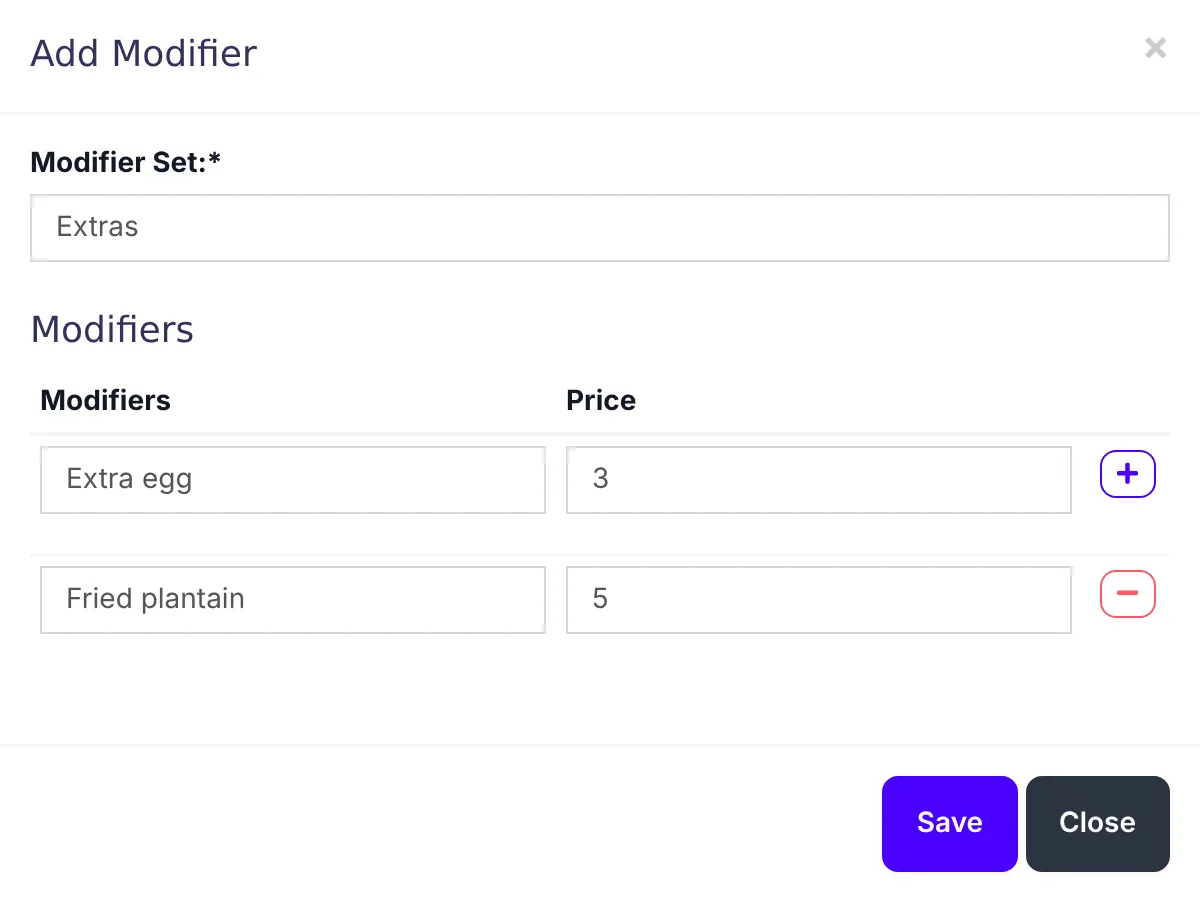
- Name the Modifier Set, such as "Extras".
- Add each option with its price. Use + for more rows. Save.
- In the set's row, click Manage Products and choose the dishes it applies to.
When one of those dishes is added to a sale, the cashier is offered the modifiers, and the price of each one chosen is added.
Was this article helpful?
Thanks — your answer helps us improve this article.
Still need help?
Can’t find the answer you’re looking for? Our support team in Accra can help.