
All help topics
Help topics
- Getting Started
- Sales & POS
- Products & Inventory
- Purchases & Suppliers
- Customers
- Staff & Permissions
- Reports
- Branches
- Hardware
- Payments
- Settings
- Troubleshooting
- Billing & Subscription
- Workshop
- Training
- Sales Agents
- Laundry
- Accounting
- HR & Payroll
- Hotel
- Services
- Communication Center
- Online Store
- CRM
- Restaurant
- F&B Manager
- Production
- Projects
- Asset Management
- All topics
On this page
How to Use the Kitchen Display and Turnaround Report
Open Restaurant → Kitchen Display on a screen in the kitchen. New orders appear on their own with the order type, table, waiter, note and items. Click Start when cooking begins, Done when it is ready and Completed when it has gone out. The TAT Report shows how long orders take.
The Kitchen Display replaces paper tickets. Put it on a screen or tablet in the kitchen.
Steps
- Open Restaurant → Kitchen Display and choose your branch.
- New orders appear on their own, newest last, with how long each has waited. Each card shows the order number, Dine In, Pickup or Delivery, the table and waiter, the kitchen note and every item.
- Click Start when you start cooking. The order moves to Preparing.
- Click Done when it is ready to serve or collect.
- Click Completed once it has left the kitchen.
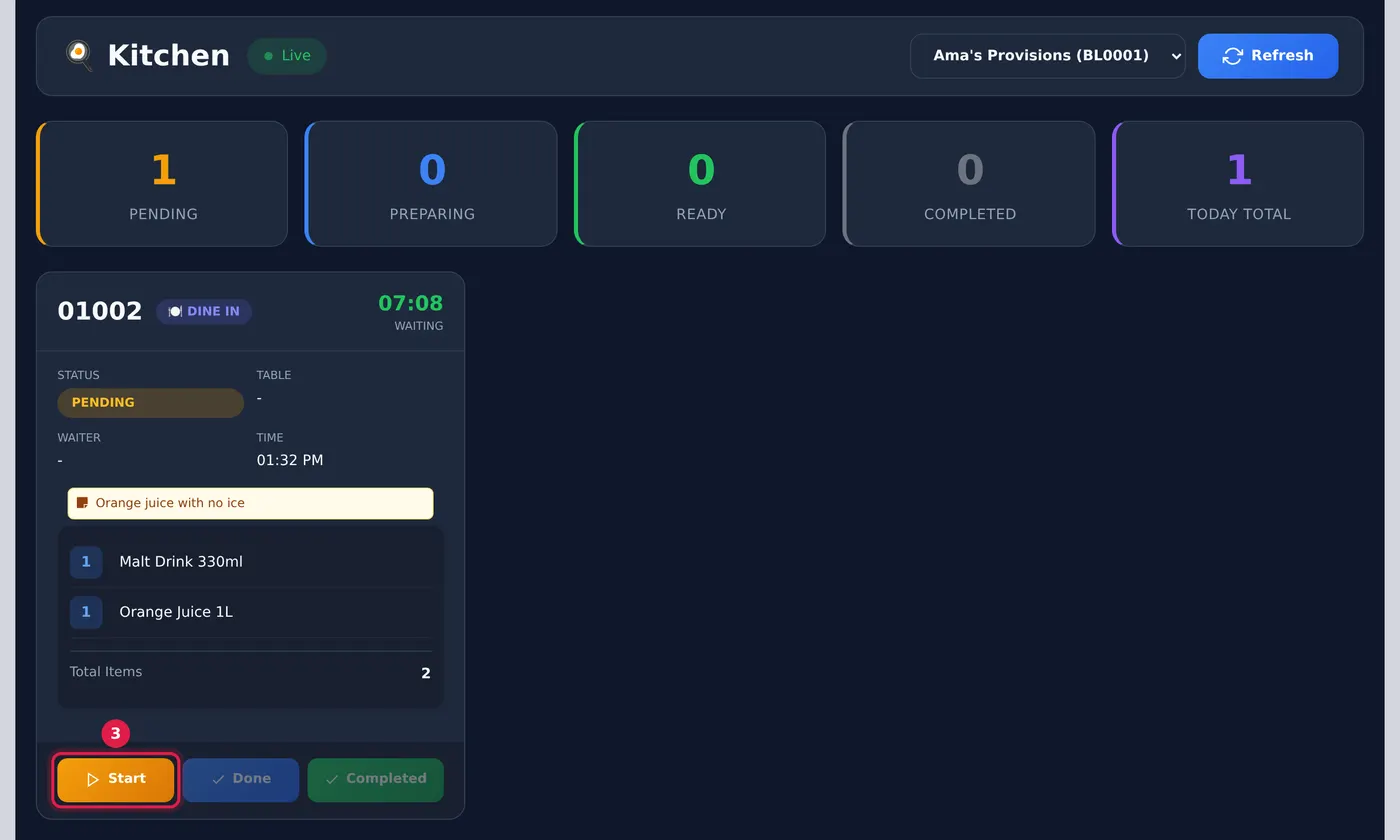
The counts across the top show how many orders are Pending, Preparing, Ready and Completed today. Click Refresh if the screen has been asleep.
How long orders take
Open Restaurant → TAT Report. Choose the period and branch and click Apply Filters. It shows how many kitchen orders were completed, how many are still in the kitchen, the Avg. Total TAT, the Avg. Prep Time and the Slowest Order, with every order listed.
Common questions
Can the customer be told the order is ready?
Was this article helpful?
Thanks — your answer helps us improve this article.
Still need help?
Can’t find the answer you’re looking for? Our support team in Accra can help.