
All help topics
Help topics
- Getting Started
- Sales & POS
- Products & Inventory
- Purchases & Suppliers
- Customers
- Staff & Permissions
- Reports
- Branches
- Hardware
- Payments
- Settings
- Troubleshooting
- Billing & Subscription
- Workshop
- Training
- Sales Agents
- Laundry
- Accounting
- HR & Payroll
- Hotel
- Services
- Communication Center
- Online Store
- CRM
- Restaurant
- F&B Manager
- Production
- Projects
- Asset Management
- All topics
On this page
How to Set Up Sales Agents and Pay Commission
Add your agents under Sales Agents → Agents, then set how they earn under Commission rules: a percentage, a fixed amount, a tiered rate or a share of margin. Commission is calculated on every sale credited to an agent. Approve it under Commissions and pay it under Payouts.
Sales Agents works out what each of your salespeople has earned, lets you check it, and records the payment. It suits shop staff on commission, freelancers and distributors' field reps alike.
Before you start
- Sales Agents is part of selected plans. If Sales Agents is not in your menu, contact us and we will switch it on.
- Already using the old Sales Commission Agents list? Those agents carry over automatically the first time you open Sales Agents → Agents, each with their current percentage as their own rule from that day. Past sales are not recalculated.
Step 1: add your agents
- Open Sales Agents → Agents and click Add agent.
- Under Who is the agent?, choose An existing staff member, or Someone new, with no SellarPro login for a freelancer or rep who never uses the system.
- Choose the Agent type: In-store earns commission on sales credited to them; Field / van also carries stock and sells from it.
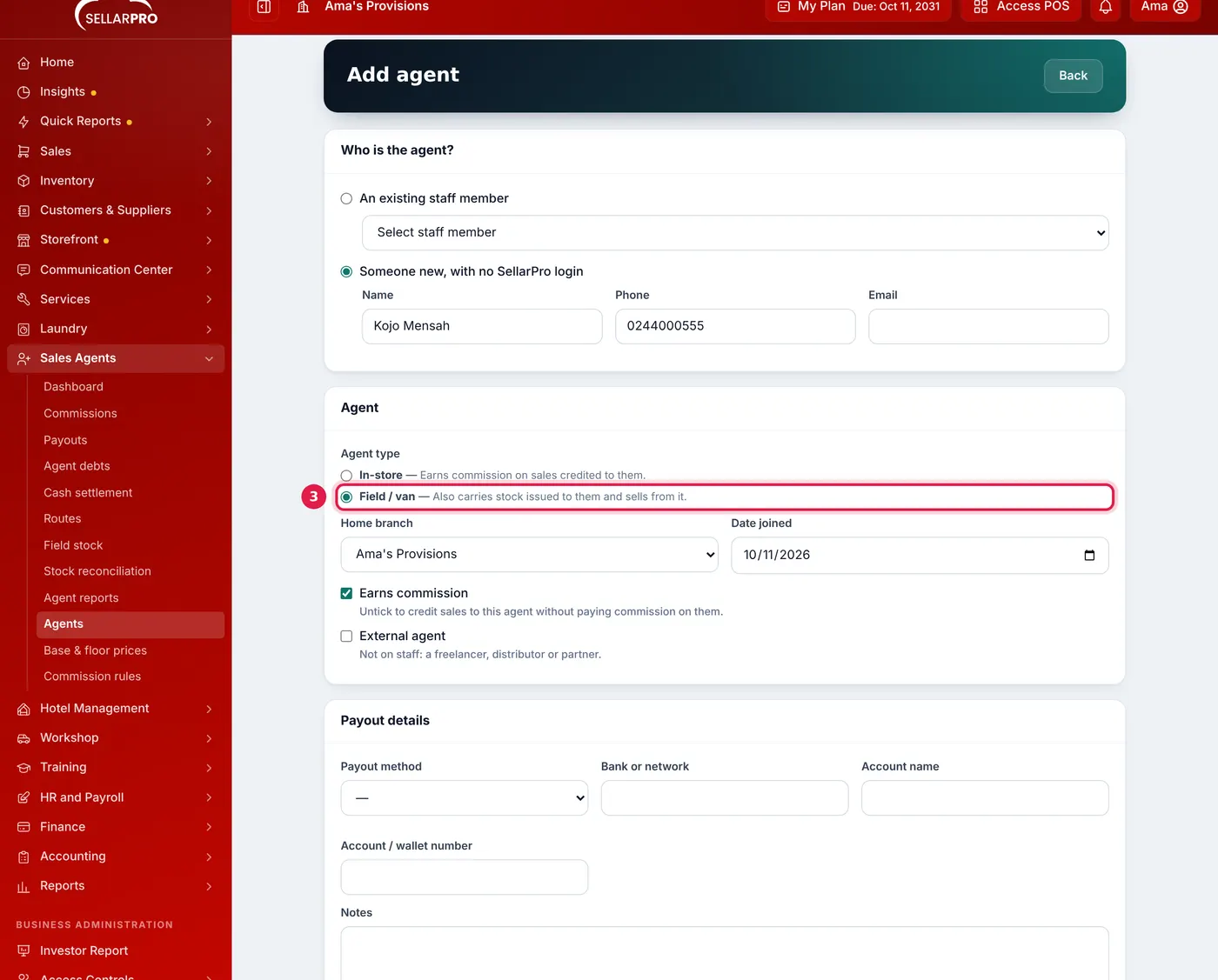
A field agent with no SellarPro login, based at the main branch. - Set the home branch, tick External agent for someone not on your staff, and fill in Payout details (cash, mobile money or bank transfer).
- Save.
Step 2: set the commission rules
- Open Sales Agents → Commission rules and click Add rule.
- Choose the Type:
- Percentage of sale,
- Fixed amount per unit or Fixed amount per sale,
- Tiered (monthly target): each rate applies to the part of the month's sales inside its band,
- Share of margin over base price, for negotiated selling (set base and floor prices under Base & floor prices).
- Choose what it covers (everything, a category or one product) and who (all agents or one).
- Set Applies from and save.
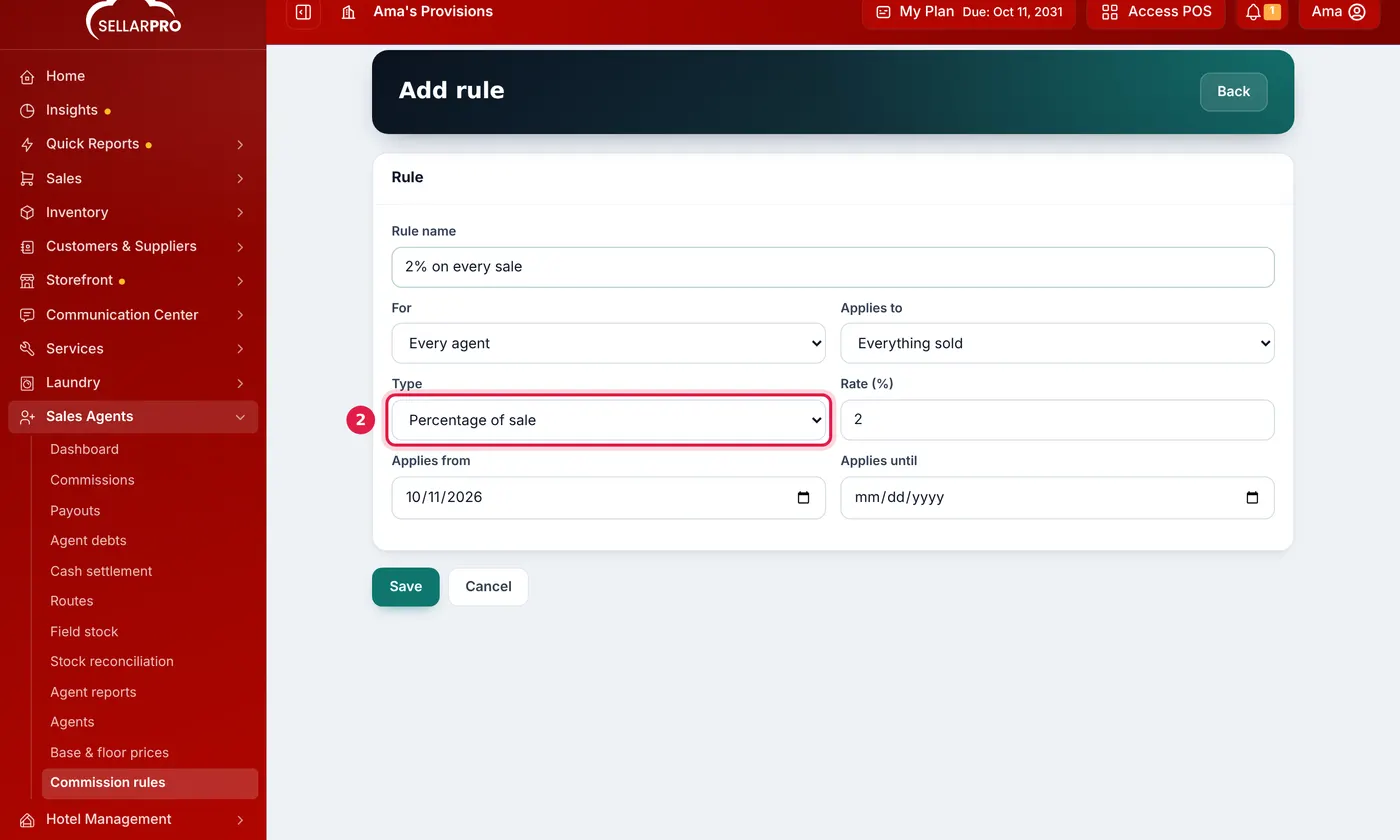
One rule for everyone: 2% of every sale.
When rules overlap, the most specific wins: a product rule, then the deepest category rule, then the default. At the same level, an agent's own rule beats the general one. So a rule like "airtime earns 0%" is never overridden by an agent's personal rate.
Changing a rule never rewrites the past. Use Change terms: the old terms stop the day before the new ones start, and commission already calculated keeps the rule it was worked out with.
Step 3: credit sales to agents
Choose the agent in the commission agent field on the POS or the Add Sale screen. Staff who need to pick an agent need the permission Sales: choose the agent a sale is credited to in Access Controls → Roles. An agent who logs in and sells is credited automatically, and a sale made from a van goes to that van's agent.
Commission is calculated automatically on each sale. It is worked out before tax, after discounts, and leaves out delivery and service charges. A return takes back a matching share.
Step 4: approve
Open Sales Agents → Commissions. Tick the commissions you agree with and click Approve selected, or open one to Reject or Adjust it with a reason.
Step 5: pay
- Open Sales Agents → Payouts.
- Click Pay an agent to pay one agent in full or in part, or Pay several agents to pay everyone's approved commission at once.
- Choose the payment method and click Record payout.
Each payout is also recorded as an expense, so it appears in your profit and loss and payment accounts. Anything the agent owes, such as a van shortage or commission on a sale later refunded, is deducted first.
What agents see
Each agent who logs in has My agent page: their own sales, customers, payments and commission. They never see your rules, rates, base or cost prices, or other agents' figures.
Common problems
A sale has no commission
Check that the sale was credited to an agent, that the agent is Active with Earns commission ticked, and that a rule covers the product on the sale date. A margin rule pays nothing on a product with no base price.
"This agent's van has a count with an unresolved variance"
Field agents cannot be paid while a van count is open. Resolve it under Stock reconciliation first.
Common questions
Can commission be earned only when the customer pays?
Can two agents share one sale?
Do agents need a SellarPro login?
Was this article helpful?
Thanks — your answer helps us improve this article.
Still need help?
Can’t find the answer you’re looking for? Our support team in Accra can help.