
All help topics
Help topics
- Getting Started
- Sales & POS
- Products & Inventory
- Purchases & Suppliers
- Customers
- Staff & Permissions
- Reports
- Branches
- Hardware
- Payments
- Settings
- Troubleshooting
- Billing & Subscription
- Workshop
- Training
- Sales Agents
- Laundry
- Accounting
- HR & Payroll
- Hotel
- Services
- Communication Center
- Online Store
- CRM
- Restaurant
- F&B Manager
- Production
- Projects
- Asset Management
- All topics
On this page
- Before you start
- Step 1: switch on Sale Approvals
- Step 2: give your supervisors the permissions
- What the cashier does
- What the supervisor does
- What happens next
- Common problems
- "The cashier's cash register is closed"
- "You cannot approve a sale you sent for approval yourself"
- The supervisor cannot see Pending Approvals
How to Approve a Cashier's Discount or Credit Sale
Turn on Sale Approvals in Settings → Business Settings → Modules and give your supervisors the approval permissions. A cashier who may not give a discount or sell on credit then sends the sale for approval, and a supervisor approves, edits or denies it under Sales → Pending Approvals.
Many shops do not want every cashier giving discounts or letting customers pay later. Without Sale Approvals, a cashier without those permissions is simply blocked and the customer waits while someone senior takes over the till. With Sale Approvals, the cashier sends the sale to a supervisor and carries on.
Before you start
- You need to be the business owner or an admin to switch modules on and edit roles.
- Decide who your supervisors are. They need a role that you can give the approval permissions to.
Step 1: switch on Sale Approvals
- Open Settings → Business Settings and choose the Modules tab.
- Tick Sale Approvals and save.
Step 2: give your supervisors the permissions
- Open Access Controls → Roles and edit the supervisor's role.
- Tick Approve cashier discounts, Approve cashier credit sales, or both.
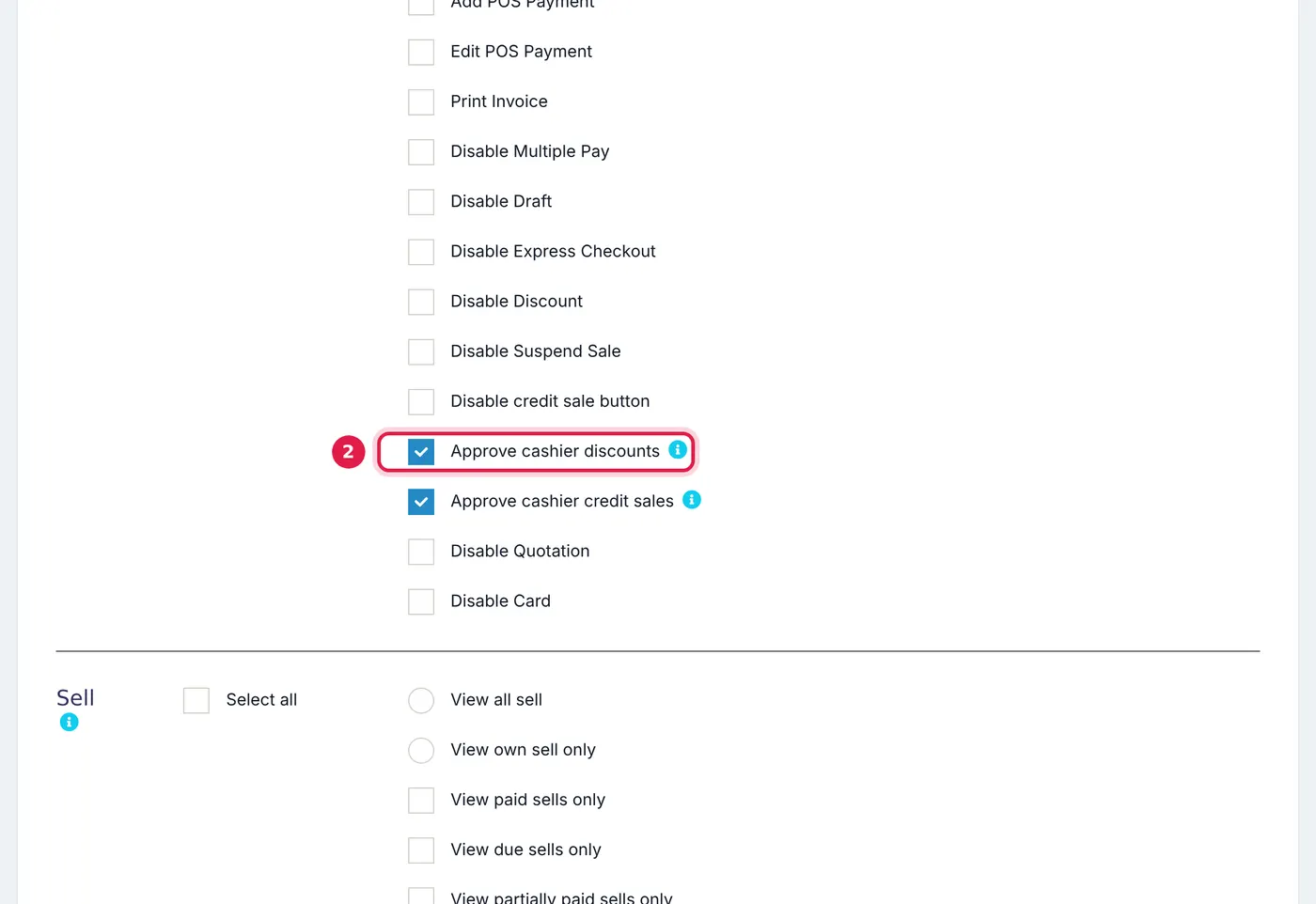
The two approval permissions, in the POS section of the role. - Save. Anyone with that role now sees Pending Approvals under Sales.
What the cashier does
- The cashier rings up the sale on the POS as usual, including the discount or the unpaid balance.
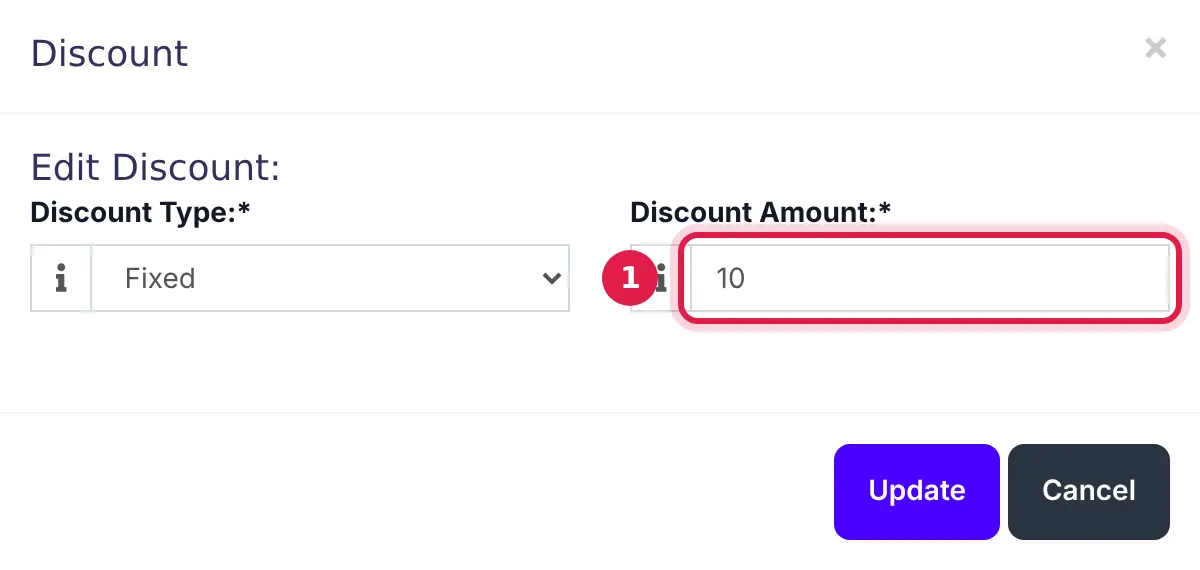
The cashier types the discount as usual. The sale goes to a supervisor instead of being refused. - Instead of the sale being refused, it is sent for approval. The cashier sees Sent to a supervisor for approval. Keep the customer's money until it is approved.
- When the supervisor decides, the cashier is told. If it was approved, the sale is recorded and they hand over the goods and receipt. If it was denied, they return the customer's money.
Nothing is recorded while the sale waits: no sale, no stock leaves, no payment and nothing on the register. A cashier can also Withdraw a request, for example if the customer leaves.
What the supervisor does
- Open Sales → Pending Approvals. The menu shows how many sales are waiting, and a notification arrives with each new one.
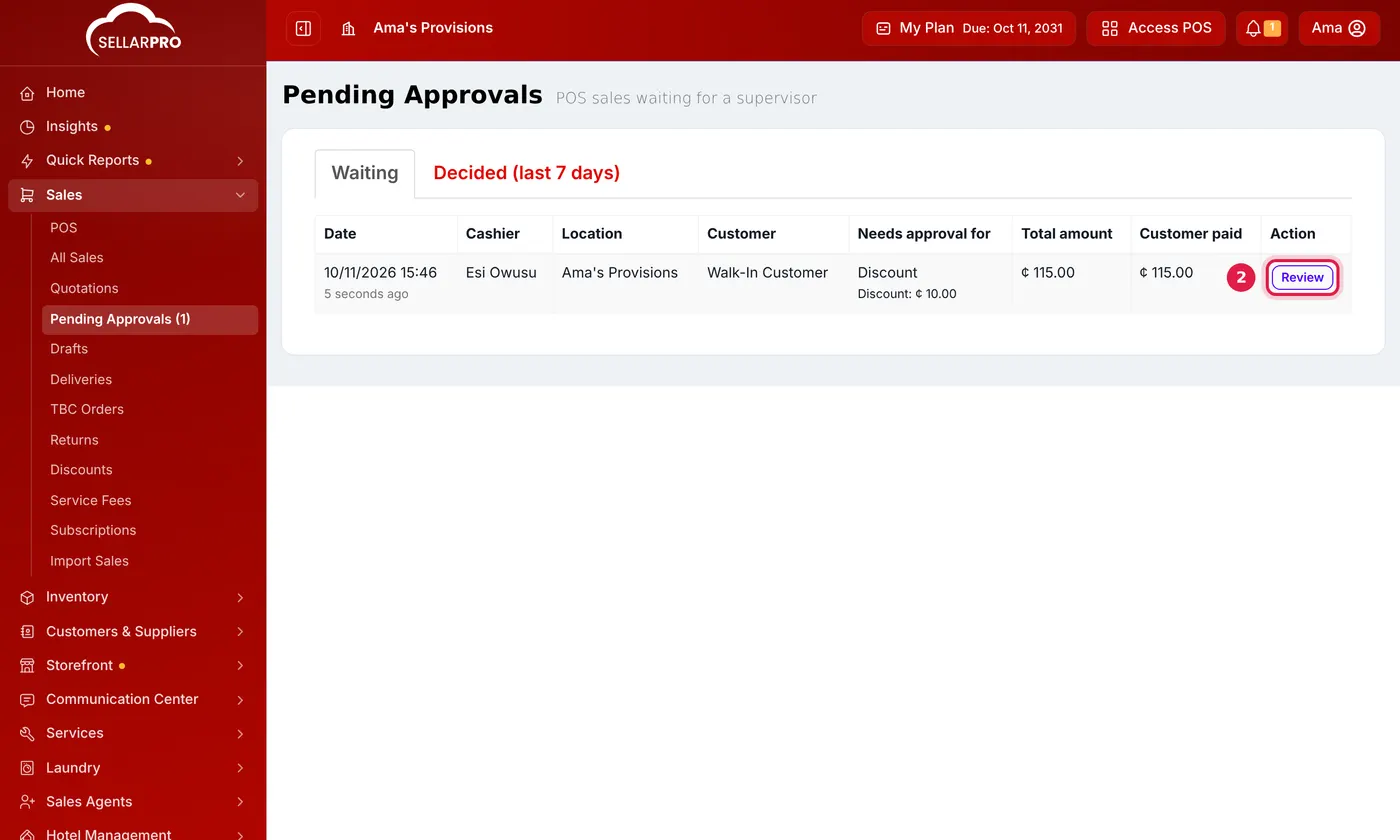
Each waiting sale shows the cashier, what it needs approval for and what the customer paid. - Click Review on the sale. You see the cashier, the items, what the sale needs approval for (a discount, a credit sale or both), what the customer paid and what would be left owing.
- Choose Approve. If you want to change the discount first, tick Change the discounts before approving, adjust them, then approve. The total, change and balance are worked out again.
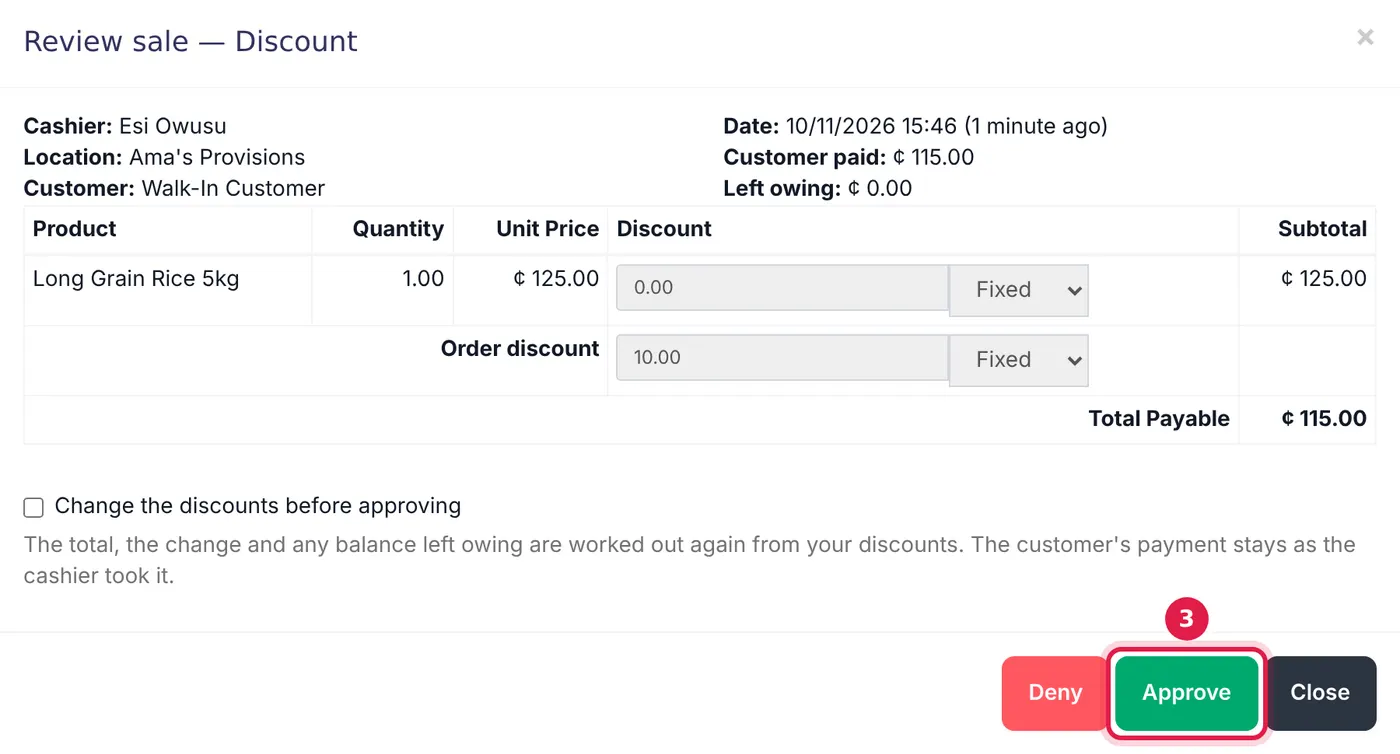
Approve records the sale as the cashier's own. Deny tells the cashier to return the money. - Or choose Deny and, if you like, give the cashier a reason.
What happens next
An approved sale is recorded as the cashier's own sale, on the cashier's cash register, with every normal POS rule applied. It never lands on the supervisor's register. The Decided (last 7 days) tab shows what was approved or denied and by whom.
Your default discount is not affected. The business's default discount and automatic discount rules never need approval. Only discounts the cashier types in themselves do.
Common problems
"The cashier's cash register is closed"
The cashier closed their register before you approved, and the sale takes money. Ask them to open their register again, then approve. A sale that is entirely on credit can still be approved.
"You cannot approve a sale you sent for approval yourself"
Approvals always need a second person. Ask another supervisor.
The supervisor cannot see Pending Approvals
Check that Sale Approvals is ticked under Modules and that their role has at least one of the two approval permissions. They need to log out and in again after a role change.
Common questions
Does the cashier have to stay on the sale while it waits?
Can a supervisor approve from their phone?
Does Sale Approvals work on the restaurant POS?
Was this article helpful?
Thanks — your answer helps us improve this article.
Still need help?
Can’t find the answer you’re looking for? Our support team in Accra can help.