
All help topics
Help topics
- Getting Started
- Sales & POS
- Products & Inventory
- Purchases & Suppliers
- Customers
- Staff & Permissions
- Reports
- Branches
- Hardware
- Payments
- Settings
- Troubleshooting
- Billing & Subscription
- Workshop
- Training
- Sales Agents
- Laundry
- Accounting
- HR & Payroll
- Hotel
- Services
- Communication Center
- Online Store
- CRM
- Restaurant
- F&B Manager
- Production
- Projects
- Asset Management
- All topics
On this page
How to Set Up Roles for Laundry Staff
Open Access Controls → Roles, create a role for each kind of laundry job and tick only what that job needs under Laundry. Counter staff take clothes in and hand them back; washers move tickets; riders hand over deliveries; supervisors also edit, delete, discount and see reports.
Business owners can do everything in Laundry. Everyone else gets only what their job needs, through a role. Set roles up once; then each new staff member just gets the right role.
Step 1: create the role
- Open Access Controls → Roles and click Add.
- Name it after the job, for example "Laundry counter".
- Tick the permissions for that job from the list below, and save.
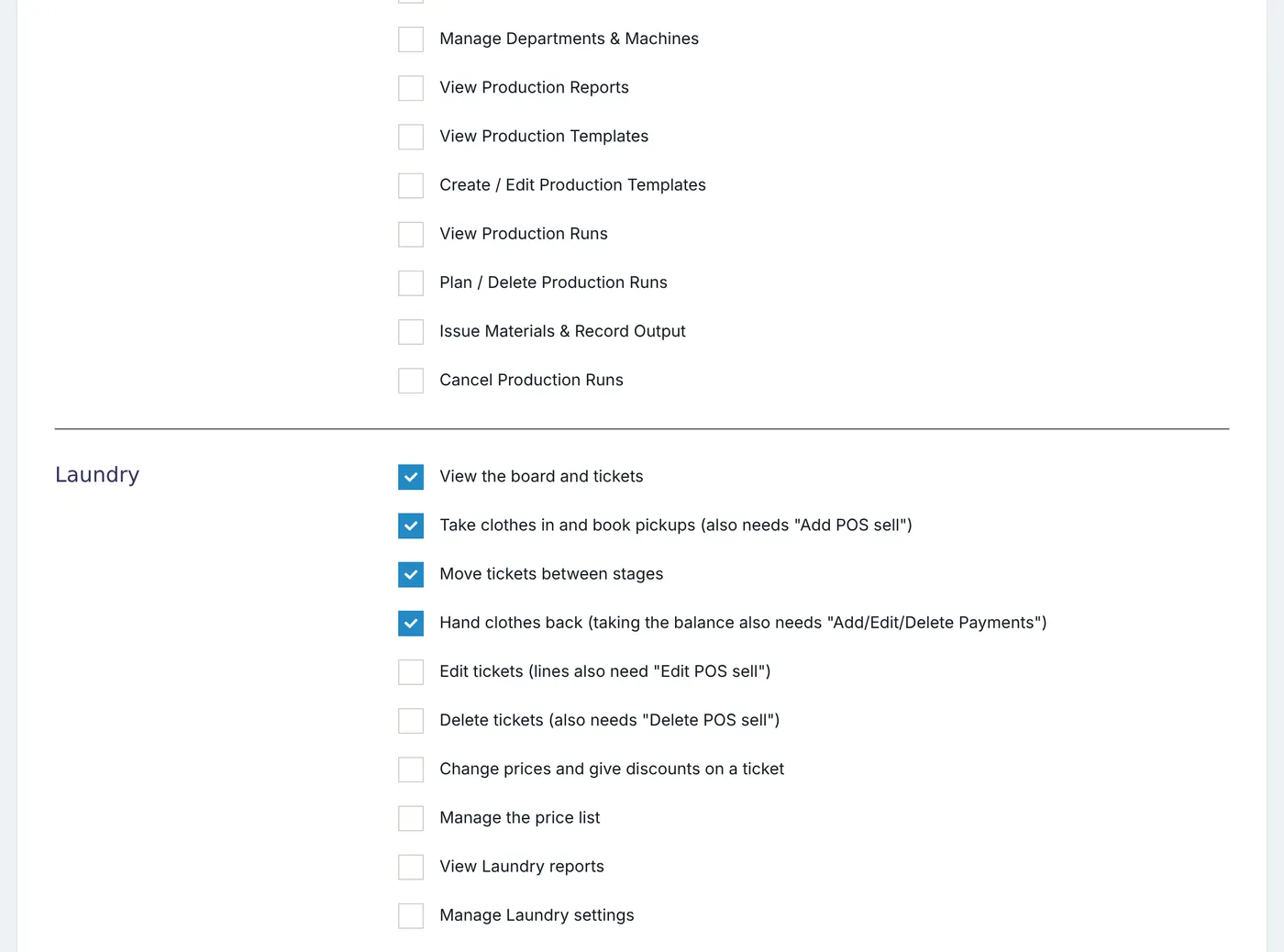
A counter role: view, take in, move and hand back.
Step 2: tick the permissions for each job
Counter staff
Under Laundry: View the board and tickets, Take clothes in and book pickups, Move tickets between stages and Hand clothes back.
Also, in the sales section: Add POS sell (every ticket is a sale) and Add/Edit/Delete Payments (to take a balance at handover). In the customer section: Add customer, to add new customers at the counter.
Washers and ironers
View the board and tickets and Move tickets between stages. Nothing to do with money.
Riders
View the board and tickets, Move tickets between stages (to mark Out for delivery) and Hand clothes back (to confirm delivery). Add Add/Edit/Delete Payments if they collect balances at the door.
Supervisors
Everything the counter has, plus Edit tickets, Delete tickets, Change prices and give discounts on a ticket and View Laundry reports. Editing a ticket's items also needs Edit POS sell, and deleting needs Delete POS sell.
Managers
Everything a supervisor has, plus Manage the price list and Manage Laundry settings.
Step 3: give each person their role
Open Access Controls → Users, edit the staff member and choose the role. Under Access locations, tick the branch they work at, or All Locations. See How to Add a Staff Member.
Keep Change prices and give discounts on a ticket and Delete tickets for people you trust with money. Without them, counter staff charge the price list, give no discounts and cannot remove a ticket.
Common questions
A staff member sees "your role also needs the Add POS sell permission".
Can staff see tickets from other branches?
Was this article helpful?
Thanks — your answer helps us improve this article.
Still need help?
Can’t find the answer you’re looking for? Our support team in Accra can help.