
All help topics
Help topics
- Getting Started
- Sales & POS
- Products & Inventory
- Purchases & Suppliers
- Customers
- Staff & Permissions
- Reports
- Branches
- Hardware
- Payments
- Settings
- Troubleshooting
- Billing & Subscription
- Workshop
- Training
- Sales Agents
- Laundry
- Accounting
- HR & Payroll
- Hotel
- Services
- Communication Center
- Online Store
- CRM
- Restaurant
- F&B Manager
- Production
- Projects
- Asset Management
- Device Repair
- Bookings & appointments
- Set up for your industry
- All topics
How to Set Up Repair Accounts for Companies
Open Device Repair → Repair accounts, choose the customer and set a credit limit, payment terms and an amount to auto-approve up to. Their devices need no deposit, small estimates are approved as they are sent, devices go home on account and a statement shows what they owe.
A company that sends its staff's phones in does not pay at the counter each time. A repair account lets their devices go home on account, within a limit, and gives you a statement to send them.
Open an account
- Open Device Repair → Repair accounts.
- Find the company in the customer box (or add it).
- Set the Credit limit (leave it empty for no limit) and the Payment terms. Both are saved on the customer, so every sale and the customer screens use the same figures.
- Set Auto-approve up to if the company has agreed to repairs below a certain sum without being asked. Leave it empty to ask every time.
- Tick Every job needs their reference (PO or staff number) if they want it on every invoice, add the contact person and click Open a repair account.
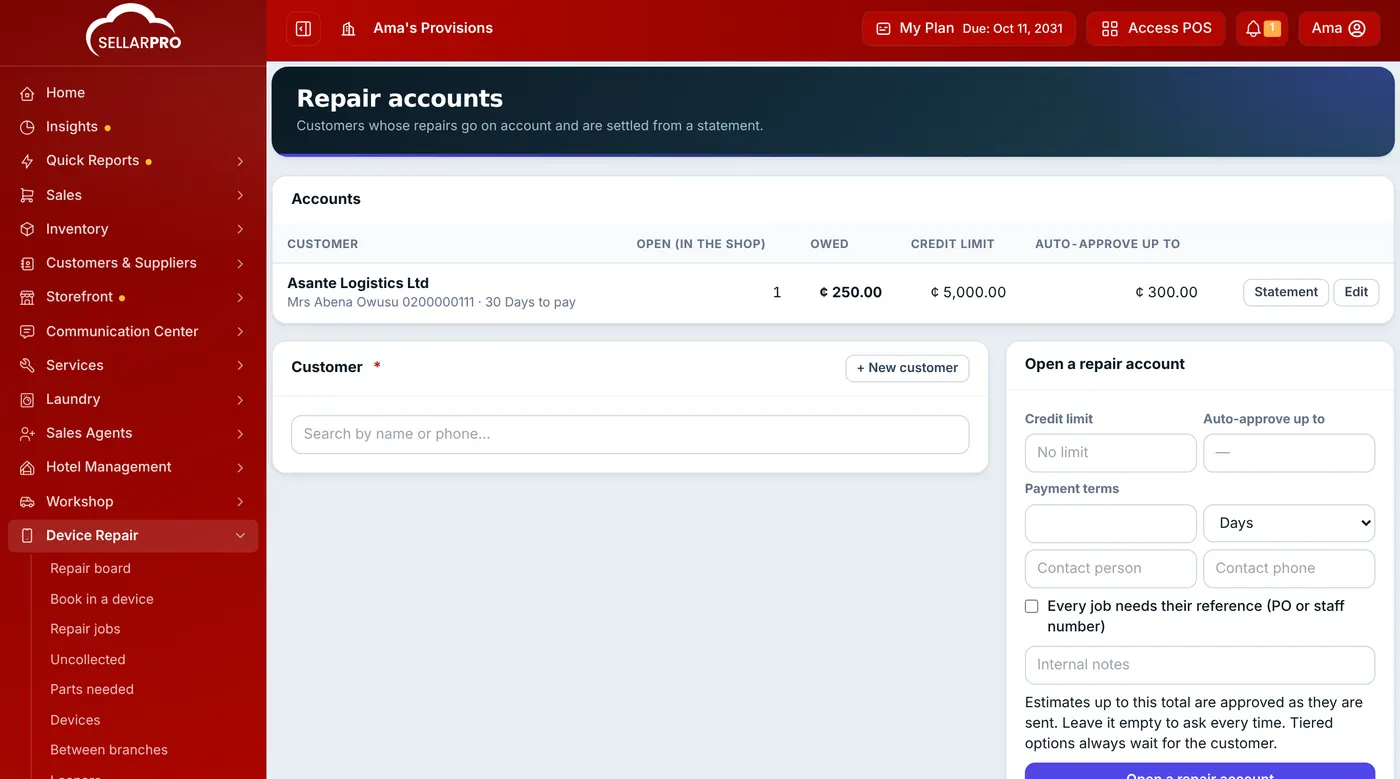
Each account shows what it owes and its open jobs.
What changes for an account customer
- Booking in: the form shows On account and asks no deposit. Enter their Customer reference.
- Estimates: one up to the auto-approve amount is approved as soon as you send it and the job goes to the bench. Larger ones, and tiered options, still wait for the customer.
- Handover: whatever is not paid goes on their account, within their credit limit. Nobody needs the price override right for this.
Send a statement
Click Statement on the account, choose the period and click Print. It lists every repair billed in the period with its reference, device, total, what has been paid and what is owed, plus what was owed before and the devices still in the shop.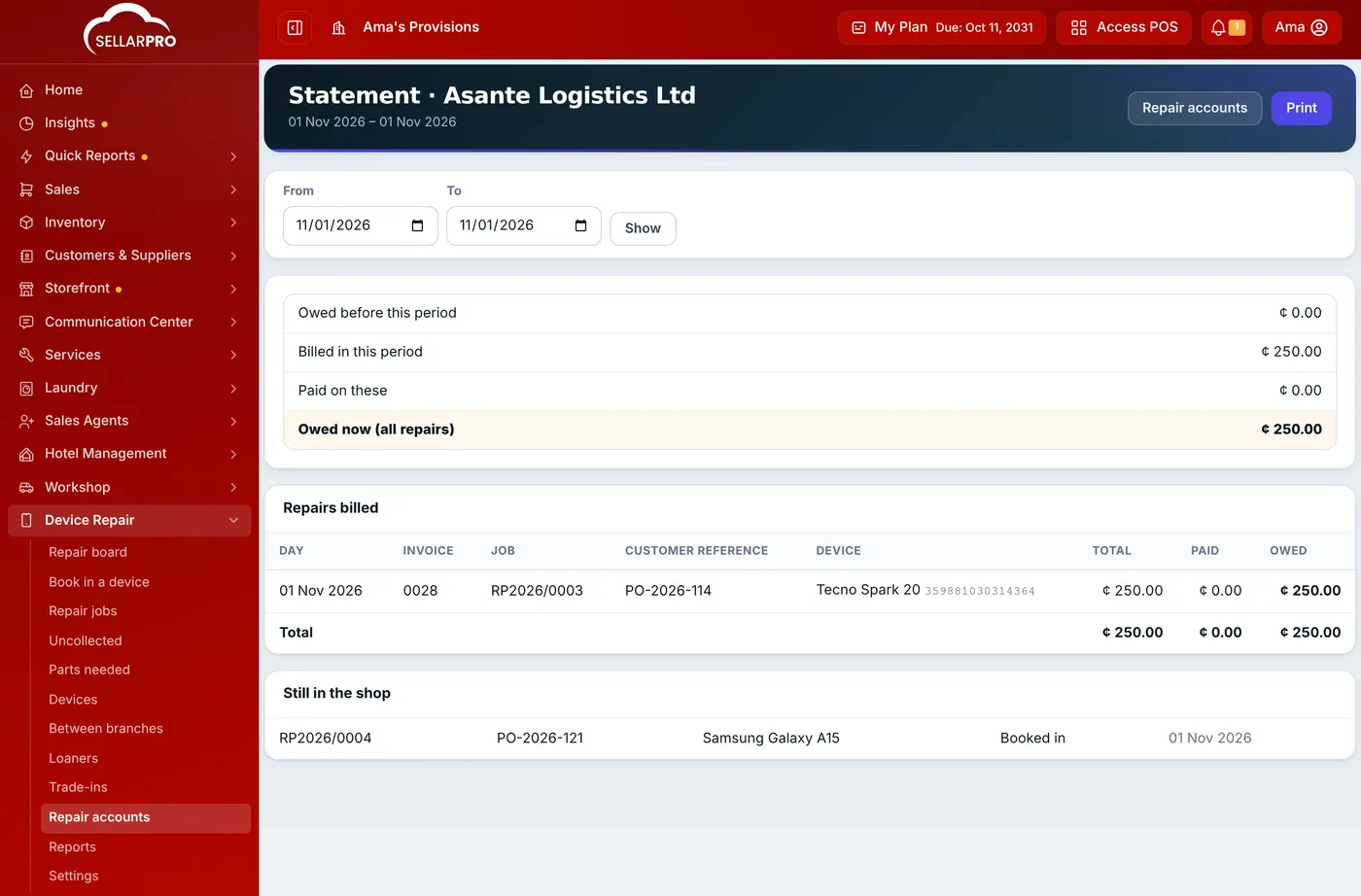
Payments are recorded on the invoices as usual (Sales → the invoice → Add payment), and the statement updates.
Common questions
Can an account go over its credit limit?
Who can open accounts and see statements?
Was this article helpful?
Thanks — your answer helps us improve this article.
Still need help?
Can’t find the answer you’re looking for? Our support team in Accra can help.