
All help topics
Help topics
- Getting Started
- Sales & POS
- Products & Inventory
- Purchases & Suppliers
- Customers
- Staff & Permissions
- Reports
- Branches
- Hardware
- Payments
- Settings
- Troubleshooting
- Billing & Subscription
- Workshop
- Training
- Sales Agents
- Laundry
- Accounting
- HR & Payroll
- Hotel
- Services
- Communication Center
- Online Store
- CRM
- Restaurant
- F&B Manager
- Production
- Projects
- Asset Management
- All topics
On this page
How to Set Up Automatic SMS Alerts
Short answer
Open Communication Center → Settings and choose Automated SMS. Switch on the texts you want: payment receipts and overdue invoice reminders to customers, register open and close alerts and the daily sales summary to you, service invoice links, and restaurant order texts.
Some texts are worth sending every time, without anyone remembering to. Switch them on once.
Steps
- Open Communication Center → Settings and choose the Automated SMS tab.
- Tick the texts you want, and fill in who receives your own alerts.
- Save.
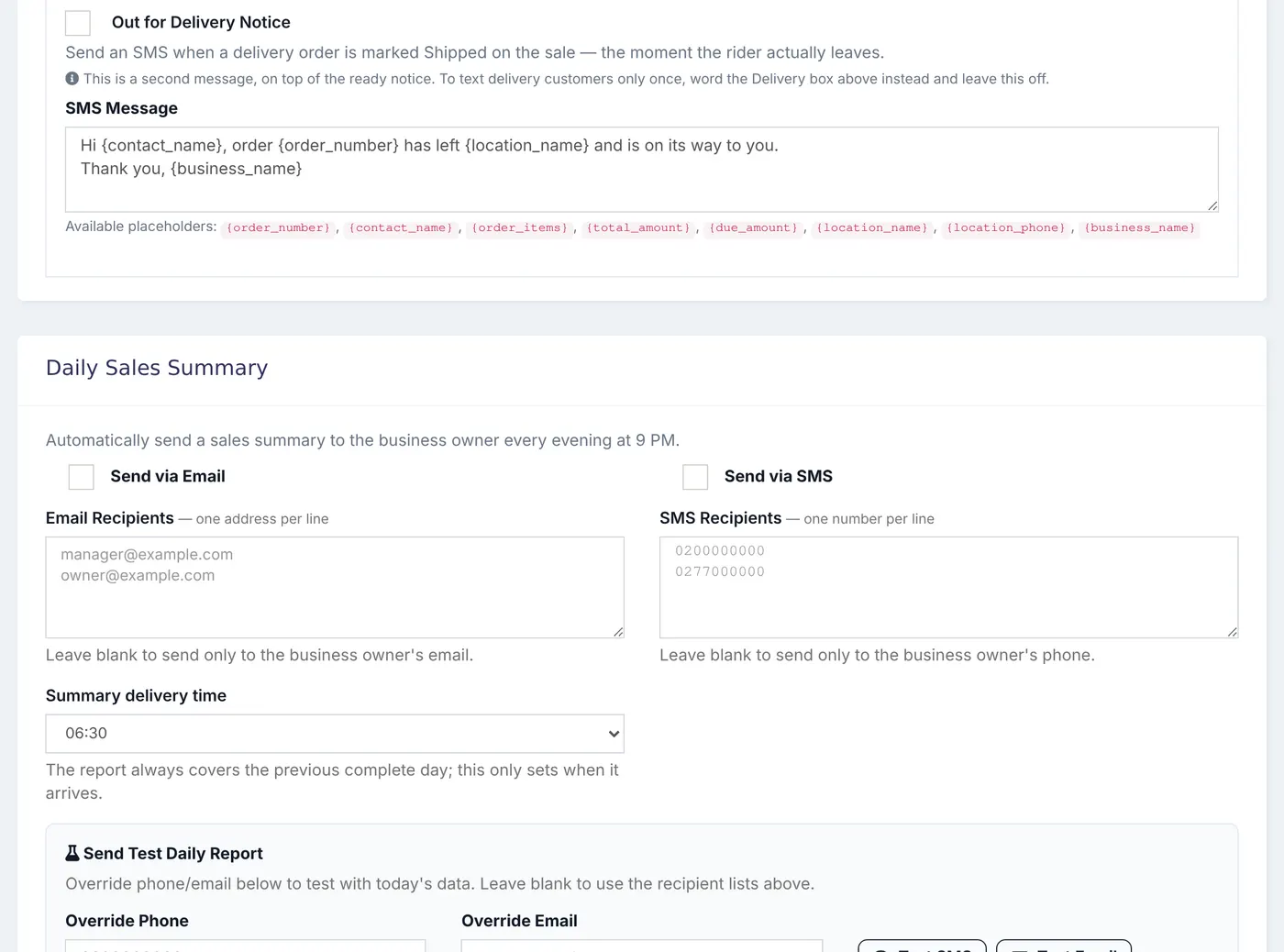
To your customers
- Payment Receipt Notice: sent the moment a payment is recorded against their invoice.
- Overdue Invoice Notice: sent once a day to customers with an overdue invoice who have not been reminded yet.
- Service invoice SMS: a link to view and pay each service invoice when it is raised.
- Restaurant order texts: see How to Text Customers When Their Food Order Is Ready.
To you
- Register Open / Close Alerts: SMS on Register Open and SMS on Register Close text you whenever a staff member opens or closes a register, with the figures.
- Daily Sales Summary: see How to Get a Daily Sales Summary by SMS or Email. Use Send Test Daily Report to see one now.
Each text uses your SMS balance, and a customer needs a mobile number on their record.
Was this article helpful?
Thanks — your answer helps us improve this article.
Still need help?
Can’t find the answer you’re looking for? Our support team in Accra can help.