
All help topics
Help topics
- Getting Started
- Sales & POS
- Products & Inventory
- Purchases & Suppliers
- Customers
- Staff & Permissions
- Reports
- Branches
- Hardware
- Payments
- Settings
- Troubleshooting
- Billing & Subscription
- Workshop
- Training
- Sales Agents
- Laundry
- Accounting
- HR & Payroll
- Hotel
- Services
- Communication Center
- Online Store
- CRM
- Restaurant
- F&B Manager
- Production
- Projects
- Asset Management
- All topics
On this page
How to Set Up Automatic Messages to Customers and Suppliers
Open Notification Templates. For each message, such as New Sale, Payment Received or Payment Reminder, write the email and SMS text using tags like {contact_name} and {total_amount}. Tick Auto Send Email or Auto Send SMS to send it on its own.
SellarPro can message customers and suppliers when something happens: a sale, a payment, a reminder that money is owed, a purchase order. Notification Templates decides what each message says and whether it goes out on its own.
Steps
- Open Notification Templates from the menu.
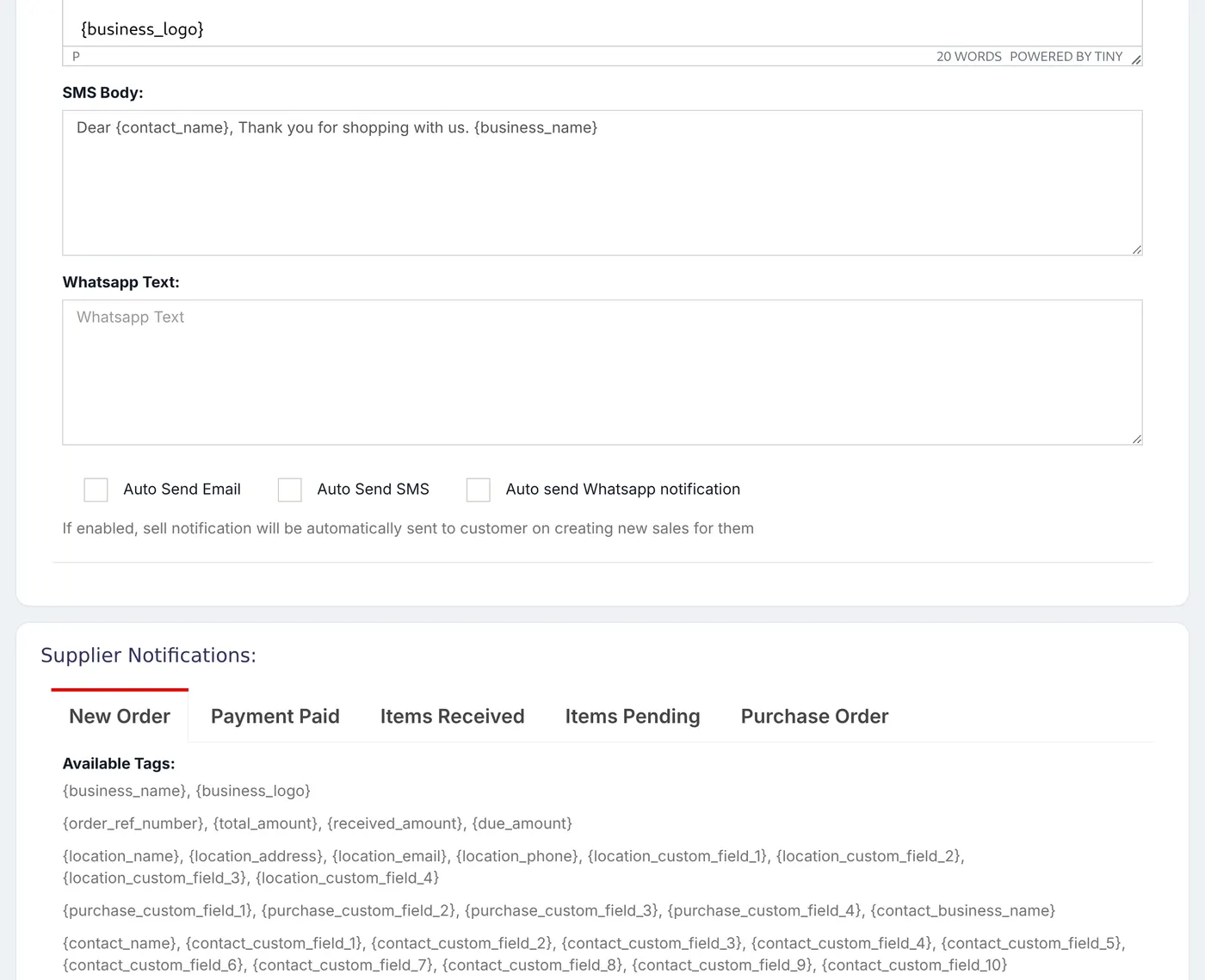
- Choose a message. Customer Notifications: New Sale, Payment Received, Payment Reminder, New Booking and New Quotation. Supplier Notifications: New Order, Payment Paid, Items Received, Items Pending and Purchase Order.
- Write the Email Subject and Email Body, and the SMS Body. Use the Available Tags listed above them, such as {contact_name}, {invoice_number}, {total_amount} and {due_amount}. Each is replaced with the real value when the message is sent.
- Tick Auto Send Email or Auto Send SMS to send it automatically, for example on every new sale to a named customer.
- Save.
Messages that are not sent automatically can still be sent by hand from the sale's actions, for example Send on a sale.
SMS messages use your SMS balance, and a customer needs a mobile number on their record. Keep an SMS short: one SMS is 160 characters.
Common questions
Customers are not getting the SMS.
Was this article helpful?
Thanks — your answer helps us improve this article.
Still need help?
Can’t find the answer you’re looking for? Our support team in Accra can help.