
All help topics
Help topics
- Getting Started
- Sales & POS
- Products & Inventory
- Purchases & Suppliers
- Customers
- Staff & Permissions
- Reports
- Branches
- Hardware
- Payments
- Settings
- Troubleshooting
- Billing & Subscription
- Workshop
- Training
- Sales Agents
- Laundry
- Accounting
- HR & Payroll
- Hotel
- Services
- Communication Center
- Online Store
- CRM
- Restaurant
- F&B Manager
- Production
- Projects
- Asset Management
- All topics
On this page
How to Send Service Invoices and Estimates
Open Services → Invoices and click New Invoice. Choose the customer, add a line for each service, set the due date and click Save Invoice. On the invoice, Send sends it by email, SMS or WhatsApp, Copy Link gives a link the customer can open, and Download pdf saves it. Estimates work the same way.
Raise an invoice
- Open Services → Invoices and click New Invoice.
- Choose the Customer (or add one with +), the Business Location, the Date and the Due Date.
- Under Items & Services, search for each service, or type new work that is not on your list. Choose who Performed by, and set the Quantity and Rate. Click Add line for more, or press Enter on the last line.
- Add Notes / Terms, any Discount, and what was Paid now.
- Click Save Invoice.
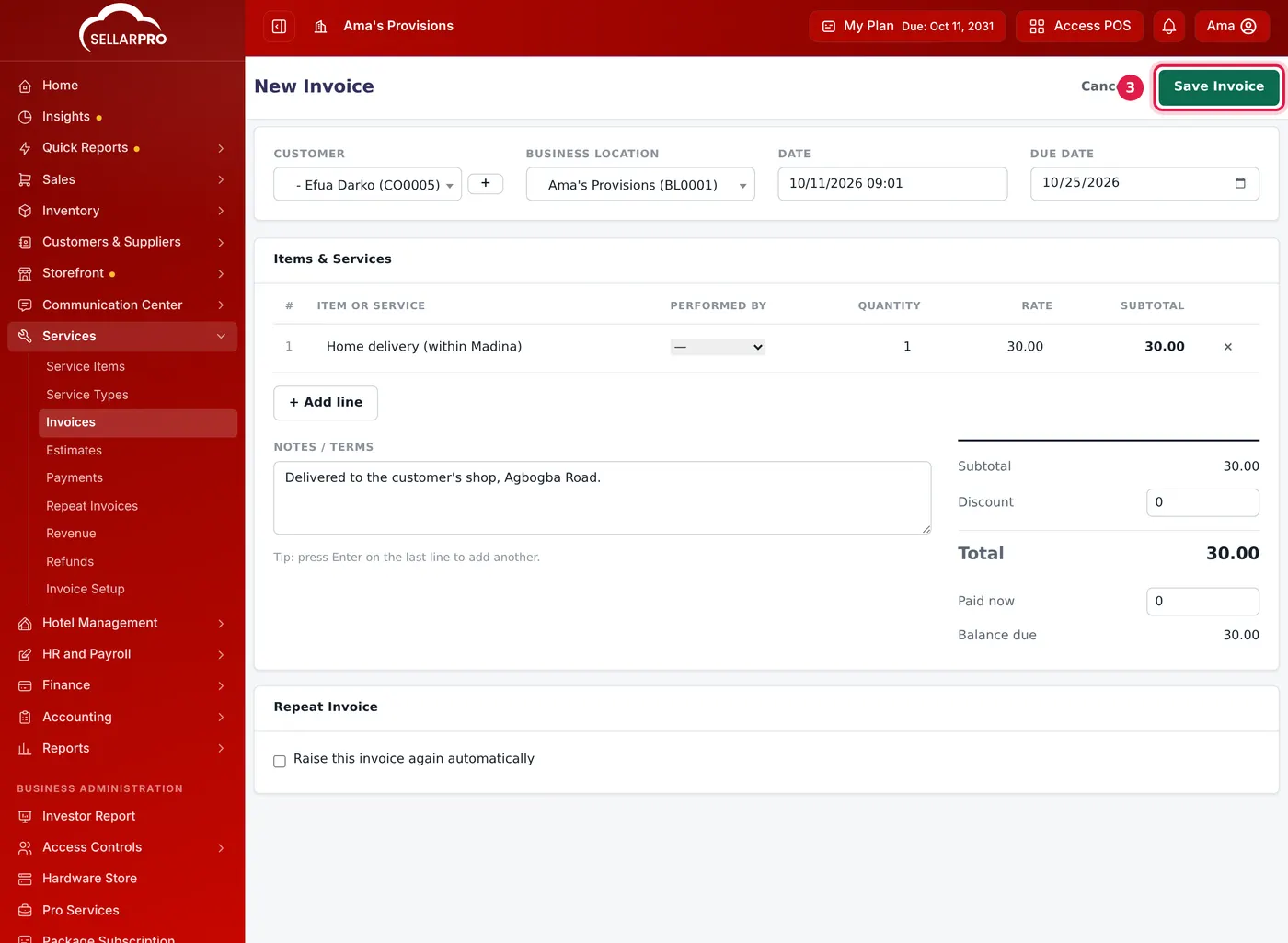
One service line, a due date and the terms the customer will see.
Send it and get paid
On the invoice page: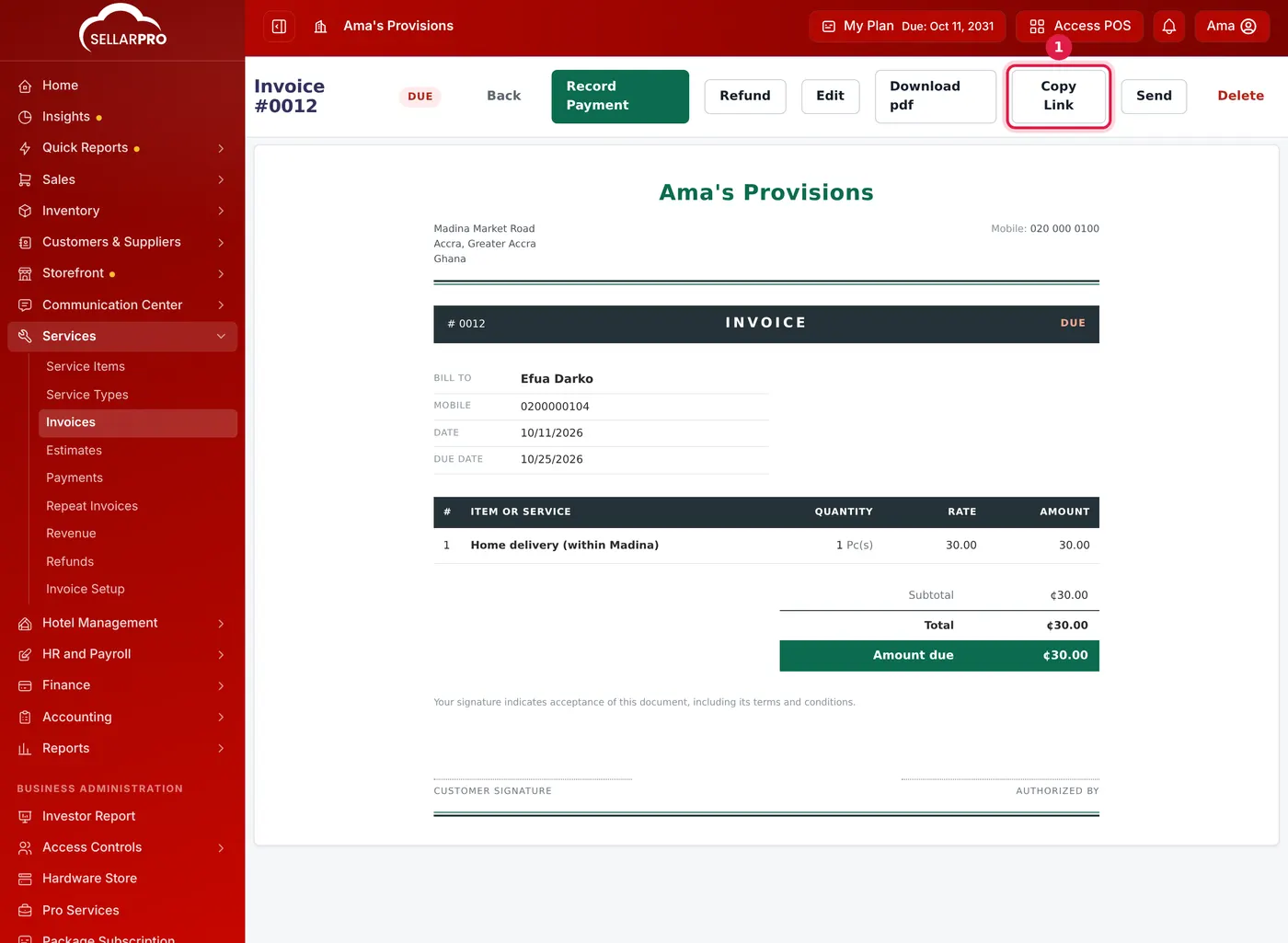
- Send sends it to the customer by Email or SMS, or Open WhatsApp with it ready to send.
- Copy Link copies a link to the invoice that you can paste into WhatsApp or SMS. If your business takes online payments, the customer sees a Pay Online button on it.
- Download pdf saves it to print or attach.
- Record Payment when the customer pays you directly.
The Invoices list shows what is Paid, Outstanding and Past Due for the period you pick.
Estimates
An estimate is a quote: nothing is owed until it becomes an invoice. Open Services → Estimates, click New Estimate, fill it in like an invoice and click Save Estimate. On the estimate, Send it, then track the customer's answer with Mark Sent, Mark Accepted or Mark Declined. When they agree, Convert to invoice turns it into an invoice.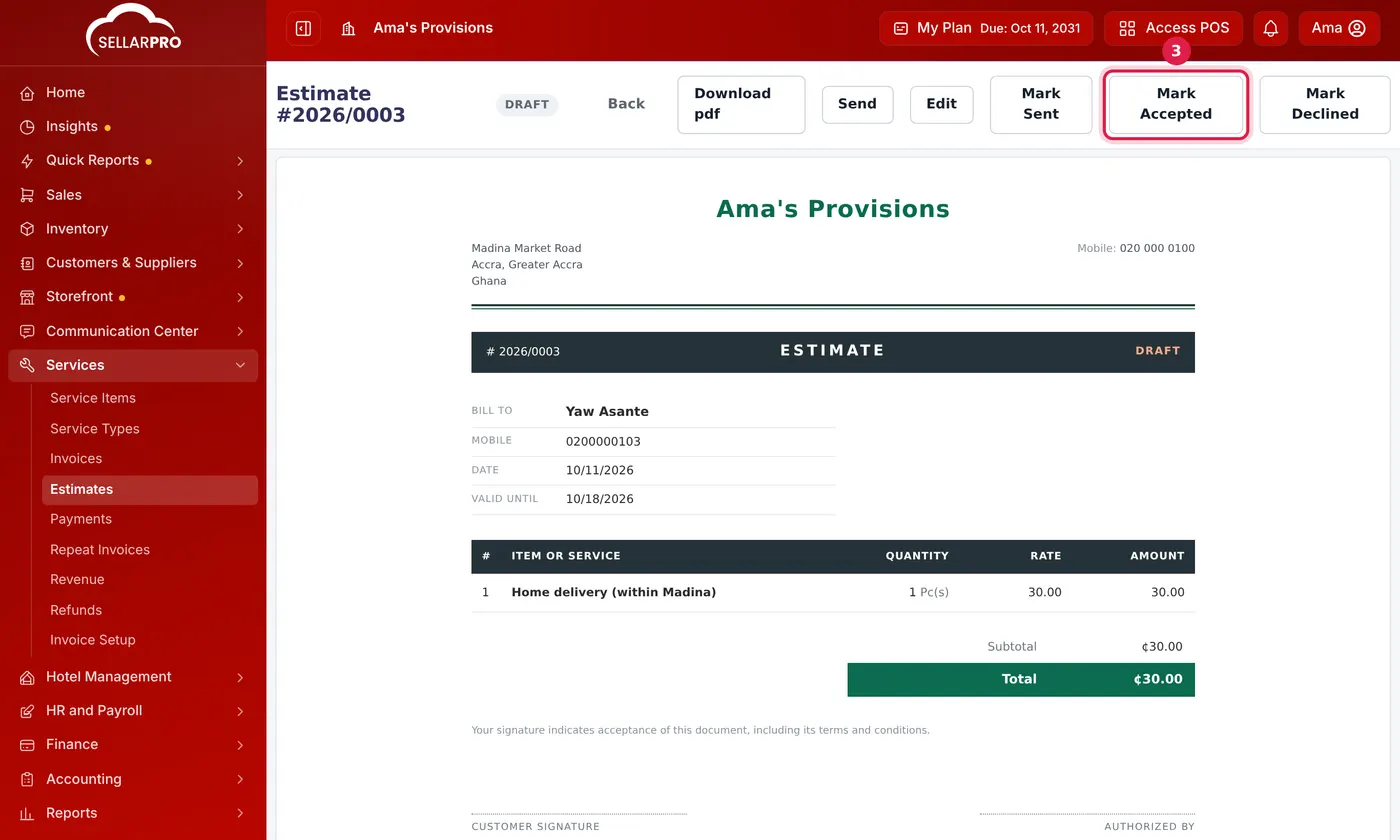
Common questions
Why can I not delete an invoice?
Where do the phone, email and address on the invoice come from?
Was this article helpful?
Thanks — your answer helps us improve this article.
Still need help?
Can’t find the answer you’re looking for? Our support team in Accra can help.