
All help topics
Help topics
- Getting Started
- Sales & POS
- Products & Inventory
- Purchases & Suppliers
- Customers
- Staff & Permissions
- Reports
- Branches
- Hardware
- Payments
- Settings
- Troubleshooting
- Billing & Subscription
- Workshop
- Training
- Sales Agents
- Laundry
- Accounting
- HR & Payroll
- Hotel
- Services
- Communication Center
- Online Store
- CRM
- Restaurant
- F&B Manager
- Production
- Projects
- Asset Management
- All topics
On this page
How to Take Service Payments and Issue Refunds
Short answer
On a service invoice, click Record Payment, enter the Amount, Payment Method and date, and save. To refund, click Refund, enter the Refund Qty for each line and click Issue Credit Note; then record the payout to the customer separately.
Record a payment
- Open the invoice (from Services → Invoices) and click Record Payment.
- Enter the Amount. The Balance due is shown underneath; a part payment is fine.
- Choose the Payment Method and Date. For mobile money or a bank transfer, put the reference in Transaction No.
- Click Record Payment.
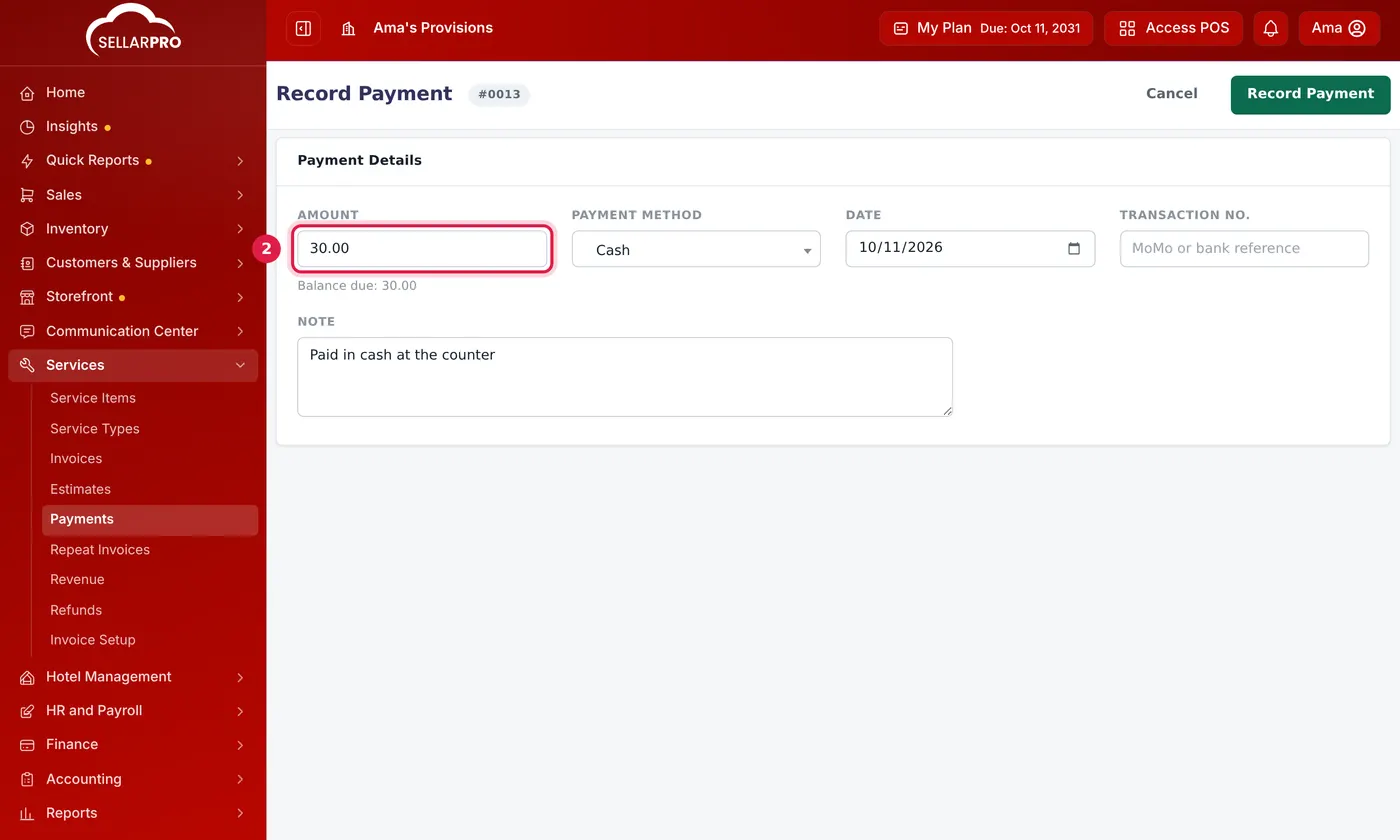
Pay all of the balance or part of it.
Every payment is listed under Services → Payments. An invoice that is paid in full prints as a RECEIPT.
Refund an invoice
- Open the invoice and click Refund.
- For each line, enter the Refund Qty: the total being refunded on that line. The Total Credit updates.
- Click Issue Credit Note.
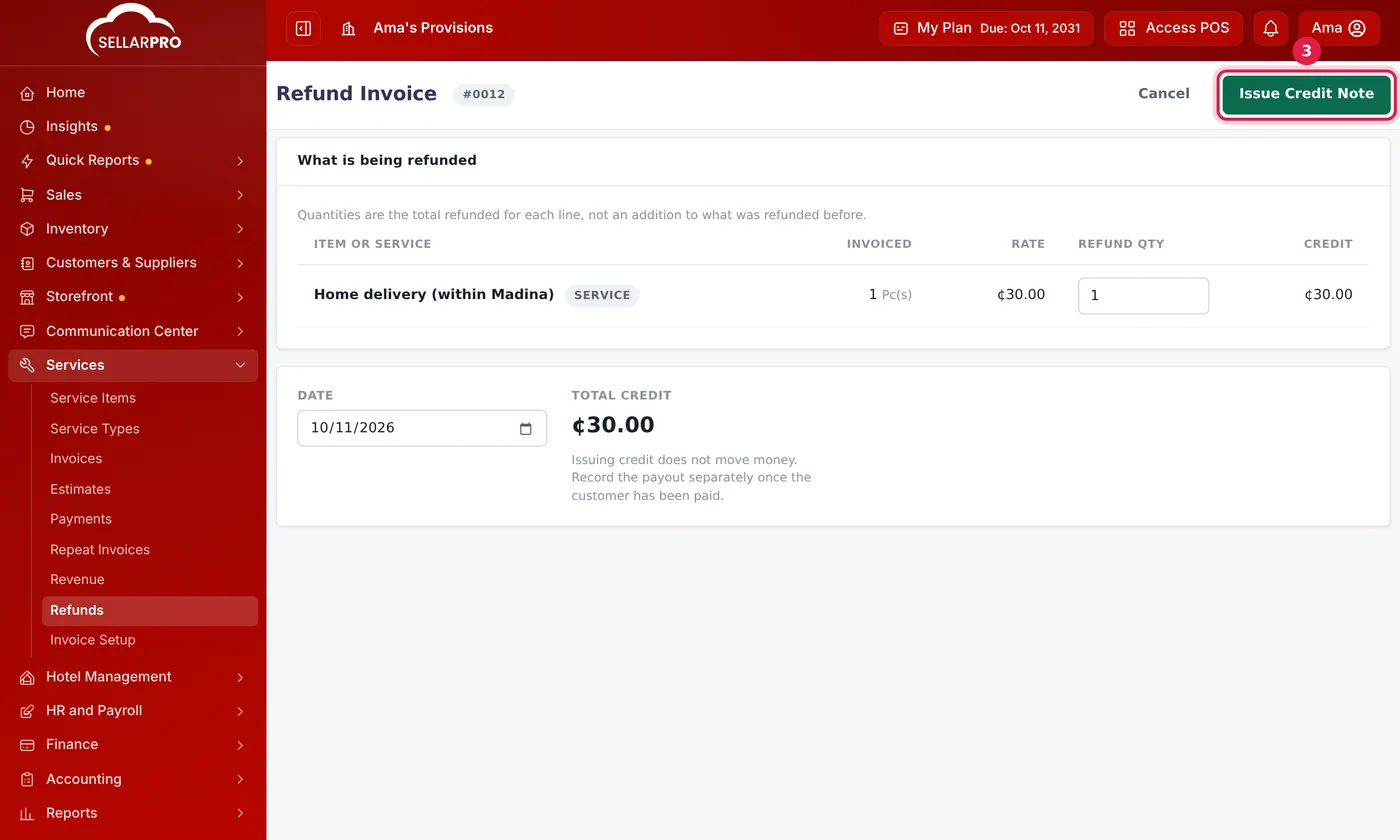
A credit note reduces what the customer owes.
A credit note does not move money. If you are giving the customer cash back, record that payout separately once they have been paid.
Credit notes are listed under Services → Refunds.
Common questions
I refunded part of an invoice and need to refund more.
Click Refund again and enter the new total for each line, not just the extra. Saving replaces the earlier credit note.
Was this article helpful?
Thanks — your answer helps us improve this article.
Still need help?
Can’t find the answer you’re looking for? Our support team in Accra can help.