
All help topics
Help topics
- Getting Started
- Sales & POS
- Products & Inventory
- Purchases & Suppliers
- Customers
- Staff & Permissions
- Reports
- Branches
- Hardware
- Payments
- Settings
- Troubleshooting
- Billing & Subscription
- Workshop
- Training
- Sales Agents
- Laundry
- Accounting
- HR & Payroll
- Hotel
- Services
- Communication Center
- Online Store
- CRM
- Restaurant
- F&B Manager
- Production
- Projects
- Asset Management
- All topics
On this page
How to Read Service Revenue and Set Up Your Invoice
Services → Revenue shows revenue, the cost to deliver, gross profit, jobs and average job value for the period, by service, by staff member and by branch. Services → Invoice Setup chooses the invoice layout, colours and letterhead.
Revenue
Open Services → Revenue and pick a period: Today, This week, This month, All time or a Custom period.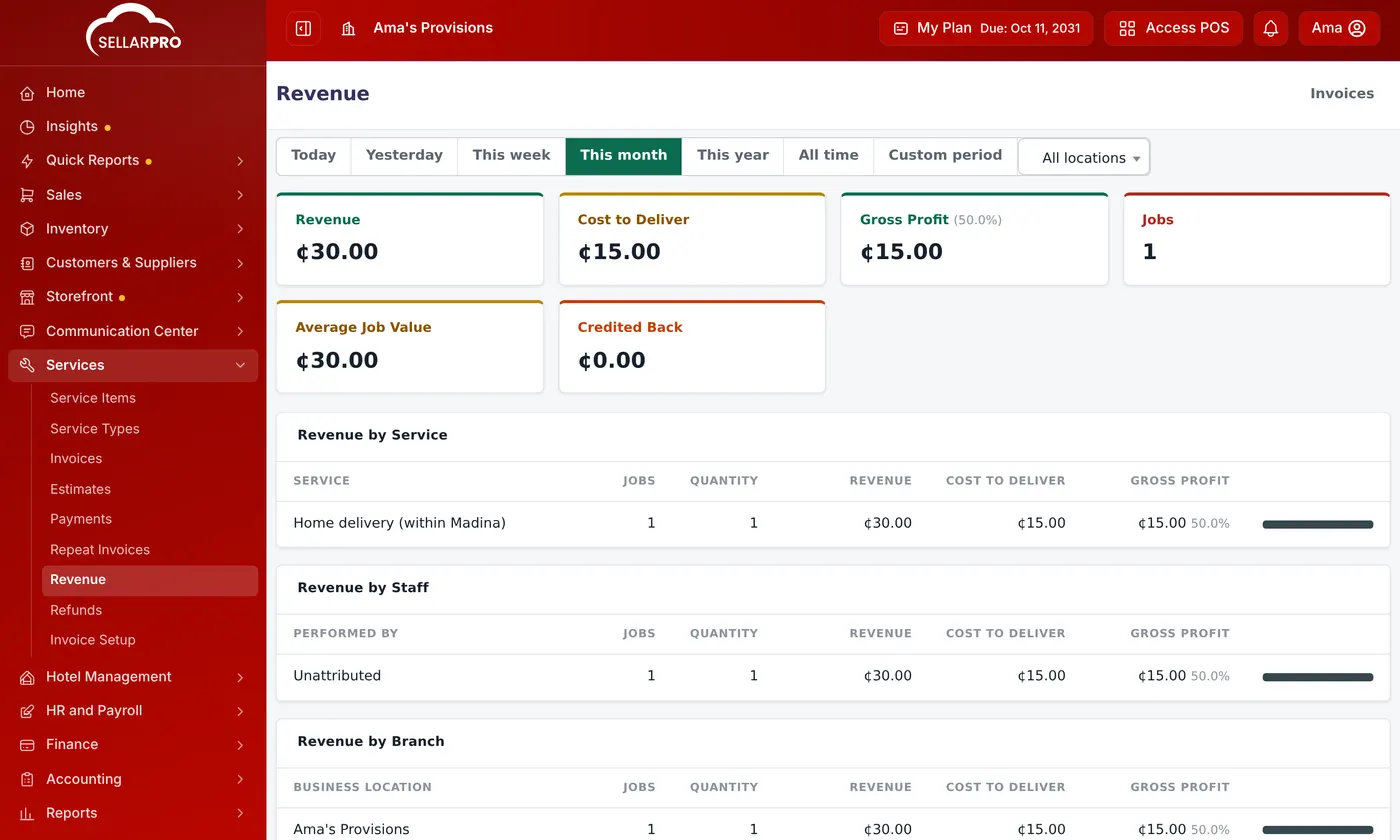
- Revenue, Cost to Deliver and Gross Profit (with its margin).
- Jobs, Average Job Value and what was Credited Back in refunds.
- The same figures by Service, by Staff (who performed the work) and by Branch.
Cost to Deliver comes from each service's Cost Rate, so set it on your service items.
Invoice Setup
Open Services → Invoice Setup. What you set here appears on every invoice, estimate and credit note.
- Document layout: Standard, or Layout 2 — letterhead & bars with your address and contacts across the top and coloured bars.
- Invoice Appearance: the Accent color, a Secondary colour for Layout 2, and what the Letterhead masthead shows (your logo or business name).
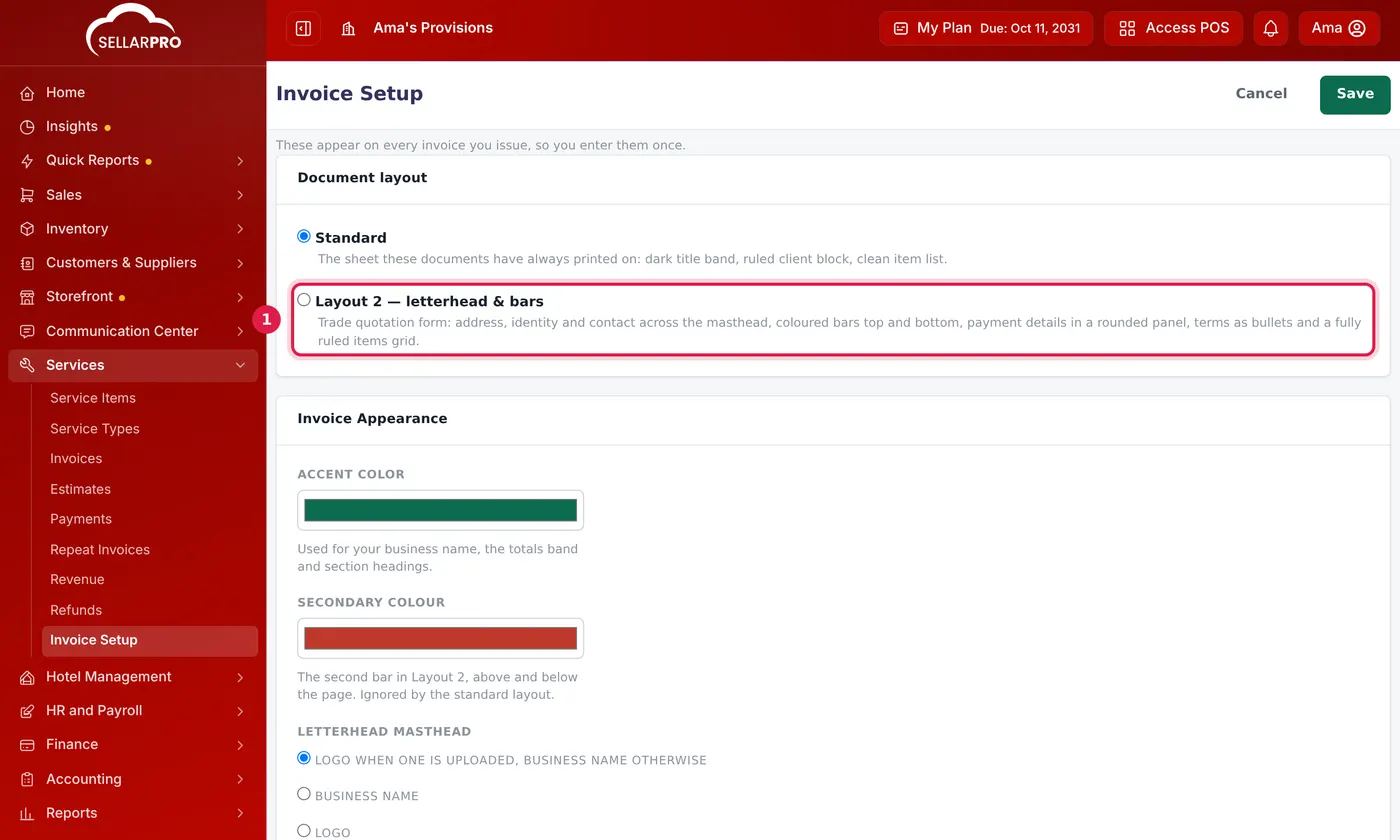
Click Save.
Common questions
My phone number is missing from the letterhead.
Was this article helpful?
Thanks — your answer helps us improve this article.
Still need help?
Can’t find the answer you’re looking for? Our support team in Accra can help.