
All help topics
Help topics
- Getting Started
- Sales & POS
- Products & Inventory
- Purchases & Suppliers
- Customers
- Staff & Permissions
- Reports
- Branches
- Hardware
- Payments
- Settings
- Troubleshooting
- Billing & Subscription
- Workshop
- Training
- Sales Agents
- Laundry
- Accounting
- HR & Payroll
- Hotel
- Services
- Communication Center
- Online Store
- CRM
- Restaurant
- F&B Manager
- Production
- Projects
- Asset Management
- All topics
On this page
How to Send Bulk SMS and Campaigns
Short answer
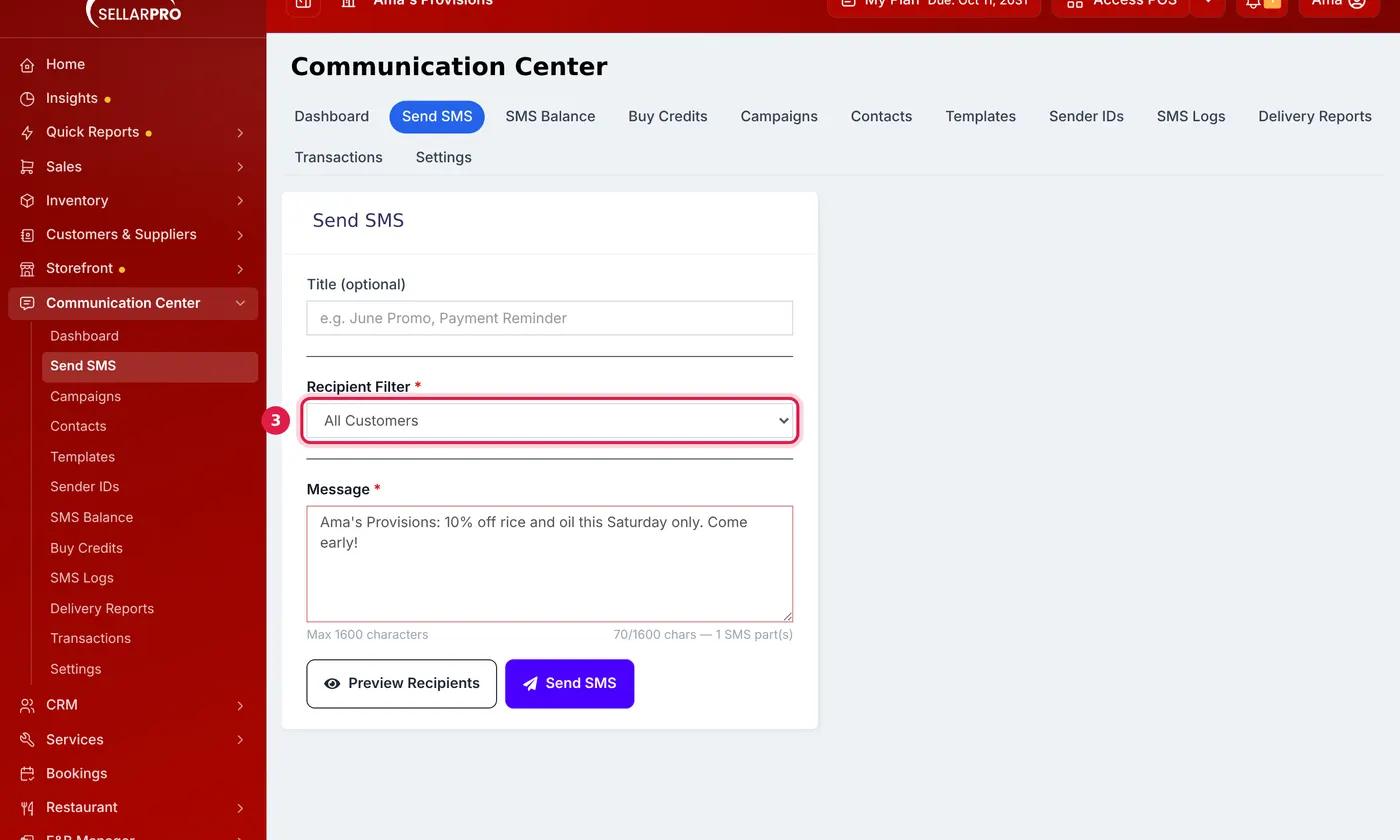
For a one-off message, open Communication Center → Send SMS, choose who gets it (all customers, customer groups, debtors, a saved contact group or numbers you type), write the message and click Preview Recipients before sending. For a named, repeatable send, use Campaigns → New Campaign.
Send an SMS
- Open Communication Center → Send SMS.
- Give it a Title if you want to find it later.
- Choose the Recipient Filter: All Customers, Customer Groups, Debtors (customers who owe you), a Saved Contact Group or Custom Numbers you type.
- Write the Message. The counter shows how many characters and SMS parts it uses.
- Click Preview Recipients to see who will get it, then send.
Run a campaign
A campaign is a named send you can track: "Christmas offer", "Back to school".
- Open Communication Center → Campaigns and click New Campaign.
- Enter the Campaign Name, the Campaign Type and the Recipient Filter, and write the Message.
- To start from a saved message, choose it under Use template. Choose a Sender ID, or leave it for the default.
- Click Preview Recipients, then Send Campaign.
Each campaign is listed with how many were sent and delivered. See How to Check SMS Logs and Delivery Reports.
Numbers that cannot be delivered to, such as a mistyped number, are skipped and not charged.
Common questions
I send the same message every month.
Save it as a template under Communication Center → Templates, then choose it under Use template on New Campaign.
Was this article helpful?
Thanks — your answer helps us improve this article.
Still need help?
Can’t find the answer you’re looking for? Our support team in Accra can help.