
All help topics
Help topics
- Getting Started
- Sales & POS
- Products & Inventory
- Purchases & Suppliers
- Customers
- Staff & Permissions
- Reports
- Branches
- Hardware
- Payments
- Settings
- Troubleshooting
- Billing & Subscription
- Workshop
- Training
- Sales Agents
- Laundry
- Accounting
- HR & Payroll
- Hotel
- Services
- Communication Center
- Online Store
- CRM
- Restaurant
- F&B Manager
- Production
- Projects
- Asset Management
- All topics
On this page
How to Record a Payment on a Laundry Ticket
Open the ticket and click Record payment. Enter what the customer is paying now, choose the payment method and click Record payment. Use it for part of the balance before the clothes are ready, or for money still owed after they were collected. Anything paid over the balance is kept as the customer's advance.
A customer does not have to pay only when they drop clothes off or collect them. Whenever a ticket still owes money, you can take part or all of it from the ticket itself. For example, Akosua leaves a GHS 20 deposit on Monday, sends GHS 30 by MoMo on Wednesday, and pays the rest when she collects.
Steps
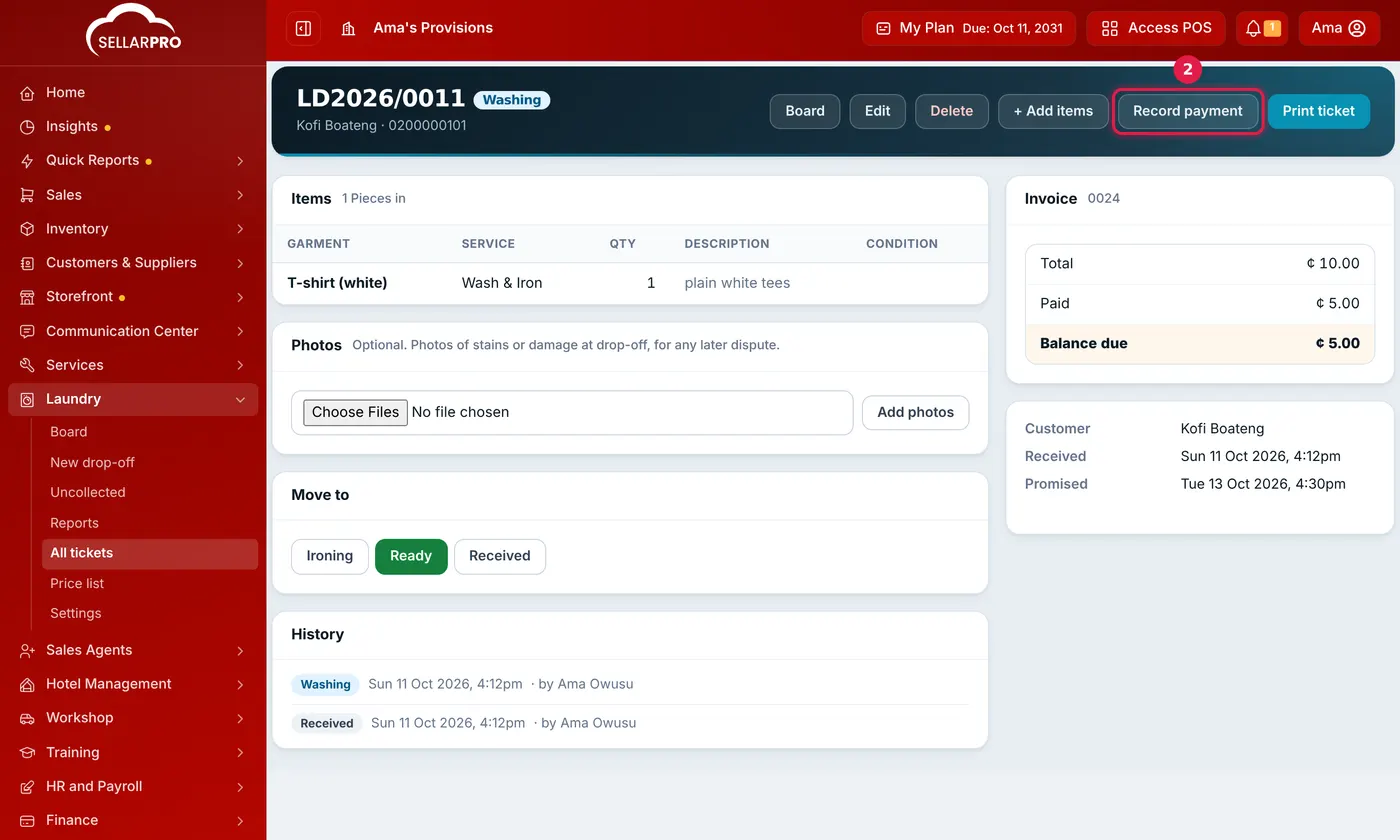
- Open the ticket. Search for it on Laundry → Board, or, once it has been collected, find it in Laundry → All tickets.
- Click Record payment at the top of the ticket.
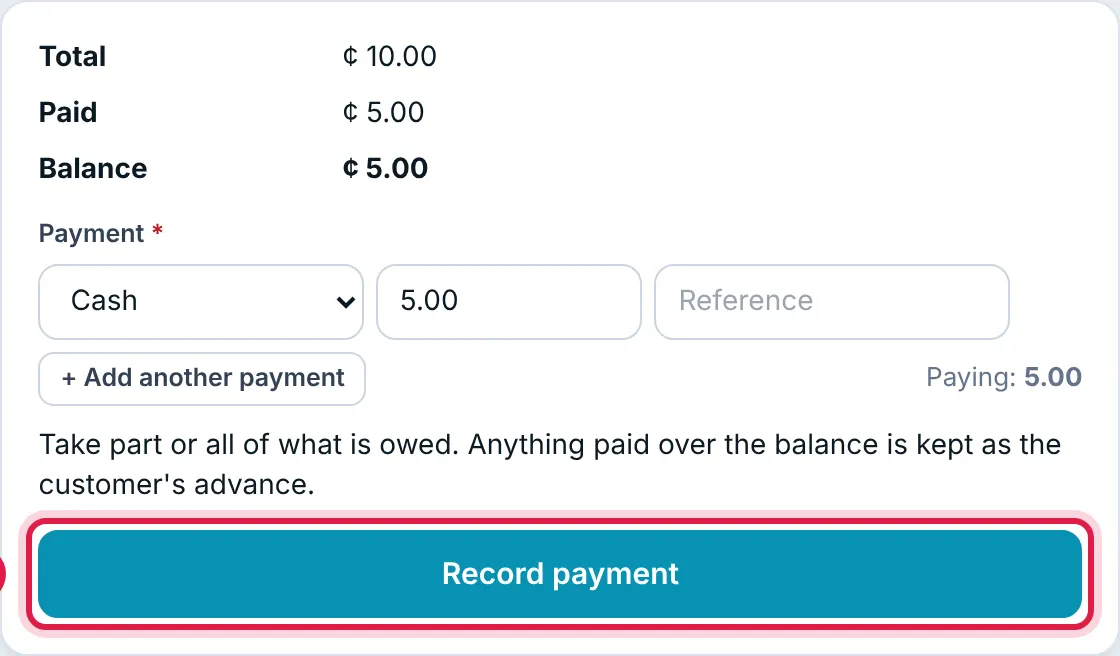
- Check the Total, Paid and Balance at the top of the page.
- Under Payment, the whole balance is filled in. Change the amount to what the customer is paying now, and choose the payment method.
- Paying two ways? Click Add another payment. Put the MoMo transaction ID or transfer number in Reference. To pay from money the customer already holds, choose Advance; the amount they hold is shown.
- Click Record payment.
What happens next
- You go back to the ticket with a message saying how much was recorded, and the ticket's paid amount and balance are updated.
- The ticket stays at the same stage. Paying does not move it on the board or hand the clothes over.
- Each method is recorded as its own payment on the ticket's sale, so your cash count and MoMo statement both match. The payment appears in your sales and payment reports like any other.
- If the customer pays more than the balance, the ticket is fully paid and the extra is kept as their advance for next time.
- When nothing is owed any more, the Record payment button no longer shows.
To record a payment, staff need Take clothes in and book pickups or Hand clothes back in Laundry, and also the sales permission Add/Edit/Delete Payments.
Common problems
"Nothing is owed on this ticket."
The ticket is already fully paid, or it was cancelled. There is nothing to take.
"You do not have permission to take payments."
Your role does not have Add/Edit/Delete Payments. Ask the owner to tick it on your role.
"Enter the amount paid."
The amount is empty or 0. Type what the customer is paying.
"The walk-in customer cannot hold an advance…"
The ticket is for the walk-in customer, so an overpayment cannot be kept. Take only what is owed.
Common questions
Can a customer pay after they have collected their clothes?
Does paying in full mark the clothes as collected?
Was this article helpful?
Thanks — your answer helps us improve this article.
Still need help?
Can’t find the answer you’re looking for? Our support team in Accra can help.