
All help topics
Help topics
- Getting Started
- Sales & POS
- Products & Inventory
- Purchases & Suppliers
- Customers
- Staff & Permissions
- Reports
- Branches
- Hardware
- Payments
- Settings
- Troubleshooting
- Billing & Subscription
- Workshop
- Training
- Sales Agents
- Laundry
- Accounting
- HR & Payroll
- Hotel
- Services
- Communication Center
- Online Store
- CRM
- Restaurant
- F&B Manager
- Production
- Projects
- Asset Management
- All topics
On this page
How to Post a Journal Entry
Open Accounting → Journal Entries and click New Entry. Enter the date, reference and narration, then one line per account with its Debit or Credit. When the entry is balanced, click Post Entry, or Save as Draft to finish later.
Most entries reach your books by themselves from sales, purchases and expenses. Use a journal entry for everything else: rent paid straight from the bank, a loan received, depreciation, or a correction your accountant asks for.
Steps
- Open Accounting → Journal Entries and click New Entry.
- Under Entry Details, check the Date and fill in the Reference (a receipt or invoice number) and the Narration / Description.
- Under Journal Lines, choose the Account for each line and enter its Debit or Credit. Click Add Line for more than two.
- When Entry is balanced. shows, click Post Entry. Click Save as Draft instead to finish it later.
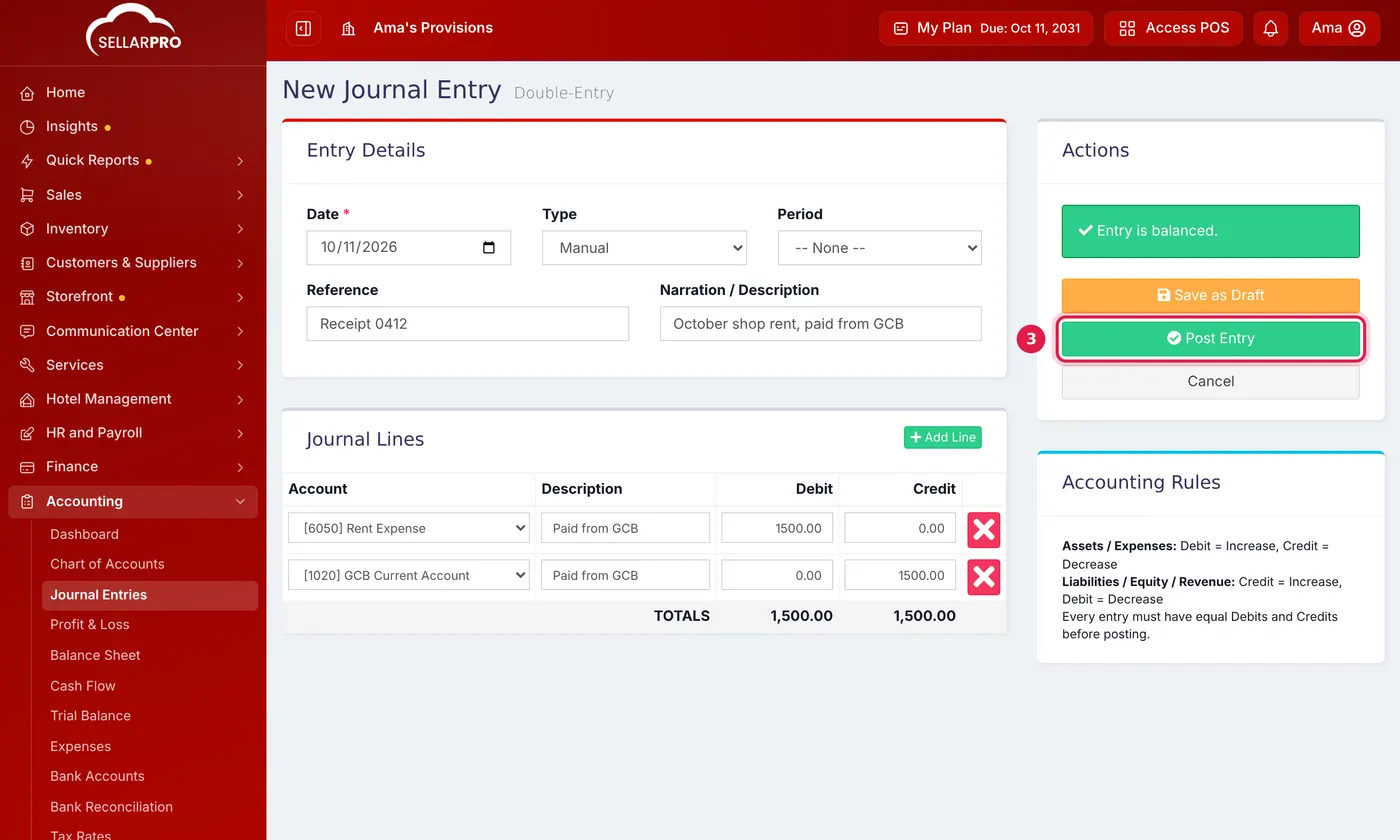
October rent of 1,500 paid from the bank: debit Rent Expense, credit the bank account.
Debit or credit?
The Accounting Rules box on the same page is the reminder: for Assets / Expenses, a debit increases and a credit decreases. For Liabilities / Equity / Revenue, a credit increases and a debit decreases. Every entry must have equal debits and credits before it can be posted.
All entries, automatic and manual, are listed under Journal Entries, where you can filter them by date.
Common questions
Why can I not post my entry?
Can I post into a past month?
Was this article helpful?
Thanks — your answer helps us improve this article.
Still need help?
Can’t find the answer you’re looking for? Our support team in Accra can help.