
All help topics
Help topics
- Getting Started
- Sales & POS
- Products & Inventory
- Purchases & Suppliers
- Customers
- Staff & Permissions
- Reports
- Branches
- Hardware
- Payments
- Settings
- Troubleshooting
- Billing & Subscription
- Workshop
- Training
- Sales Agents
- Laundry
- Accounting
- HR & Payroll
- Hotel
- Services
- Communication Center
- Online Store
- CRM
- Restaurant
- F&B Manager
- Production
- Projects
- Asset Management
- All topics
How to Close a Month with Fiscal Periods
Open Accounting → Fiscal Periods and click Generate Year Periods to create twelve monthly periods. When a month's books are done, click Close; you can Reopen it. Lock it when it is final: a locked period cannot be reopened, and nothing more is posted into it.
Closing a month marks its books as done, so nobody changes last month's figures by accident after you have reported them.
Step 1: create the periods
Open Accounting → Fiscal Periods. Under Fiscal Year, enter the year and click Generate Year Periods to create twelve monthly periods. To create one period yourself, use Create Period with a Name, Year, Month and dates.
Step 2: close a month
- Finish the month first: reconcile the bank and post any adjustments.
- In the Period List, click Close on that month.
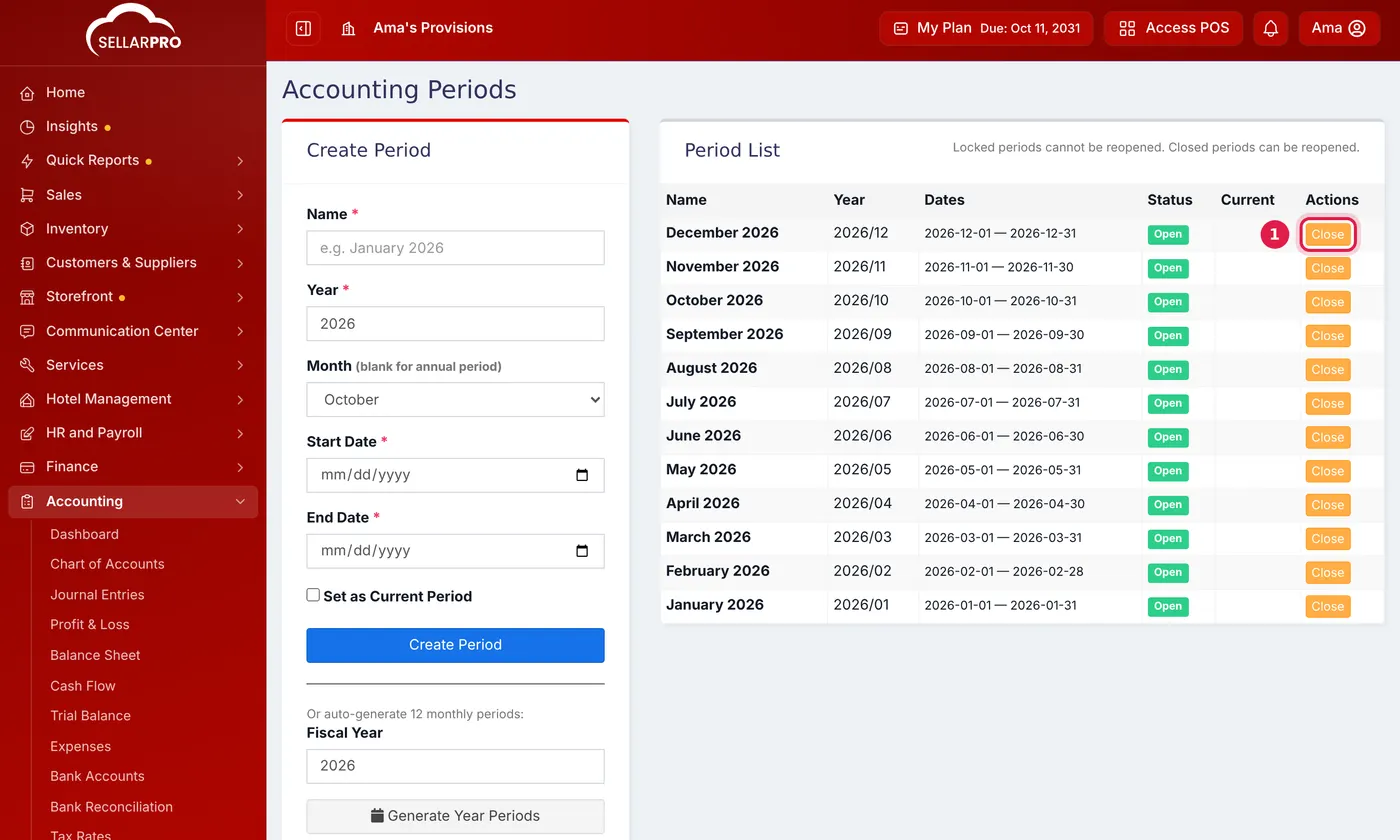
Each month shows its status: Open, Closed or Locked.
A closed month can be opened again with Reopen if something turns up.
Step 3: lock it when it is final
Click Lock once a month's figures have been reported or filed. A locked period cannot be reopened, and the automatic sync no longer posts anything into it.
Locking cannot be undone. Lock only months you are sure are final.
Common questions
What is the difference between Close and Lock?
Was this article helpful?
Thanks — your answer helps us improve this article.
Still need help?
Can’t find the answer you’re looking for? Our support team in Accra can help.