
All help topics
Help topics
- Getting Started
- Sales & POS
- Products & Inventory
- Purchases & Suppliers
- Customers
- Staff & Permissions
- Reports
- Branches
- Hardware
- Payments
- Settings
- Troubleshooting
- Billing & Subscription
- Workshop
- Training
- Sales Agents
- Laundry
- Accounting
- HR & Payroll
- Hotel
- Services
- Communication Center
- Online Store
- CRM
- Restaurant
- F&B Manager
- Production
- Projects
- Asset Management
- All topics
On this page
How to Set Up Accounting
Open Accounting → Transaction Mapping and click Set All Defaults, so sales, purchases, expenses and payments know which accounts they post to. Then use the Import / Sync tab to bring in past transactions. From then on they post themselves every hour.
The Accounting module keeps proper double-entry books from the sales, purchases, expenses and payments you already record. Once it is set up, you do not type sales into the books: they post themselves.
Accounting comes with selected plans. If you do not see Accounting in your menu, contact SellarPro to add it.
Step 1: check your chart of accounts
Open Accounting → Chart of Accounts. Every business starts with a standard chart of accounts for a Ghanaian business: cash and bank accounts, sales, cost of goods sold, expenses, VAT and more. Add your own with New Account (an Account Code, Account Name and Type), and enter any Opening Balance your accountant gives you.
If the list is empty, click Load Default Chart of Accounts.
Step 2: map your transactions to accounts
- Open Accounting → Transaction Mapping.
- Click Set All Defaults and confirm. Every row is filled from your chart of accounts: for example, a sale debits Accounts Receivable and credits Sales Revenue.
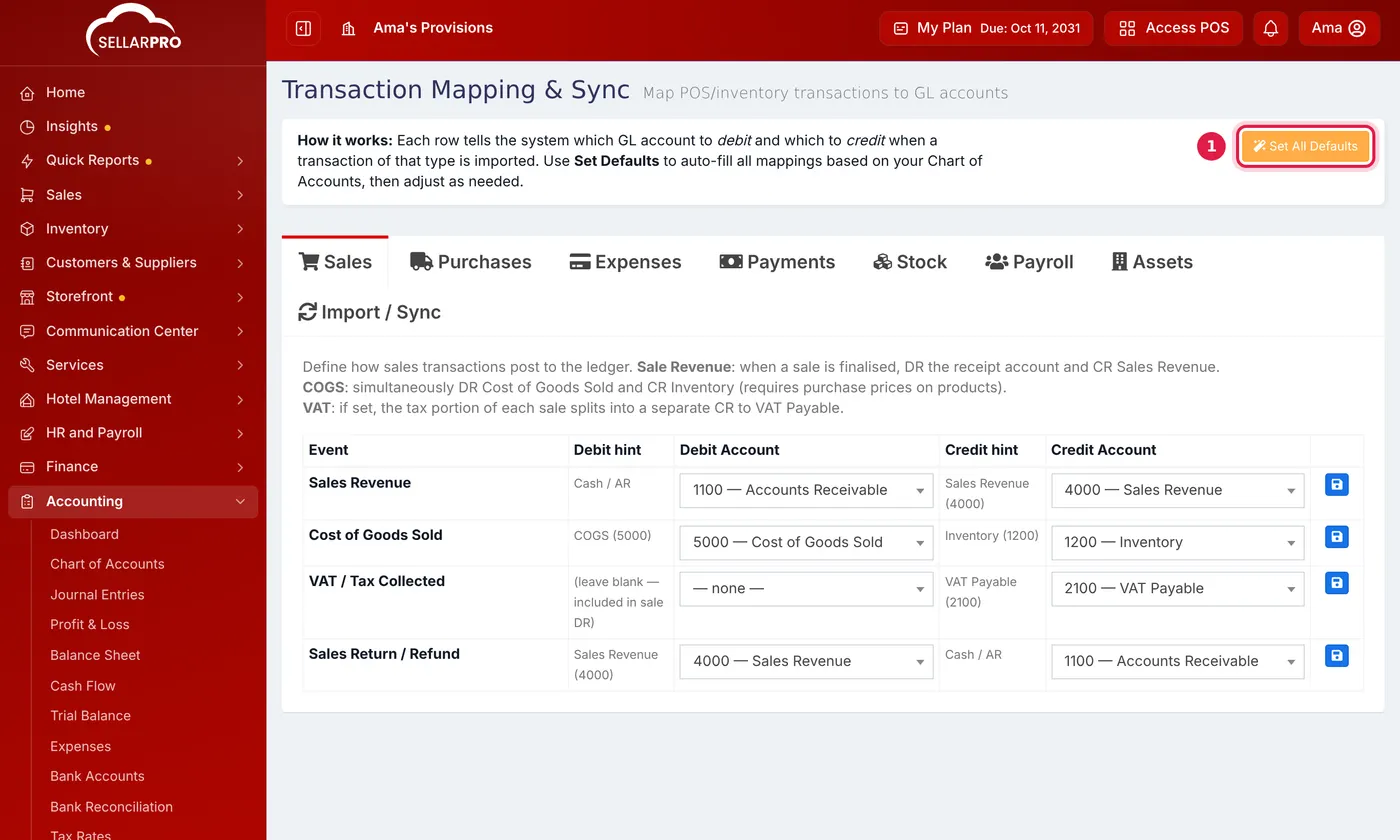
Set All Defaults fills every row. Change any account and click the save button on that row. - Look through the tabs (Sales, Purchases, Expenses, Payments, Stock, Payroll, Assets) and change any account your accountant prefers. Save each changed row with the button at its end.
Step 3: bring in what you have already recorded
- Open the Import / Sync tab on the same page.
- Choose Date From and Date To, and tick the Transaction Types to Import.
- Click Run Import and confirm. Large ranges can take a few minutes.
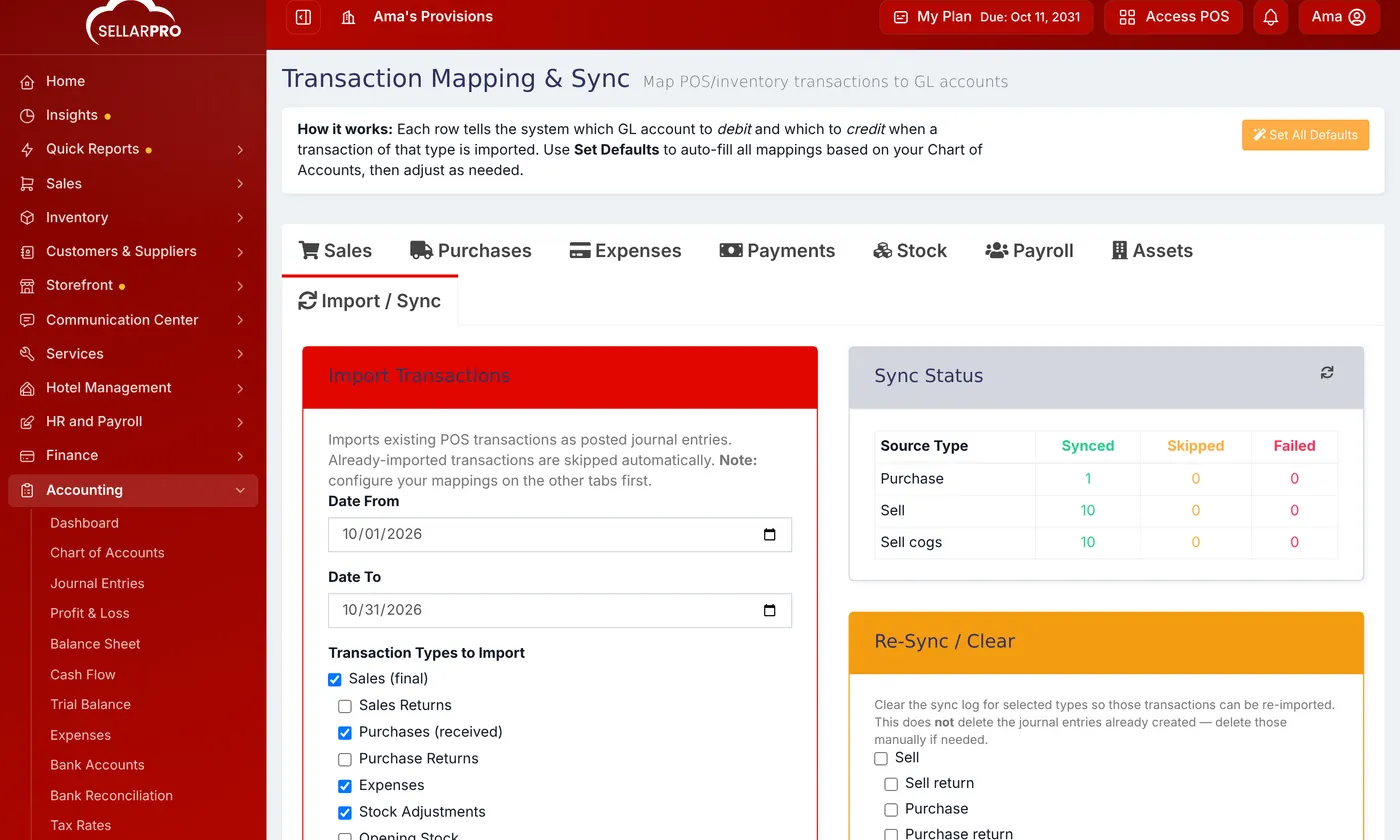
Sync Status shows how many of each type were posted, skipped or failed.
Anything already imported is skipped, so running it twice does no harm.
What happens from now on
New sales, purchases, expenses and payments post to your books automatically every hour, and a nightly run catches late or back-dated ones. Check Sync Status on the Import / Sync tab at any time.
Common questions
Do I still need to enter sales into Accounting?
A transaction shows as Failed in Sync Status.
I changed a mapping. Are old entries updated?
Was this article helpful?
Thanks — your answer helps us improve this article.
Still need help?
Can’t find the answer you’re looking for? Our support team in Accra can help.