
All help topics
Help topics
- Getting Started
- Sales & POS
- Products & Inventory
- Purchases & Suppliers
- Customers
- Staff & Permissions
- Reports
- Branches
- Hardware
- Payments
- Settings
- Troubleshooting
- Billing & Subscription
- Workshop
- Training
- Sales Agents
- Laundry
- Accounting
- HR & Payroll
- Hotel
- Services
- Communication Center
- Online Store
- CRM
- Restaurant
- F&B Manager
- Production
- Projects
- Asset Management
- All topics
On this page
How to Create Categories and Sub-Categories (up to Five Levels)
Open Inventory → Categories and click Add. To make a sub-category, tick Add as sub taxonomy and choose its parent. Categories can be nested up to five levels deep, for example Drinks › Soft Drinks › Cola › 500ml.
Categories keep your product list, POS and reports easy to read. SellarPro lets you nest them up to five levels deep, so a large shop can go from broad groups down to specific sizes or types.
Steps to add a category
- Open Inventory → Categories.
- Click Add.
- Type the Category name, and a Category Code if you use one.
- For a top-level category, leave Add as sub taxonomy unticked.
- For a sub-category, tick Add as sub taxonomy and choose it in Select parent category. The list shows every level by its full path, and you can search it.
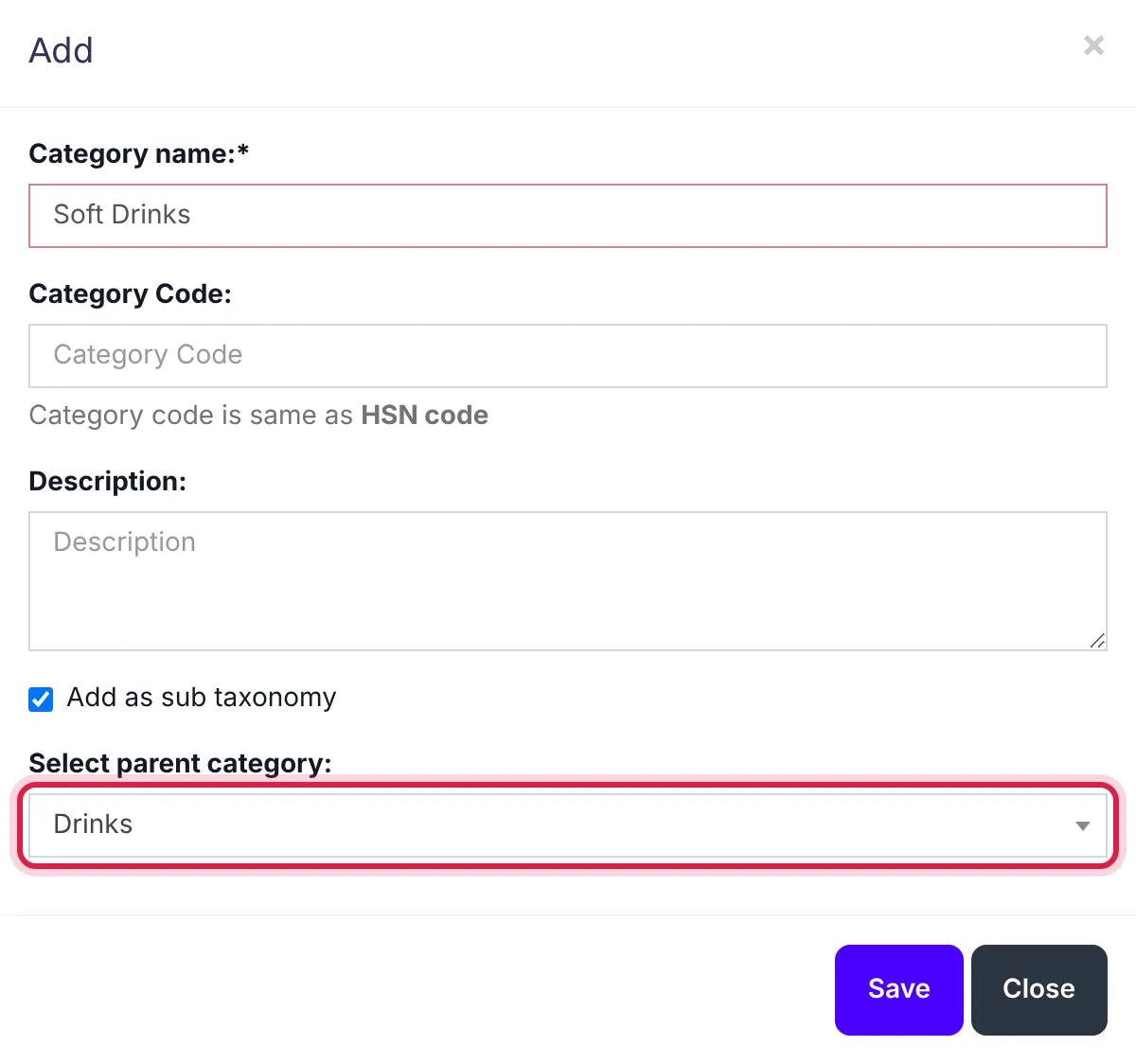
Soft Drinks, added under Drinks. - Save.
What happens next
- The Categories list shows each sub-category under its parent, with its full path beneath its name, such as Drinks › Soft Drinks.
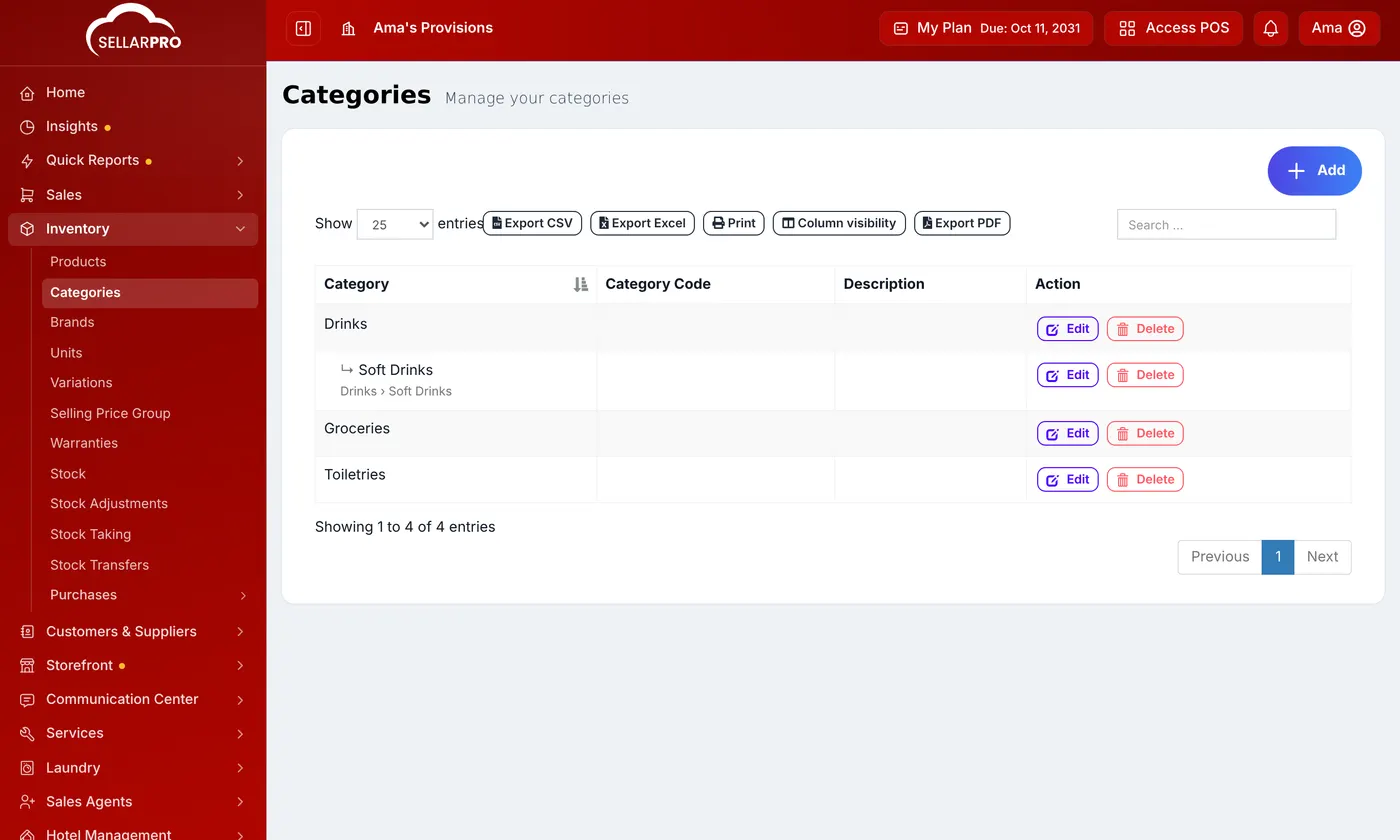
A sub-category sits under its parent, with its full path. - On the product form, bulk edit, the POS and your online store, each category is shown by its path, such as Soft Drinks › Cola.
- Filtering by a category in reports, the product list, the POS or the store includes everything beneath it.
Moving a category
Edit the category and choose a different parent. Everything beneath it moves with it. A category cannot be moved under one of its own sub-categories.
Importing products? Both the product importer and Smart Import accept a full path such as Drinks > Soft > Cola in the category column, and match each level under its own parent.
Common problems
"Categories can be nested at most 5 levels deep"
You chose a parent that is already on the fifth level. Choose a parent higher up.
"This category has sub-categories"
A category cannot be deleted while it still has sub-categories. Delete or move them first.
Common questions
Do my existing categories and sub-categories still work?
Which category does a product belong to?
Was this article helpful?
Thanks — your answer helps us improve this article.
Still need help?
Can’t find the answer you’re looking for? Our support team in Accra can help.