
All help topics
Help topics
- Getting Started
- Sales & POS
- Products & Inventory
- Purchases & Suppliers
- Customers
- Staff & Permissions
- Reports
- Branches
- Hardware
- Payments
- Settings
- Troubleshooting
- Billing & Subscription
- Workshop
- Training
- Sales Agents
- Laundry
- Accounting
- HR & Payroll
- Hotel
- Services
- Communication Center
- Online Store
- CRM
- Restaurant
- F&B Manager
- Production
- Projects
- Asset Management
- All topics
On this page
How to Hide Stock Quantities on the POS
Open Settings → Business Settings → POS, tick Hide stock quantity on POS and save. Stock counts disappear from the POS screen for every user, while stock limits still apply and out-of-stock products are still marked.
Some owners prefer cashiers not to see how much of each product is in stock. Hiding the quantities stops staff from knowing exactly what is on the shelf, without stopping them from selling.
Steps
- Open Settings → Business Settings and choose the POS tab.
- Tick Hide stock quantity on POS.
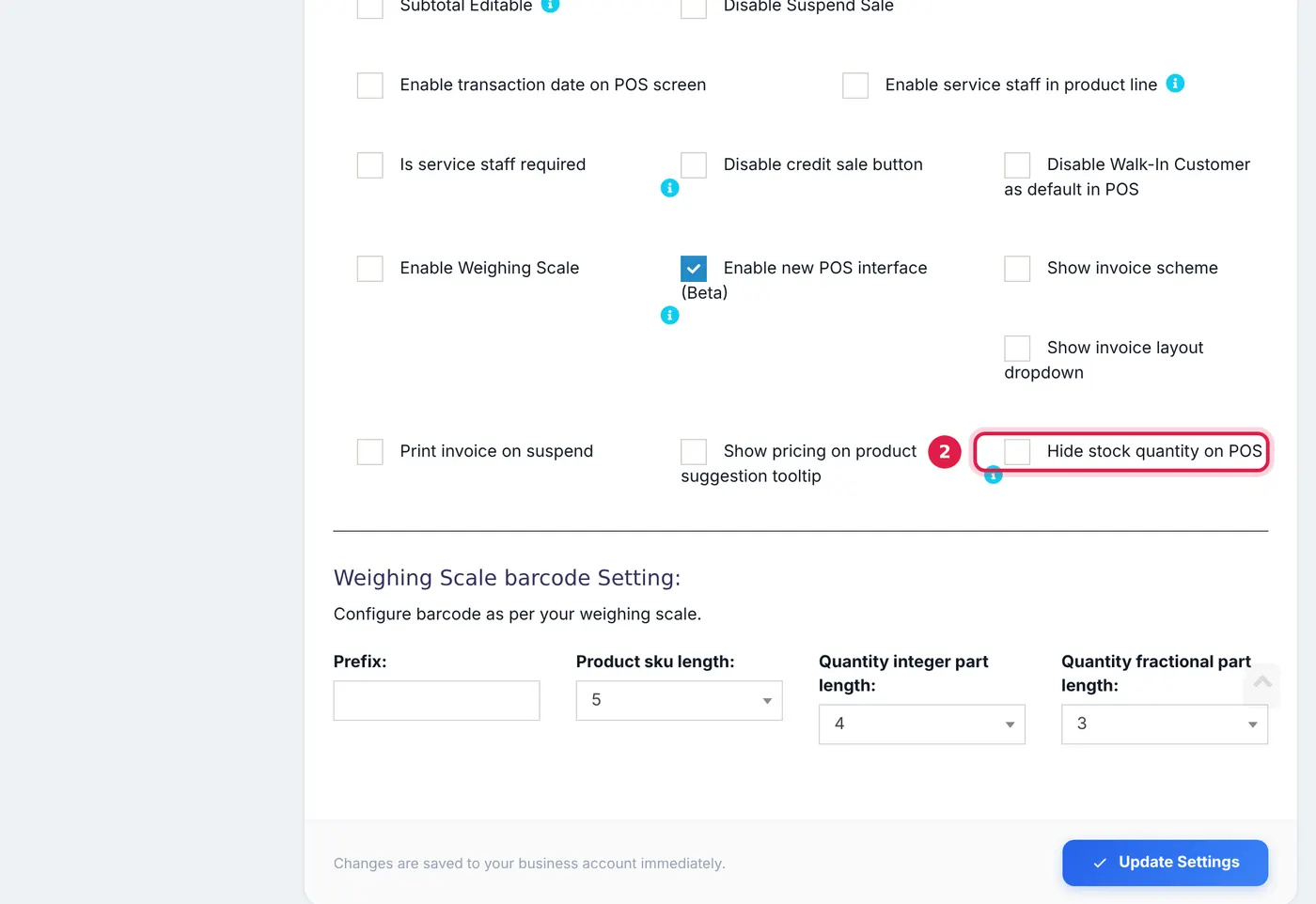
The setting sits with the other POS options, above Update Settings. - Click Update Settings.
What changes
Stock counts are removed from the POS screen for every user, whatever their role:
- the product search list,
- the product grid on both the standard POS and the new POS,
- the "in stock" line under each item in the cart,
- offline mode.
What stays the same
- Stock limits still apply. A cashier cannot sell more than you have. The message now says Not enough stock for this quantity instead of the exact number left.
- Out-of-stock labels stay, because they tell the cashier a product cannot be sold, not how many are left.
- Add Sale and other back-office screens still show quantities, as do the stock reports.
Restaurants that use the kitchen or table features already have stock quantities hidden on the POS. This setting brings the same choice to every other business.
Common questions
Can I hide stock from cashiers but show it to managers on the POS?
Was this article helpful?
Thanks — your answer helps us improve this article.
Still need help?
Can’t find the answer you’re looking for? Our support team in Accra can help.