
All help topics
Help topics
- Getting Started
- Sales & POS
- Products & Inventory
- Purchases & Suppliers
- Customers
- Staff & Permissions
- Reports
- Branches
- Hardware
- Payments
- Settings
- Troubleshooting
- Billing & Subscription
- Workshop
- Training
- Sales Agents
- Laundry
- Accounting
- HR & Payroll
- Hotel
- Services
- Communication Center
- Online Store
- CRM
- Restaurant
- F&B Manager
- Production
- Projects
- Asset Management
- All topics
On this page
How to Create a Quotation and Turn It into an Invoice
At the POS, add the items and click Quotation instead of taking payment. Find it later in Sales → Quotations. When the customer agrees, open Actions and choose Convert to invoice. Use Mark as Proforma Invoice if they need a proforma first.
A quotation tells a customer what they would pay, without selling anything. No stock moves and nothing is owed until you turn it into an invoice.
Create a quotation
- On the POS, select the customer and add the items, prices and any discount.
- Click Quotation. It is saved, and you can print it for the customer.
Find, print or share it
Open Sales → Quotations. From Actions you can Print, Download pdf, Edit, Copy Quotation, or use View quote url to get a link you can send to the customer.
The customer needs a proforma invoice
Choose Mark as Proforma Invoice from Actions. Only the heading on the printed document changes: nothing is sold and no stock moves. Remove Proforma label turns it back.
The customer agrees: convert it
- In Sales → Quotations, open Actions and choose Convert to invoice.
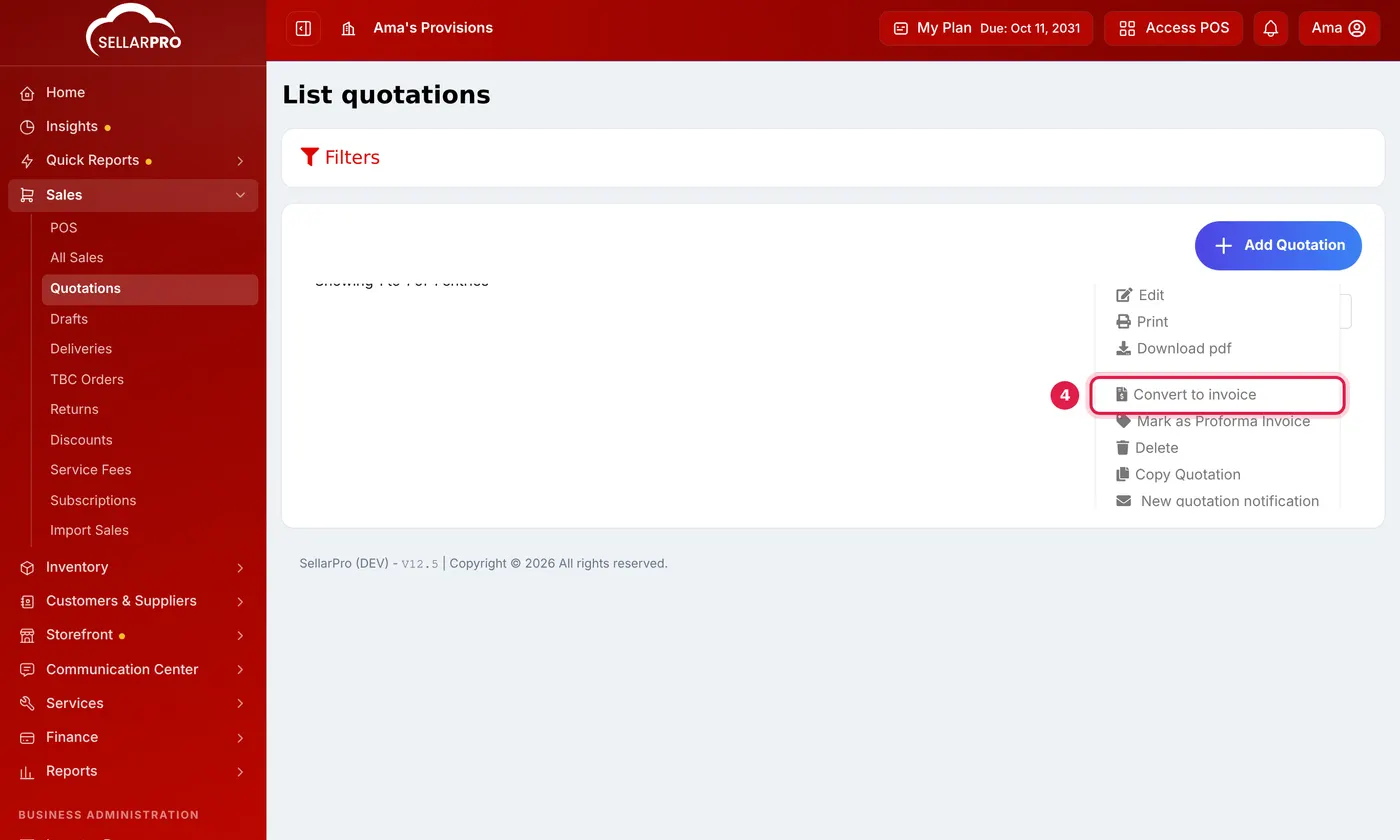
Convert to invoice is in the quotation's Actions menu. - Confirm. This raises a real invoice number, takes the items out of stock and records the amount as owed.
- Take the payment from Sales → All Sales with Add payment, or leave it owed.
Converting cannot be undone. If the customer has not agreed yet, use a proforma instead.
Common questions
Does a quotation reduce my stock?
Is a quotation in my sales report?
Was this article helpful?
Thanks — your answer helps us improve this article.
Still need help?
Can’t find the answer you’re looking for? Our support team in Accra can help.