
All help topics
Help topics
- Getting Started
- Sales & POS
- Products & Inventory
- Purchases & Suppliers
- Customers
- Staff & Permissions
- Reports
- Branches
- Hardware
- Payments
- Settings
- Troubleshooting
- Billing & Subscription
- Workshop
- Training
- Sales Agents
- Laundry
- Accounting
- HR & Payroll
- Hotel
- Services
- Communication Center
- Online Store
- CRM
- Restaurant
- F&B Manager
- Production
- Projects
- Asset Management
- All topics
How to Use Drafts and Suspended Sales
Short answer
Click Suspend on the POS to park a sale while you serve the next customer, and pick it up from View Suspended Sales. Click Draft to save a sale to finish later; drafts are listed under Sales → Drafts. Neither moves stock.
Sometimes a sale cannot be finished right away: the customer goes back for one more item, or wants to come back tomorrow. SellarPro has two ways to hold it.
Suspend: park it for a few minutes
- Click Suspend at the bottom of the POS. Add a note so you can recognise it, such as the customer's name.
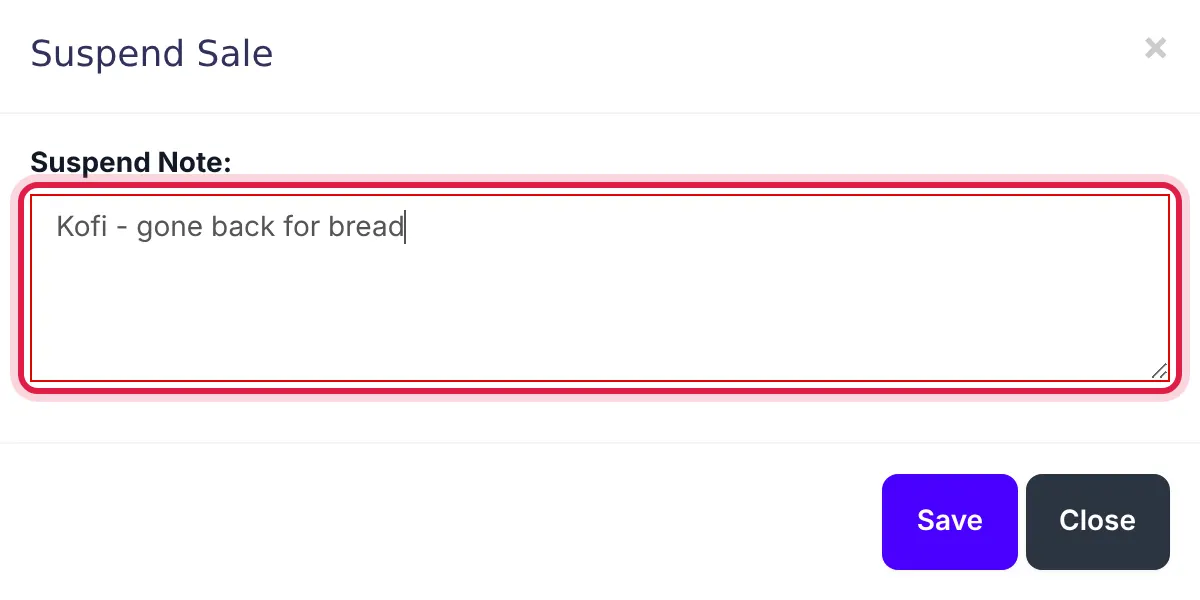
A short note tells you whose sale it is when you come back to it. - Serve the next customer.
- To pick it up, click View Suspended Sales in the POS top bar and open it. Finish the sale as usual.
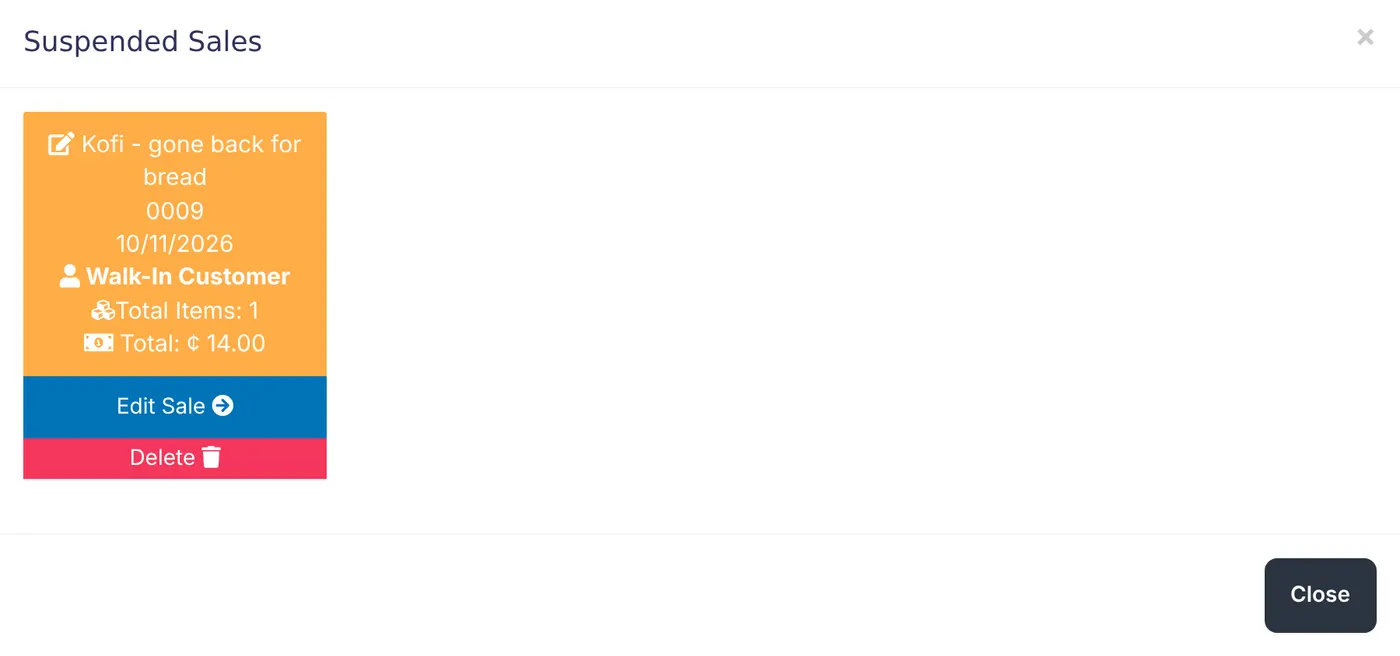
Click Edit Sale to pick the sale up where you left it.
Draft: save it to finish later
- Click Draft at the bottom of the POS.
- Find it later under Sales → Drafts, click Actions and choose Edit to finish it.
Neither a suspended sale nor a draft moves stock or counts as a sale until it is finalised.
To give a customer a price to think about, use a quotation instead. It prints as a quote and converts to an invoice in one click.
Common questions
I do not see Draft or Suspend.
They can be switched off under Settings → Business Settings → POS, or hidden for your role. Ask your business owner.
Was this article helpful?
Thanks — your answer helps us improve this article.
Still need help?
Can’t find the answer you’re looking for? Our support team in Accra can help.