
All help topics
Help topics
- Getting Started
- Sales & POS
- Products & Inventory
- Purchases & Suppliers
- Customers
- Staff & Permissions
- Reports
- Branches
- Hardware
- Payments
- Settings
- Troubleshooting
- Billing & Subscription
- Workshop
- Training
- Sales Agents
- Laundry
- Accounting
- HR & Payroll
- Hotel
- Services
- Communication Center
- Online Store
- CRM
- Restaurant
- F&B Manager
- Production
- Projects
- Asset Management
- All topics
On this page
How to Connect a Barcode Scanner, Cash Drawer and Customer Display
Short answer
A USB barcode scanner works as soon as it is plugged in: click the POS search box and scan. A cash drawer plugs into the receipt printer and opens when a receipt prints. For a customer display, tick Enable Customer display screen under Business Settings → Display Screen and open it from the TV button on the POS.
Barcode scanner
- Plug the scanner into a USB port. There is nothing to install: it types like a keyboard.
- On the POS, click into the product search box.
- Scan. The product is added to the sale.
Scanning works on any search box: Add Sale, purchases, stock adjustments, stock takes and labels. A product scans if its SKU matches the barcode. Scan the barcode into the SKU when you add the product.
Cash drawer
- Plug the drawer's cable into the receipt printer's drawer port (it looks like a phone socket), not the computer.
- In the printer's settings on the computer, turn on opening the drawer when it prints.
- Make a cash sale. The drawer opens as the receipt prints.
Customer display
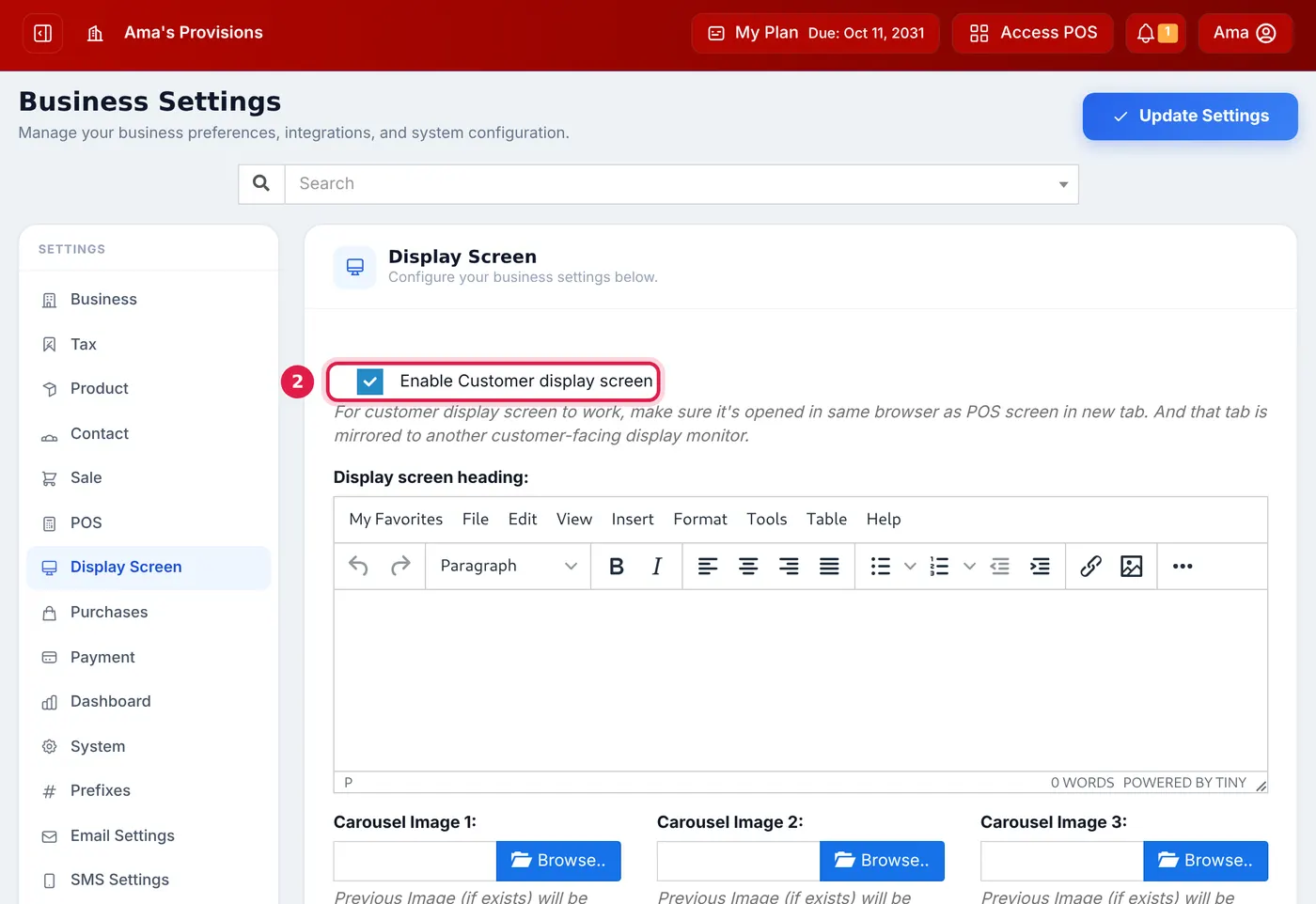
- Open Settings → Business Settings and choose the Display Screen tab.
- Tick Enable Customer display screen. Add a Display screen heading and up to ten carousel images, such as offers, to show between sales.
- Click Update Settings.
- On the POS, click the Customer Display Screen button (the TV icon). It opens in a new window in the same browser. Drag that window onto the screen facing the customer.
For the receipt printer itself, see How to Connect a Receipt Printer to SellarPro.
Common questions
The scanner adds the wrong product or nothing.
Check the product's SKU is exactly the barcode number. Two products with the same SKU confuse the search.
The drawer does not open.
It is plugged into the computer instead of the printer, or the printer driver is not set to open the drawer.
Was this article helpful?
Thanks — your answer helps us improve this article.
Still need help?
Can’t find the answer you’re looking for? Our support team in Accra can help.