
All help topics
Help topics
- Getting Started
- Sales & POS
- Products & Inventory
- Purchases & Suppliers
- Customers
- Staff & Permissions
- Reports
- Branches
- Hardware
- Payments
- Settings
- Troubleshooting
- Billing & Subscription
- Workshop
- Training
- Sales Agents
- Laundry
- Accounting
- HR & Payroll
- Hotel
- Services
- Communication Center
- Online Store
- CRM
- Restaurant
- F&B Manager
- Production
- Projects
- Asset Management
- Device Repair
- Bookings & appointments
- Set up for your industry
- Hire Purchase
- Refer & earn
- All topics
On this page
How to Collect a Hire Purchase Installment
Open Hire Purchase → Collect payment, search for the customer, tap Collect, tap a quick amount (next installment, all overdue or pay off in full) and click Take payment. Payments settle the oldest installment first, and a receipt opens for printing.
- Open Hire Purchase → Collect payment and type the customer's name, phone or agreement number. Each match shows what is overdue and the balance.
- Click Collect.
- Tap a quick amount: Next installment, All overdue, Overdue + next or Pay off in full. Or type any amount.
- Choose how they paid. For MoMo or a cheque, add the reference. If they paid two ways, click Add method.
- Click Take payment. A receipt opens, ready to print.
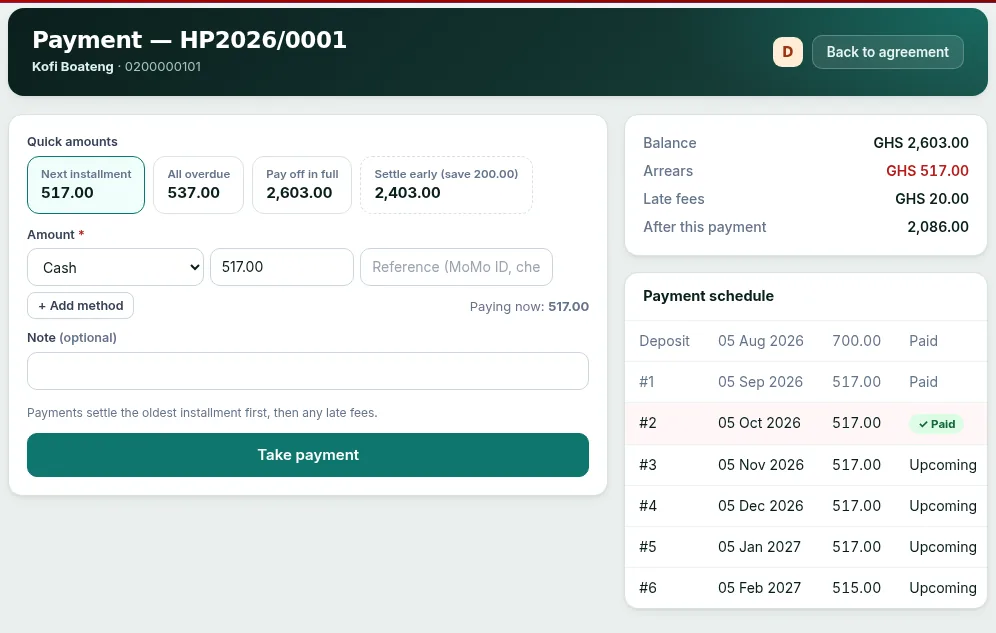
Where the money goes
Payments always settle the oldest installment first, then any late fees. A customer can't pay more than they owe.
If you have a cash register open, the payment goes on it, so your till count matches. The customer gets a text with the amount received, the balance and the next installment (you can turn this off in Settings).
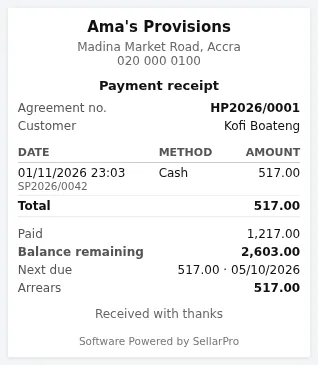
Money taken on the ordinary Sales screen counts too. If a cashier adds a payment to the agreement's sale there, the schedule updates the same way.
Common questions
Can a customer pay part of an installment?
Can they pay with their advance balance?
Was this article helpful?
Thanks — your answer helps us improve this article.
Still need help?
Can’t find the answer you’re looking for? Our support team in Accra can help.