
All help topics
Help topics
- Getting Started
- Sales & POS
- Products & Inventory
- Purchases & Suppliers
- Customers
- Staff & Permissions
- Reports
- Branches
- Hardware
- Payments
- Settings
- Troubleshooting
- Billing & Subscription
- Workshop
- Training
- Sales Agents
- Laundry
- Accounting
- HR & Payroll
- Hotel
- Services
- Communication Center
- Online Store
- CRM
- Restaurant
- F&B Manager
- Production
- Projects
- Asset Management
- All topics
On this page
How to Add Opening Stock in Bulk
Short answer
Open Inventory → Stock Adjustments and click Bulk Opening Stock. Choose the location, then type the quantity to add and its unit cost against each product, and save. Use it for real stock that was never recorded. Rows marked as a gap can be reconciled without changing stock.
Bulk Opening Stock adds stock to many products at one location in one go: stock you have on the shelf but never recorded, such as on your first day, or a count higher than the system shows.
Steps
- Open Inventory → Stock Adjustments and click Bulk Opening Stock.
- Choose the Location. Every product at that location is listed with its current stock.
- For each product to add, type the quantity to add and its unit cost: what one piece cost you. Use the search box to find a product quickly.
- Set the stock date if the stock arrived earlier.
- Click Save. The button shows how many rows will be saved.
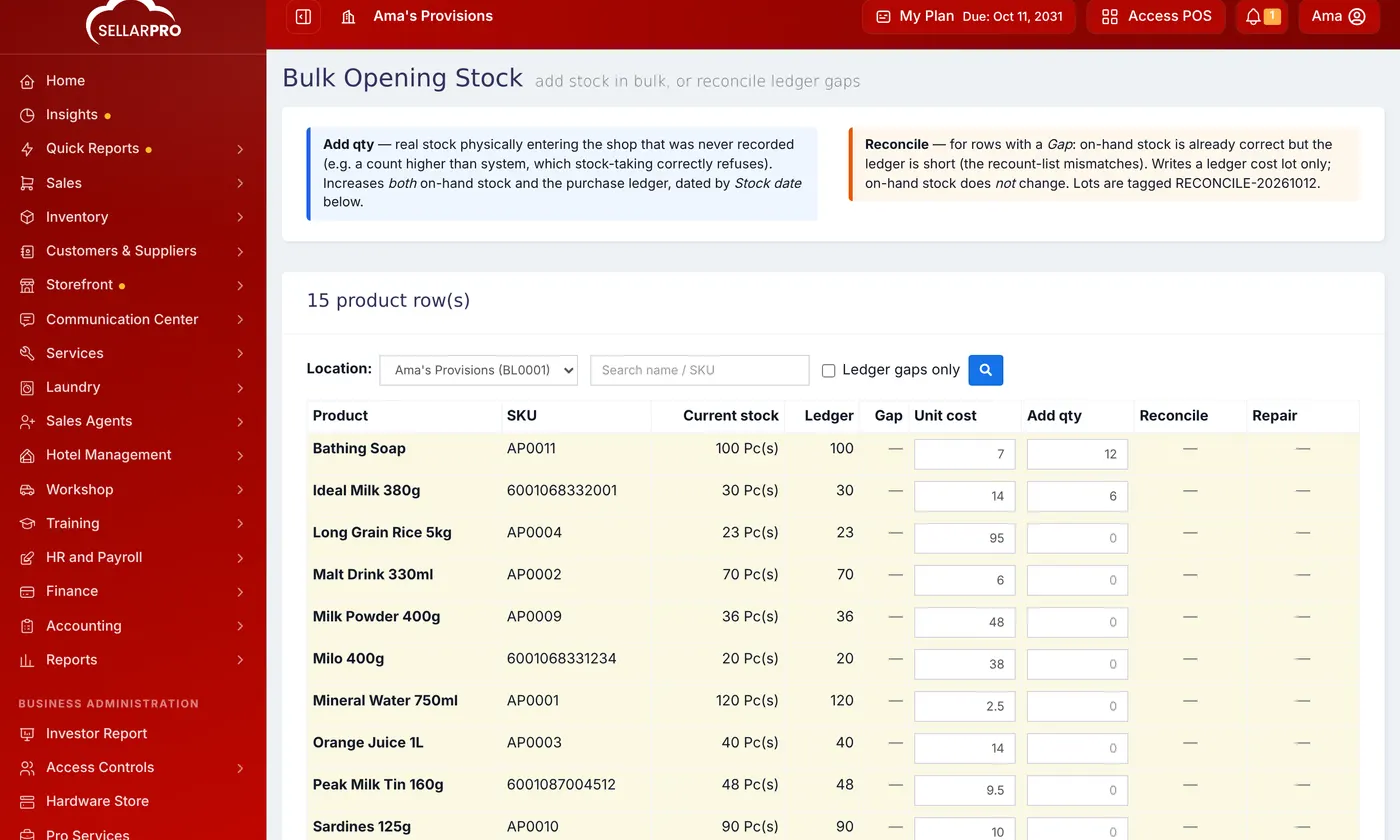
Add qty or Reconcile
- Add qty: real stock entering the shop that was never recorded. It raises the on-hand stock and records what it cost.
- Reconcile: for a row marked as a Gap, the shelf figure is already right but the purchase records are short. Reconciling records the cost only; the stock figure does not change. Tick Ledger gaps only to list just those rows.
Stock you bought from a supplier is a purchase, not opening stock. Record it under Purchases so the supplier's balance is right.
Common questions
Why does the unit cost matter?
Profit is the selling price minus what the item cost. Opening stock with no cost makes every sale of it look like pure profit.
I have a spreadsheet of stock for every branch.
Use Smart Import instead. See How to Import Each Branch's Opening Stock with Smart Import.
Was this article helpful?
Thanks — your answer helps us improve this article.
Still need help?
Can’t find the answer you’re looking for? Our support team in Accra can help.