
All help topics
Help topics
- Getting Started
- Sales & POS
- Products & Inventory
- Purchases & Suppliers
- Customers
- Staff & Permissions
- Reports
- Branches
- Hardware
- Payments
- Settings
- Troubleshooting
- Billing & Subscription
- Workshop
- Training
- Sales Agents
- Laundry
- Accounting
- HR & Payroll
- Hotel
- Services
- Communication Center
- Online Store
- CRM
- Restaurant
- F&B Manager
- Production
- Projects
- Asset Management
- All topics
How to Record a Purchase from a Supplier
Short answer
Open Purchases → Add Purchase. Choose the Supplier, the Business Location and set Purchase Status to Received. Add each product with its quantity and Unit Cost, check the selling price, add the payment and click Save. Stock goes up straight away.
Recording what you buy is what keeps your stock count, cost prices and profit right. Do it for every delivery from a supplier.
Step 1: the purchase details
- Open Purchases and click Add.
- Choose the Supplier. Add them first if they are new.
- Type the supplier's invoice number in Reference No, or leave it empty to have one made for you.
- Check the Purchase Date and choose the Business Location receiving the goods.
- Set Purchase Status. Only Received puts the goods into stock. Use Ordered or Pending while you are still waiting.
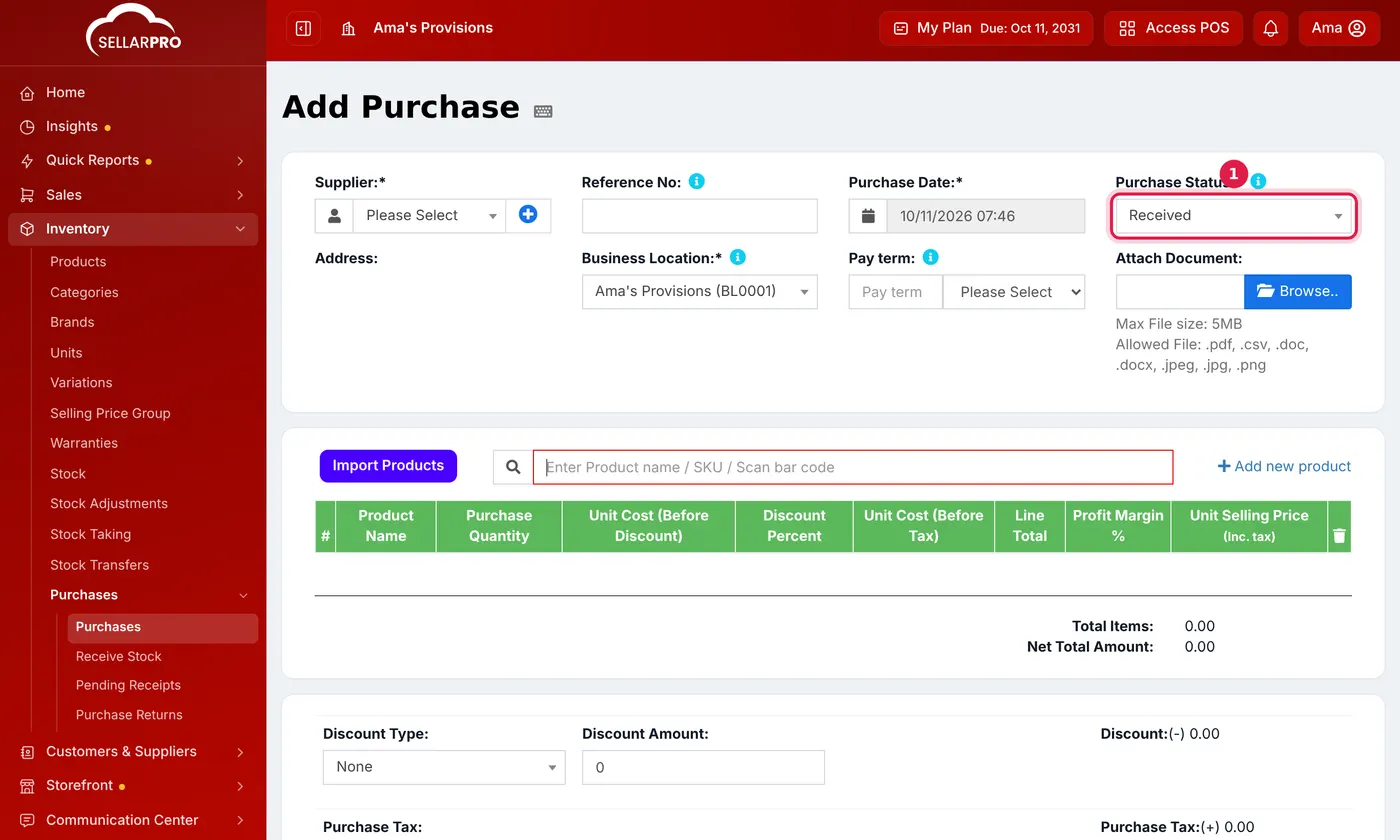
Purchase Status set to Received, so the goods go into stock when you save.
Step 2: the products
- Search by name or SKU, or scan the barcode, to add each product.
- Enter the Purchase Quantity and the Unit Cost (Before Discount).
- Check the Unit Selling Price. Change it here if your selling price changes with this delivery.
- For goods that expire, fill in the Lot Number and EXP Date.
Step 3: totals and payment
- Add any Discount, Purchase Tax or Additional Shipping charges.
- Under Add payment, enter what you paid now. Anything unpaid shows as Payment due and is owed to the supplier.
- Click Save.
Later
When an Ordered purchase arrives, open Actions → Update Status on it and set it to Received.
Goods arrived but no invoice yet? Use Receive Stock to make them sellable now and enter the costs later.
Common questions
I saved a purchase but the stock did not go up.
Check its Purchase Status. Only Received adds stock.
Can I print barcode labels for what arrived?
Yes. In the purchase list, choose Labels from Actions to print labels for everything on that purchase.
Was this article helpful?
Thanks — your answer helps us improve this article.
Still need help?
Can’t find the answer you’re looking for? Our support team in Accra can help.