
All help topics
Help topics
- Getting Started
- Sales & POS
- Products & Inventory
- Purchases & Suppliers
- Customers
- Staff & Permissions
- Reports
- Branches
- Hardware
- Payments
- Settings
- Troubleshooting
- Billing & Subscription
- Workshop
- Training
- Sales Agents
- Laundry
- Accounting
- HR & Payroll
- Hotel
- Services
- Communication Center
- Online Store
- CRM
- Restaurant
- F&B Manager
- Production
- Projects
- Asset Management
- All topics
On this page
How to Add Items to, Edit or Delete a Laundry Ticket
Open the ticket. Click Add items when the customer brings more clothes; they are billed as an additional sale on the same ticket. Click Edit to change the promised time, pieces, notes, addresses, item lines or the discount. Click Delete, give a reason and confirm to remove the ticket and its sales.
Add more clothes to a ticket
- Open the ticket and click Add items.
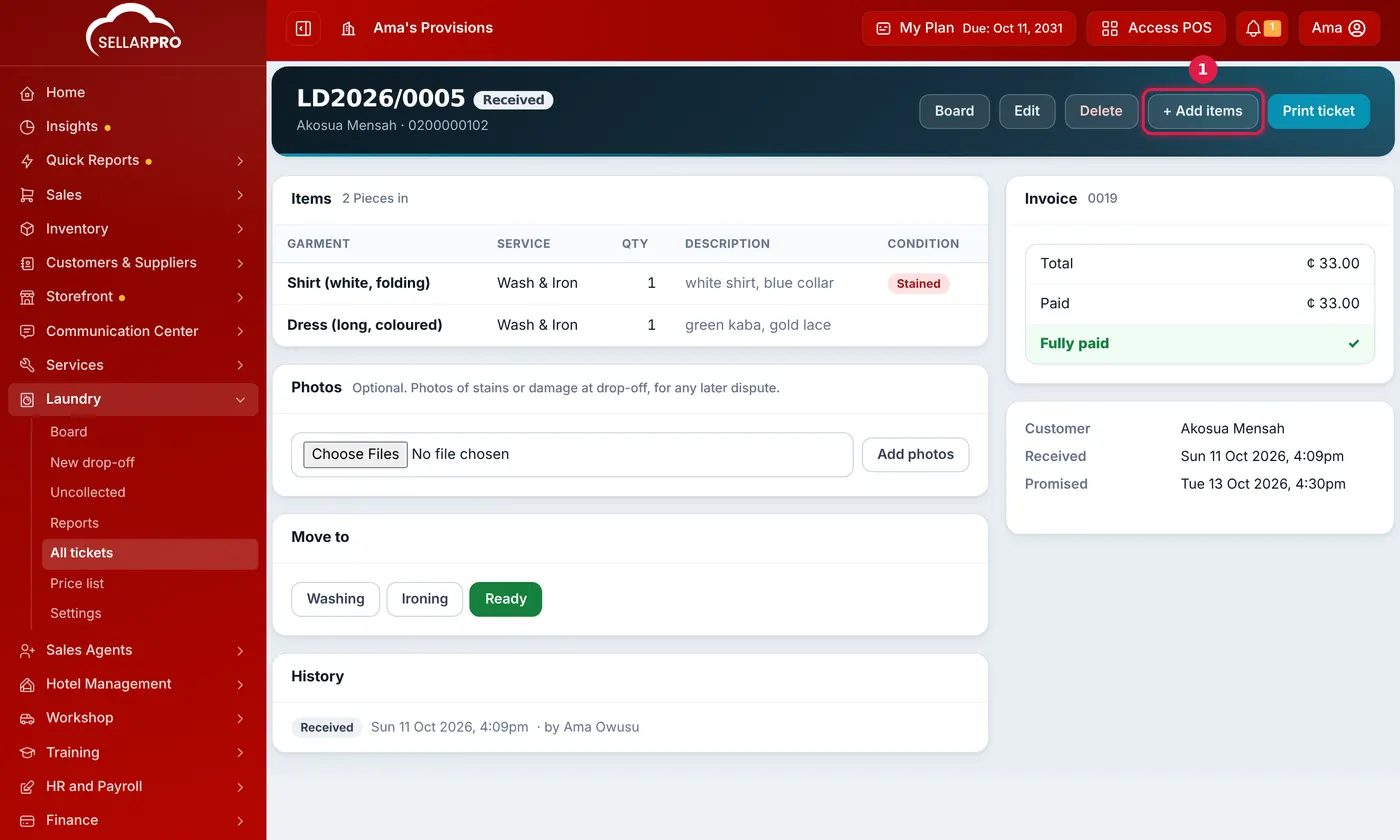
Edit, Delete and Add items are along the top of the ticket. - Tap the prices for the new clothes, describe them and take the deposit for them.
- Click Add to ticket & print.
The new clothes are billed as a second sale on the same ticket, and the ticket's total and balance include both. A ticket that was Ready goes back to Received, because the new clothes still need washing.
Edit a ticket
- Open the ticket and click Edit.
- Change the Promised time, Pieces in, notes or addresses.
- For each item, change the quantity, description, condition tags or extra charge, or tick Remove. With permission, you can also change the price and the Discount.
- Click Save changes.
Payments already taken are kept exactly as they were, and the invoice number stays the same. If an edit brings the total below what the customer has paid, the difference is kept as their advance.
A collected or delivered ticket can no longer be edited, and a ticket must keep at least one item. To add clothes, use Add items, not Edit.
Delete a ticket
- Open the ticket and click Delete.
- Enter the Reason and click Delete ticket.
The ticket and its sales, with their payments, are deleted. Each sale is kept in the Deletion Log with your reason, so it can always be seen who deleted what and why. A ticket cannot be deleted while a refund (sell return) exists against its sale.
Common questions
Who can edit or delete tickets?
What happens if someone deletes the ticket's sale from the Sales screen?
Was this article helpful?
Thanks — your answer helps us improve this article.
Still need help?
Can’t find the answer you’re looking for? Our support team in Accra can help.