
All help topics
Help topics
- Getting Started
- Sales & POS
- Products & Inventory
- Purchases & Suppliers
- Customers
- Staff & Permissions
- Reports
- Branches
- Hardware
- Payments
- Settings
- Troubleshooting
- Billing & Subscription
- Workshop
- Training
- Sales Agents
- Laundry
- Accounting
- HR & Payroll
- Hotel
- Services
- Communication Center
- Online Store
- CRM
- Restaurant
- F&B Manager
- Production
- Projects
- Asset Management
- All topics
On this page
How to View a Customer Ledger and Send a Statement
Short answer
Open Customers & Suppliers → Customers, click Actions on the customer and choose Ledger. Pick the Date Range to see every sale, payment and return with the running balance. Download it as a PDF or email it to the customer as their statement.
A customer's ledger is their statement of account: every sale, payment and return, in date order, with the balance after each one.
Open the ledger
- Open Customers & Suppliers → Customers.
- Click Actions on the customer and choose Ledger. Or choose View and open the Ledger tab.
- Pick the Date Range. Choose a Ledger format if you prefer a different layout.
Send it to the customer
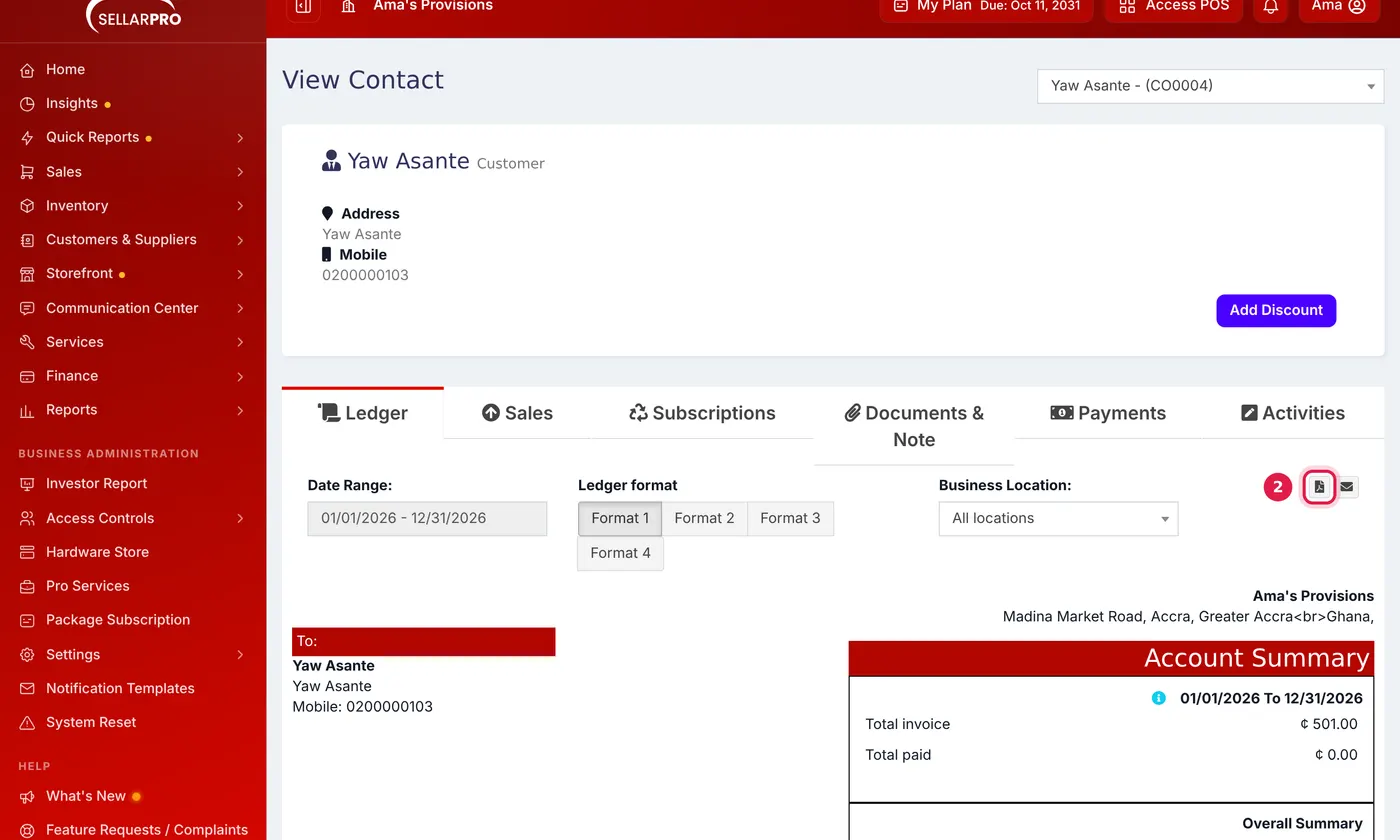
- Click the PDF button to download the statement and send it any way you like.
- Click the envelope button to email it to the customer directly.
The other tabs
On the customer's page, Sales lists everything they bought, Payments lists every payment with its method, Documents & Note keeps files and notes about them, and Reward Points shows points earned and redeemed if you use them.
Common questions
The balance looks wrong.
Check the Opening Balance on the customer, and look in the ledger for a sale or payment on the wrong date or customer. Correct the sale or payment itself; the ledger follows.
Was this article helpful?
Thanks — your answer helps us improve this article.
Still need help?
Can’t find the answer you’re looking for? Our support team in Accra can help.