
All help topics
Help topics
- Getting Started
- Sales & POS
- Products & Inventory
- Purchases & Suppliers
- Customers
- Staff & Permissions
- Reports
- Branches
- Hardware
- Payments
- Settings
- Troubleshooting
- Billing & Subscription
- Workshop
- Training
- Sales Agents
- Laundry
- Accounting
- HR & Payroll
- Hotel
- Services
- Communication Center
- Online Store
- CRM
- Restaurant
- F&B Manager
- Production
- Projects
- Asset Management
- All topics
On this page
How to Update Prices or Reverse a Smart Import
Upload the same file again and Smart Import recognises it. Choose Update prices only to take the file's new prices without loading the stock twice. To undo an import, open it in Import History and click Reverse Import; products sold or changed since are kept.
Update prices from a file
When your supplier's prices change, change them in the same spreadsheet and import it again.
- Open Smart Import, click New Import and upload the file.
- On the review screen, Smart Import says This exact file has been imported before and names the earlier import.
- Choose Update prices only. Existing products take the file's prices; stock is left exactly as it is, and no new products are created.
- Continue and import.
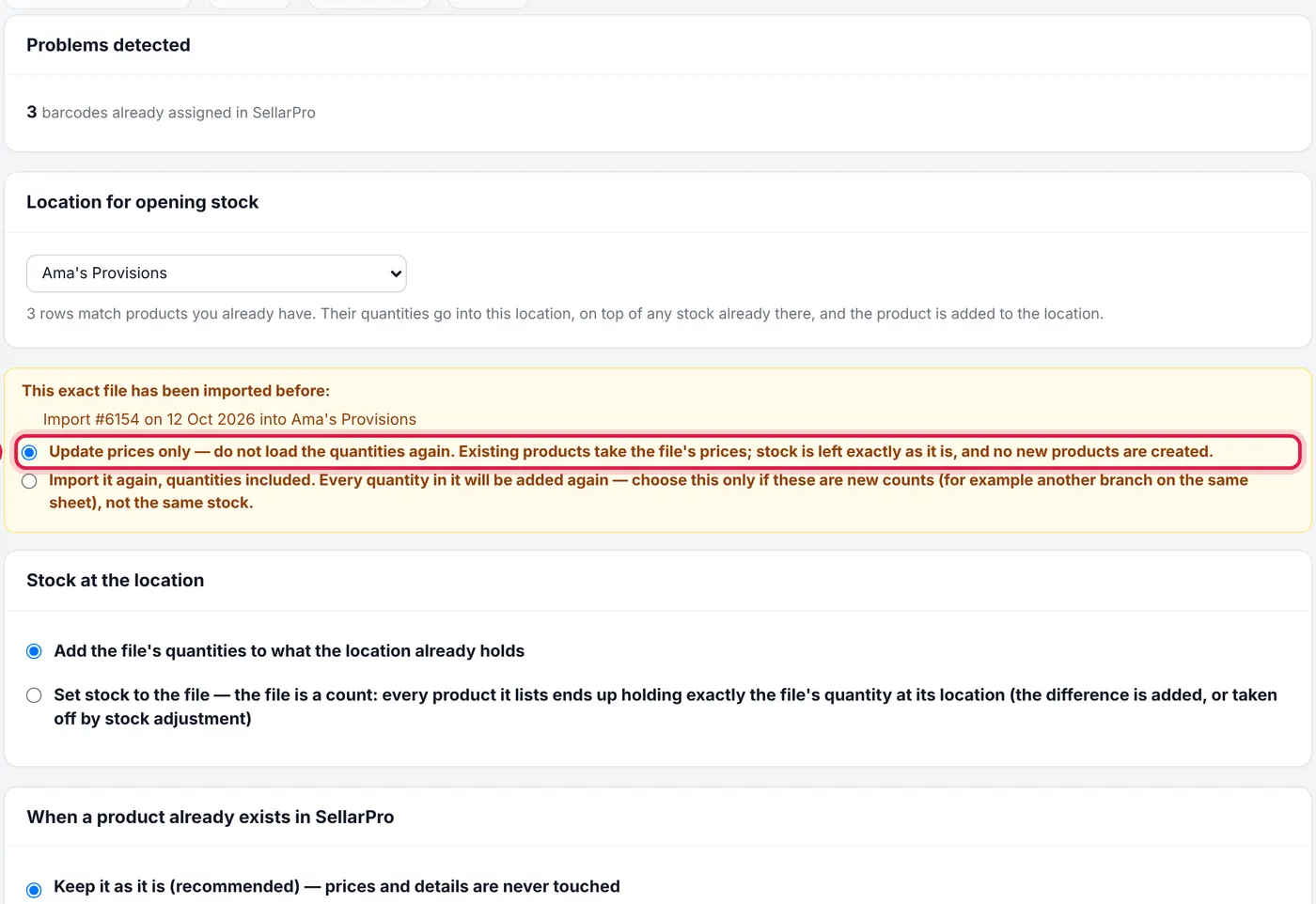
Choose Import it again, quantities included only if the file really holds new counts, for example another branch's stock on the same sheet.
Reverse an import
- Open Smart Import. Under Import History, click the import's file name.
- Click Reverse Import and confirm.
Products are reversed one by one. A product that has since been sold, bought or adjusted is kept as it is, and the screen lists those. You can reverse the rest later.
Reversing removes the products and the stock the import loaded. It is meant for an import that went wrong, soon after it ran.
Common questions
An import is stuck In Review.
Was this article helpful?
Thanks — your answer helps us improve this article.
Still need help?
Can’t find the answer you’re looking for? Our support team in Accra can help.