
All help topics
Help topics
- Getting Started
- Sales & POS
- Products & Inventory
- Purchases & Suppliers
- Customers
- Staff & Permissions
- Reports
- Branches
- Hardware
- Payments
- Settings
- Troubleshooting
- Billing & Subscription
- Workshop
- Training
- Sales Agents
- Laundry
- Accounting
- HR & Payroll
- Hotel
- Services
- Communication Center
- Online Store
- CRM
- Restaurant
- F&B Manager
- Production
- Projects
- Asset Management
- All topics
On this page
How to Track Leads and Your Sales Pipeline
Switch on CRM under Settings → Menu & Modules. Add each prospect under CRM → Leads → Add Lead with their contact, source, priority and estimated value. Move them through the stages on the Pipeline board, from New Lead through Contacted, Qualified, Demo, Proposal and Negotiation to Won or Lost.
The CRM tracks people who might buy from you, from the first conversation until they become a customer. It suits businesses that sell big orders, contracts or wholesale accounts.
Switch on CRM under Settings → Menu & Modules.
Add a lead
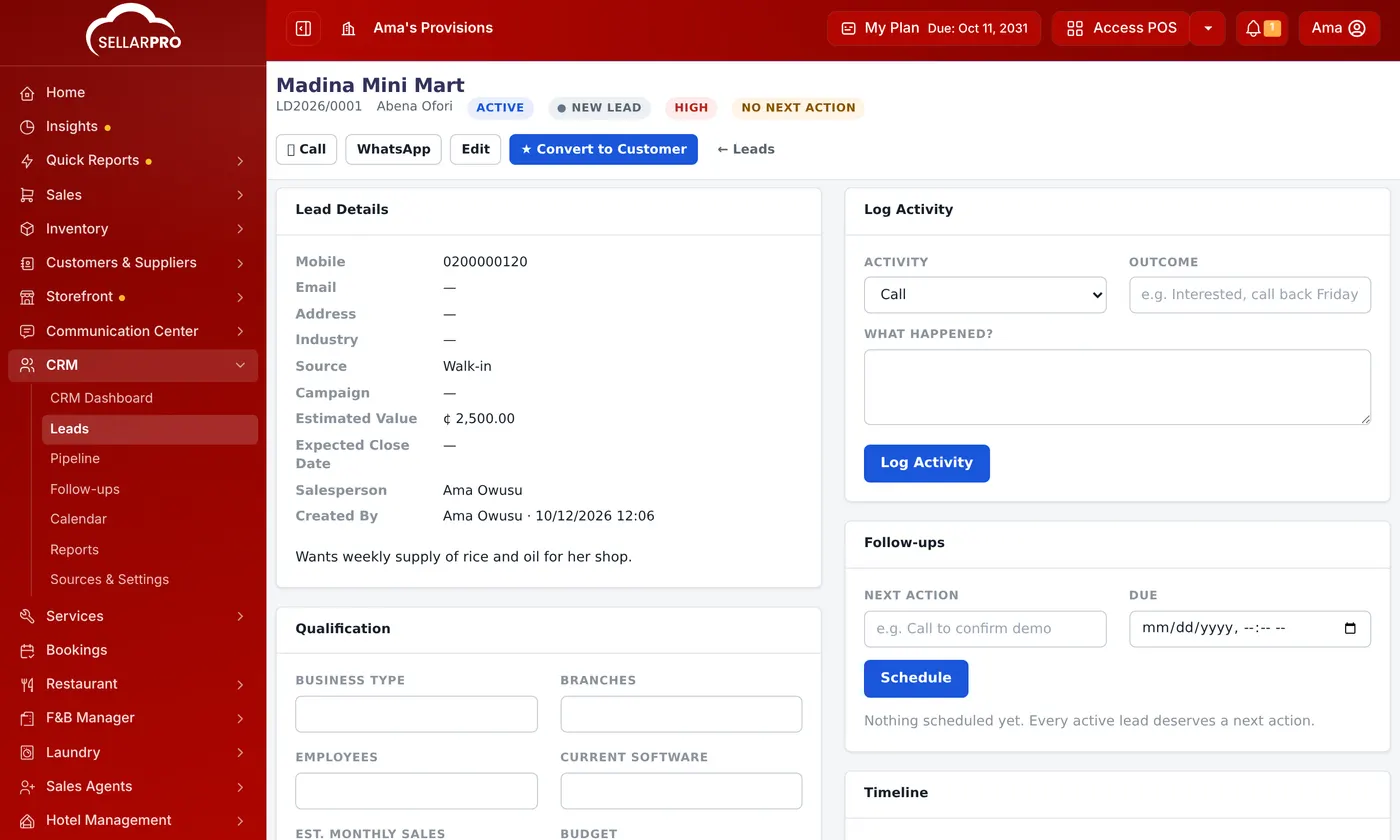
- Open CRM → Leads and click Add Lead.
- Enter the company name, the contact person, mobile, WhatsApp and email.
- Choose the Source (where they came from, such as Walk-in, WhatsApp or Referral), the Stage and the Priority.
- Enter the Estimated Value and expected close date, and choose the salesperson it is Assigned to.
- Save. The lead gets a number, such as LD2026/0001.
Many leads in a spreadsheet? Use Import on the Leads page.
Work the pipeline
Open CRM → Pipeline. Each column is a stage, with its total value and how likely leads in it are to buy: New Lead, Contacted, Qualified, Demo, Proposal, Negotiation, Won and Lost. Move a lead to the next stage as the conversation moves on, or use Move Stage on the lead's page.
The CRM dashboard
CRM → CRM Dashboard shows active leads, the Pipeline Value, what was Won This Month, and two queues: follow-ups Overdue and Due Today.
Common questions
Can a salesperson see only their own leads?
Was this article helpful?
Thanks — your answer helps us improve this article.
Still need help?
Can’t find the answer you’re looking for? Our support team in Accra can help.