
All help topics
Help topics
- Getting Started
- Sales & POS
- Products & Inventory
- Purchases & Suppliers
- Customers
- Staff & Permissions
- Reports
- Branches
- Hardware
- Payments
- Settings
- Troubleshooting
- Billing & Subscription
- Workshop
- Training
- Sales Agents
- Laundry
- Accounting
- HR & Payroll
- Hotel
- Services
- Communication Center
- Online Store
- CRM
- Restaurant
- F&B Manager
- Production
- Projects
- Asset Management
- All topics
On this page
How to Read CRM Reports and Set Up Lead Sources
Short answer
CRM → Reports shows the Funnel, Source Performance, Campaign Performance, Sales Team, Lost Leads and the Forecast for a period. Under CRM → Sources & Settings, add or switch off lead sources and lost reasons, and add the campaigns you run on each source.
Reports
- Open CRM → Reports.
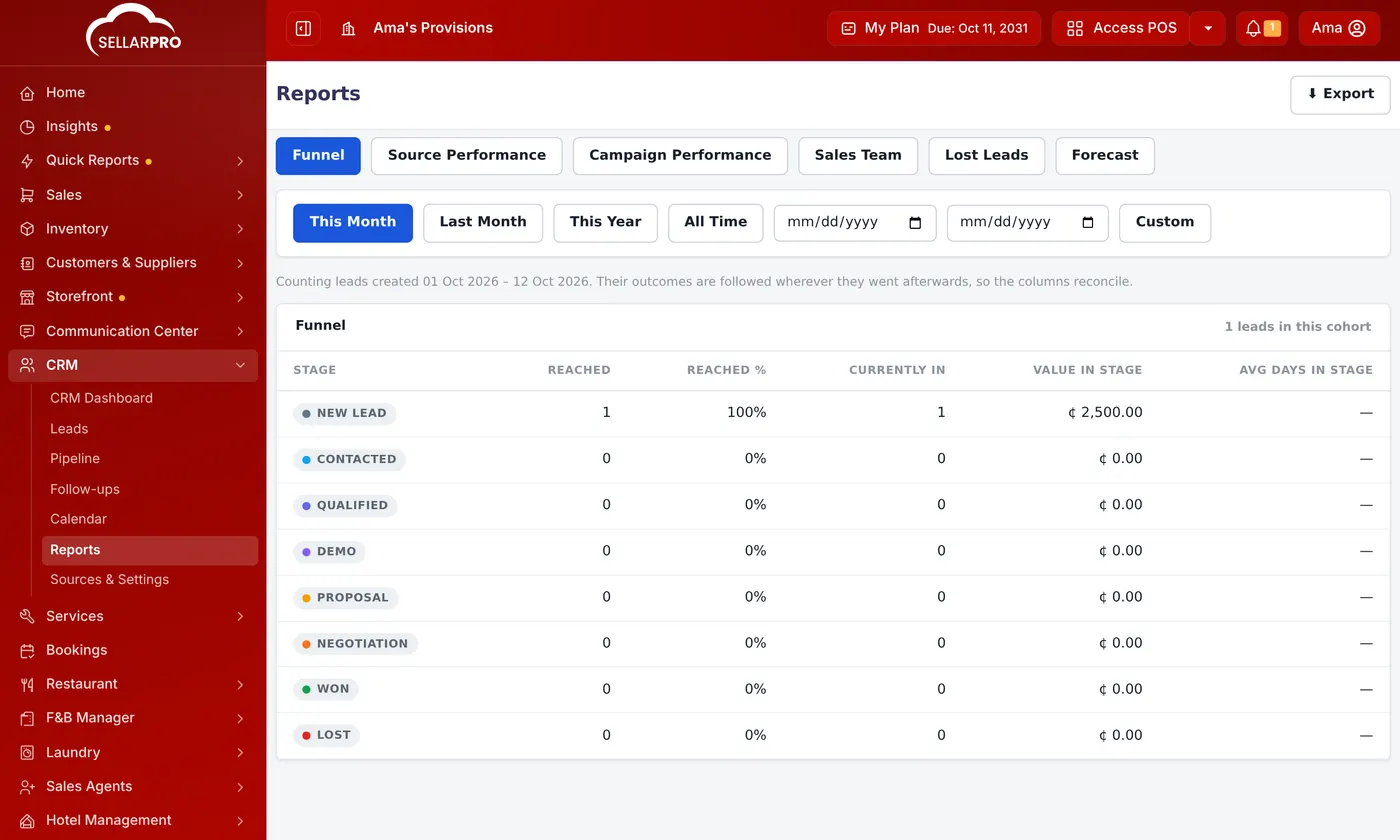
- Choose the period: This Month, Last Month, This Year, All Time or Custom. The report counts leads created in that period and follows them wherever they went afterwards, so the columns add up.
- Choose a tab.
- Funnel: for each stage, how many leads reached it, what share, how many are in it now, their value and the average days spent there.
- Source Performance and Campaign Performance: which channels and pushes bring leads that buy.
- Sales Team: each salesperson's leads, wins and value.
- Lost Leads: why leads are lost.
- Forecast: what the open pipeline is likely to bring in.
Sources, lost reasons and campaigns
Open CRM → Sources & Settings:
- Lead Sources: the channels leads come from. Add your own, or switch one off.
- Lost Reasons: the reasons a salesperson chooses when a lead is lost.
- Campaigns: a specific push, such as "Kumasi Retail August", run on a source. Choose it on a lead to see which campaigns pay off.
Was this article helpful?
Thanks — your answer helps us improve this article.
Still need help?
Can’t find the answer you’re looking for? Our support team in Accra can help.