
All help topics
Help topics
- Getting Started
- Sales & POS
- Products & Inventory
- Purchases & Suppliers
- Customers
- Staff & Permissions
- Reports
- Branches
- Hardware
- Payments
- Settings
- Troubleshooting
- Billing & Subscription
- Workshop
- Training
- Sales Agents
- Laundry
- Accounting
- HR & Payroll
- Hotel
- Services
- Communication Center
- Online Store
- CRM
- Restaurant
- F&B Manager
- Production
- Projects
- Asset Management
- All topics
How to Follow Up Leads and Convert Them to Customers
On a lead's page, use Log Activity to record every call, WhatsApp, visit or proposal and its outcome, and Follow-ups to schedule the next action with a due date. CRM → Follow-ups lists what is overdue, due today and coming up. When the lead buys, click Convert to Customer.
Record what happened
- Open the lead.
- Under Log Activity, choose the Activity: Call, WhatsApp, SMS, Email, Meeting, Demo, Proposal or Note.
- Choose the Outcome, write What happened? and click Log Activity.
Everything is kept on the lead's Timeline, with the stage history beneath it. Call and WhatsApp at the top open the conversation straight from the page.
Schedule the next action
Under Follow-ups, type the Next Action, such as "Send price list", and when it is Due, then click Schedule. Every active lead deserves a next action.
CRM → Follow-ups is the to-do list: Overdue, Due Today, Upcoming, and No Next Action, the active leads with nothing scheduled, which are the most likely to go cold. CRM → Calendar shows the same by date.
Convert to a customer
- On the lead, click Convert to Customer.
- Link it to an existing customer it may match, or Create a new customer from the lead's details.
- Confirm.
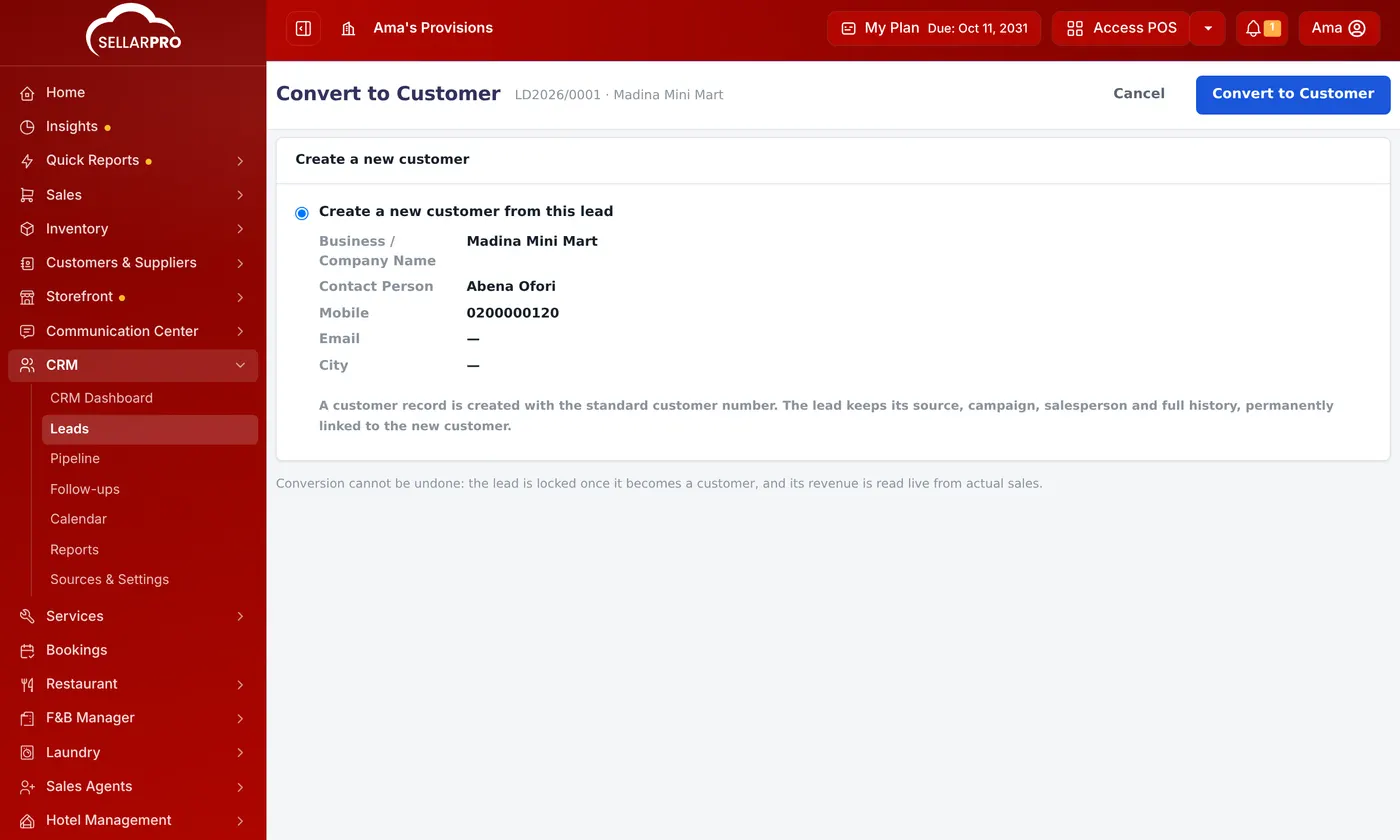
The lead keeps its source, campaign, salesperson and history, linked for good to the customer, and its revenue is read from the customer's real sales. Conversion cannot be undone; the lead is locked afterwards.
If they do not buy, move the lead to Lost and choose a lost reason. Reasons are set under CRM → Sources & Settings.
Was this article helpful?
Thanks — your answer helps us improve this article.
Still need help?
Can’t find the answer you’re looking for? Our support team in Accra can help.