
All help topics
Help topics
- Getting Started
- Sales & POS
- Products & Inventory
- Purchases & Suppliers
- Customers
- Staff & Permissions
- Reports
- Branches
- Hardware
- Payments
- Settings
- Troubleshooting
- Billing & Subscription
- Workshop
- Training
- Sales Agents
- Laundry
- Accounting
- HR & Payroll
- Hotel
- Services
- Communication Center
- Online Store
- CRM
- Restaurant
- F&B Manager
- Production
- Projects
- Asset Management
- All topics
On this page
How to Take Table Bookings
Switch on Enable Bookings under Settings → Menu & Modules. Open Bookings, click Add new booking (or double-click a day), choose the customer, table, staff member and start and end times, and save. Bookings show on the calendar as Waiting, Booked, Completed or Cancelled.
Bookings take reservations for a table or an appointment with a member of staff, such as a hairdresser.
Steps
- Switch on Enable Bookings under Settings → Menu & Modules.
- Open Bookings and click Add new booking, or double-click a day on the calendar.
- Choose the location and the customer, and the table and service staff if you use them.
- Set the Start time and End time, and add a Customer note.
- Tick the box to send the customer a notification if you like. Save.
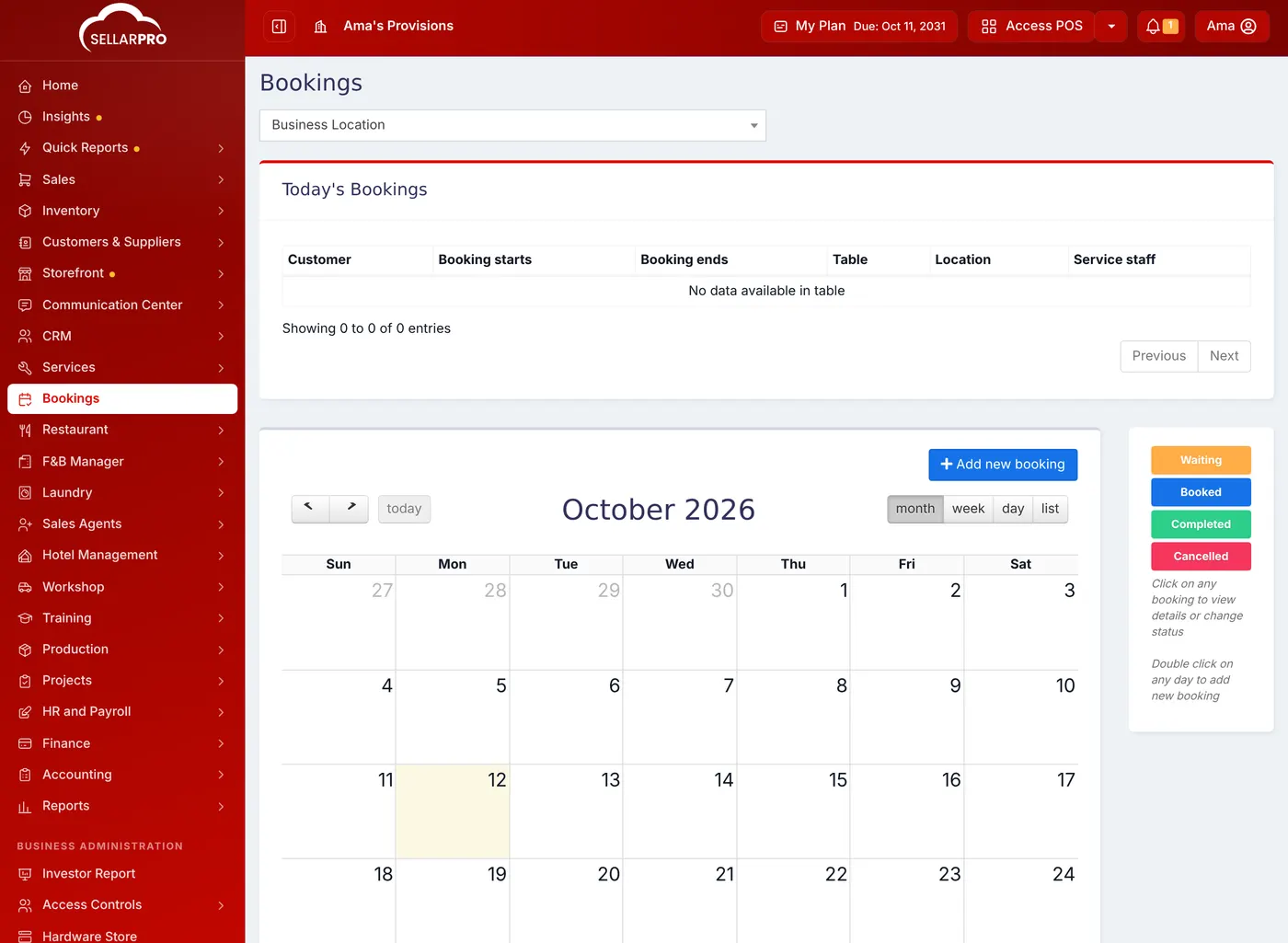
Manage bookings
Today's Bookings lists who is coming today. On the calendar, switch between month, week, day and list, and click a booking to see it or change its status: Waiting, Booked, Completed or Cancelled.
The booking notification's wording is under Notification Templates → New Booking.
Was this article helpful?
Thanks — your answer helps us improve this article.
Still need help?
Can’t find the answer you’re looking for? Our support team in Accra can help.