
All help topics
Help topics
- Getting Started
- Sales & POS
- Products & Inventory
- Purchases & Suppliers
- Customers
- Staff & Permissions
- Reports
- Branches
- Hardware
- Payments
- Settings
- Troubleshooting
- Billing & Subscription
- Workshop
- Training
- Sales Agents
- Laundry
- Accounting
- HR & Payroll
- Hotel
- Services
- Communication Center
- Online Store
- CRM
- Restaurant
- F&B Manager
- Production
- Projects
- Asset Management
- All topics
On this page
How to Set Up Service Items
Switch on Services under Settings → Business Settings → Modules. Then open Services → Service Items, click Add, and give each service a Service Name, what it is Charged per, a Rate and, if you track it, the Cost Rate to deliver it.
Services is for businesses that sell work as well as, or instead of, goods: a mechanic, a salon, a printer, a cleaner, a delivery service. It adds a service price list with its own invoices, estimates, payments, refunds and revenue report. Services never affect stock.
Step 1: switch it on
Open Settings → Business Settings → Modules, tick Services and save. A Services menu appears.
Step 2: add your services
- Open Services → Service Items and click Add.
- Enter the Service Name.
- Choose what it is Charged per (an hour, a square metre, a visit) and the Rate.
- Pick a Service Type to group it, or leave it blank. Manage service types opens the list of types.
- Enter the Cost Rate, what it costs you to deliver one unit. Leave it blank if you do not track it.
- Choose where it is Available at, and click Save.
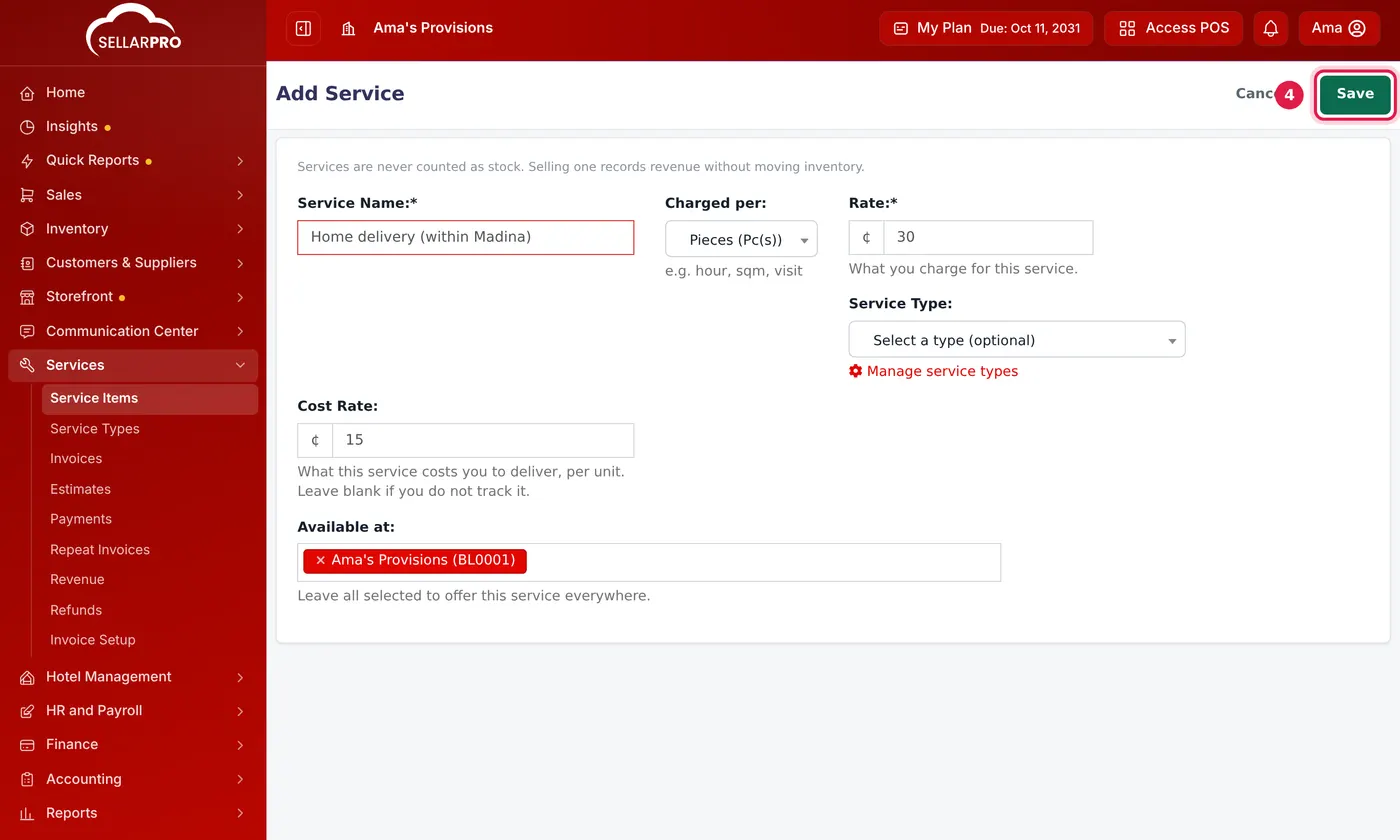
A service with its rate and what it costs you to deliver.
The Cost Rate is what turns revenue into profit in the Revenue report. Fill it in wherever you know it.
Common questions
Can a service be sold at the POS too?
Was this article helpful?
Thanks — your answer helps us improve this article.
Still need help?
Can’t find the answer you’re looking for? Our support team in Accra can help.