
All help topics
Help topics
- Getting Started
- Sales & POS
- Products & Inventory
- Purchases & Suppliers
- Customers
- Staff & Permissions
- Reports
- Branches
- Hardware
- Payments
- Settings
- Troubleshooting
- Billing & Subscription
- Workshop
- Training
- Sales Agents
- Laundry
- Accounting
- HR & Payroll
- Hotel
- Services
- Communication Center
- Online Store
- CRM
- Restaurant
- F&B Manager
- Production
- Projects
- Asset Management
- All topics
How to Set Up Automatic Discounts
Open Sales → Discounts and click Add. Choose the products, brand or category, the Discount Type (Fixed or Percentage) and amount, and the dates in Starts At and Ends At. The discount applies by itself at the POS while it is active.
A discount set up here applies by itself when the product is sold, so cashiers do not have to remember promotions.
Create a discount
- Open Sales → Discounts and click Add.
- Give it a Name, such as "Christmas 10% off drinks".
- Choose what it applies to: specific Products, or a Brand or Category.
- Choose the Location.
- Choose the Discount Type, Fixed or Percentage, and the Discount Amount.
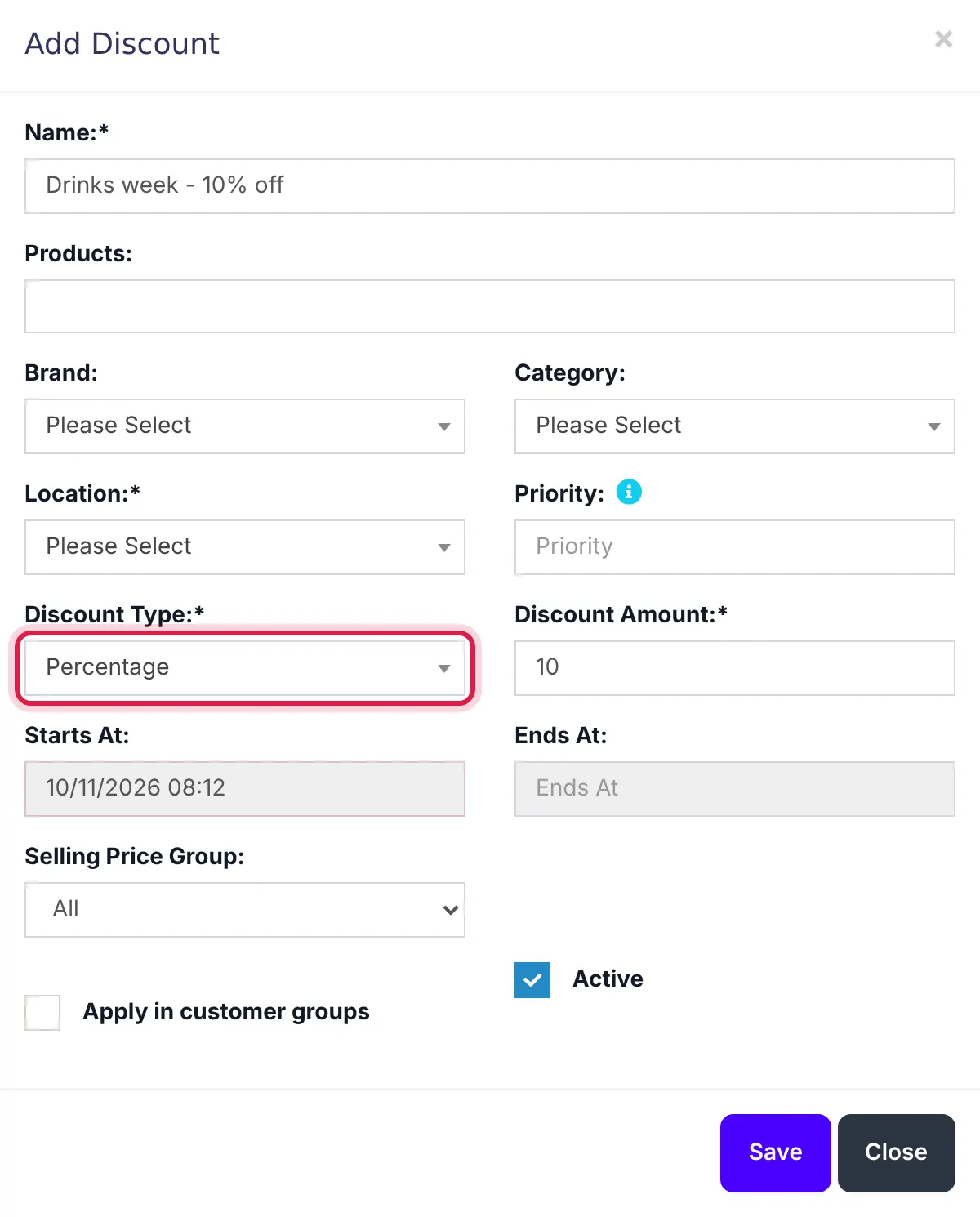
A 10% discount. Pick the products, brand or category it applies to and the dates it runs. - Pick when it runs with Starts At and Ends At.
- Optionally limit it to a Selling Price Group, or tick Apply in customer groups.
- Keep Active ticked and click Save.
When two discounts match
Use Priority: the discount with the higher priority wins. A discount set for the exact product always beats one set for its brand or category.
End a discount early
Edit it and untick Active, or tick several in the list and click Deactivate Selected.
For a one-off discount on a single sale, use Discount on the POS screen instead.
Common questions
The discount is not showing at the POS.
Was this article helpful?
Thanks — your answer helps us improve this article.
Still need help?
Can’t find the answer you’re looking for? Our support team in Accra can help.