
All help topics
Help topics
- Getting Started
- Sales & POS
- Products & Inventory
- Purchases & Suppliers
- Customers
- Staff & Permissions
- Reports
- Branches
- Hardware
- Payments
- Settings
- Troubleshooting
- Billing & Subscription
- Workshop
- Training
- Sales Agents
- Laundry
- Accounting
- HR & Payroll
- Hotel
- Services
- Communication Center
- Online Store
- CRM
- Restaurant
- F&B Manager
- Production
- Projects
- Asset Management
- All topics
On this page
How to Set Up a Budget
Open Accounting → Budgets, fill in the Budget Name, Year and dates and click Create Budget. Then open Add Lines and set an amount for each account and month. Approve the budget when it is complete, and compare it with what really happened in Budget vs Actual.
A budget sets what you plan to earn and spend each month, so you can see early when costs are running ahead.
Step 1: create the budget
- Open Accounting → Budgets.
- Fill in the Budget Name, Year, Start Date and End Date, and any Notes.
- Click Create Budget.
Step 2: add the lines
- In the Budget List, click Add Lines on your budget.
- Choose the Account (a revenue, expense or cost-of-goods account), the Month and Year, and the Amount. Click Set.
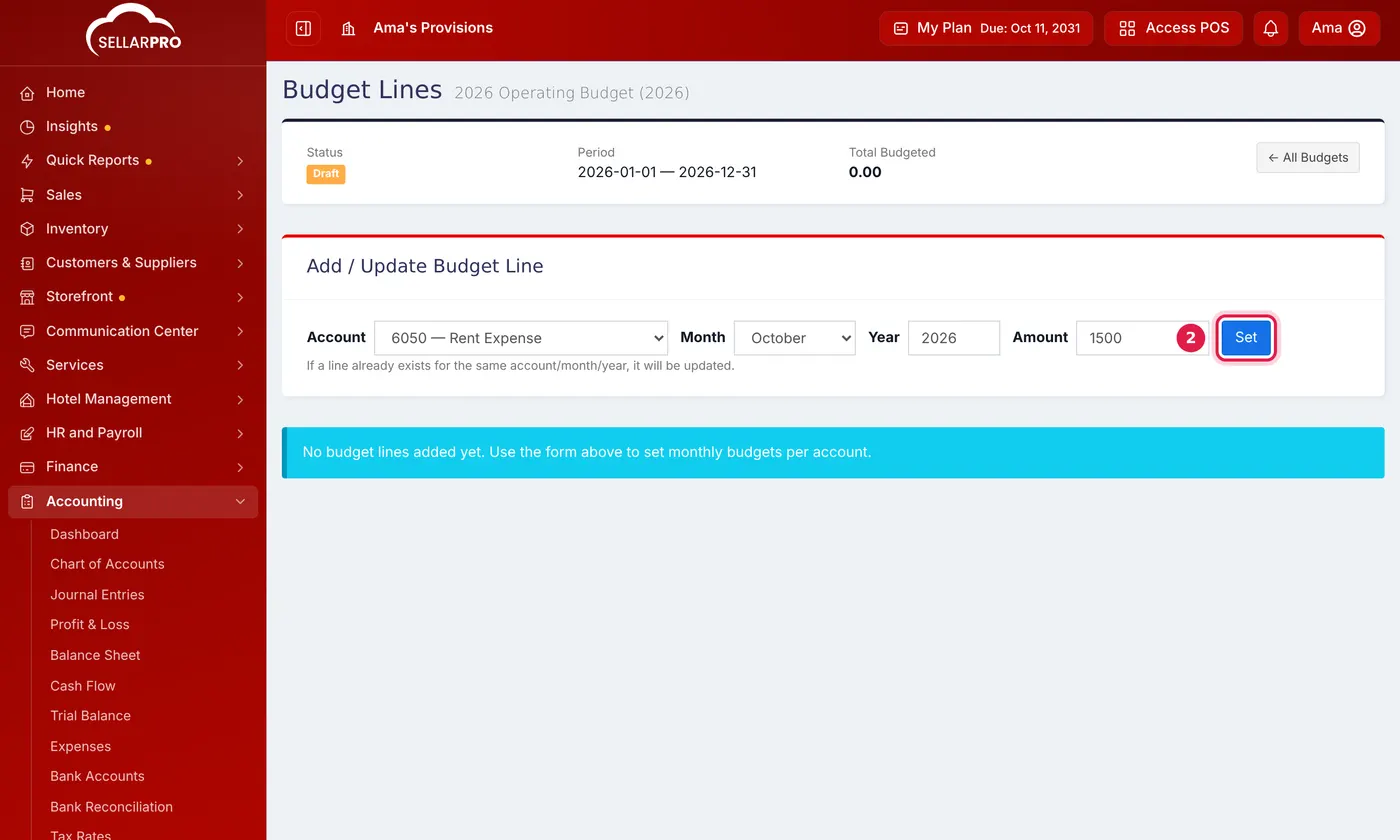
One line per account and month. Setting the same account and month again updates it. - Repeat for each account and month.
Step 3: approve it
Back in the Budget List, click Approve. A budget with no lines cannot be approved. To change an approved budget, click Reopen: it goes back to draft, and can be approved again afterwards.
Compare with what happened
Open Accounting → All Reports → Budget vs Actual to see each account's budget beside what was actually posted.
Common questions
Why is my account missing from the list?
Was this article helpful?
Thanks — your answer helps us improve this article.
Still need help?
Can’t find the answer you’re looking for? Our support team in Accra can help.