
All help topics
Help topics
- Getting Started
- Sales & POS
- Products & Inventory
- Purchases & Suppliers
- Customers
- Staff & Permissions
- Reports
- Branches
- Hardware
- Payments
- Settings
- Troubleshooting
- Billing & Subscription
- Workshop
- Training
- Sales Agents
- Laundry
- Accounting
- HR & Payroll
- Hotel
- Services
- Communication Center
- Online Store
- CRM
- Restaurant
- F&B Manager
- Production
- Projects
- Asset Management
- All topics
On this page
How to Send an Estimate for the Customer's Approval
Short answer
On the job card, click + Estimate. Add each part and labour line with its quantity, rate and technician, and any discount. Under Send to customer, send the approval link, or record the customer's answer yourself with Approve or Decline via Counter, Phone or WhatsApp. Only approved work is invoiced.
Build the estimate
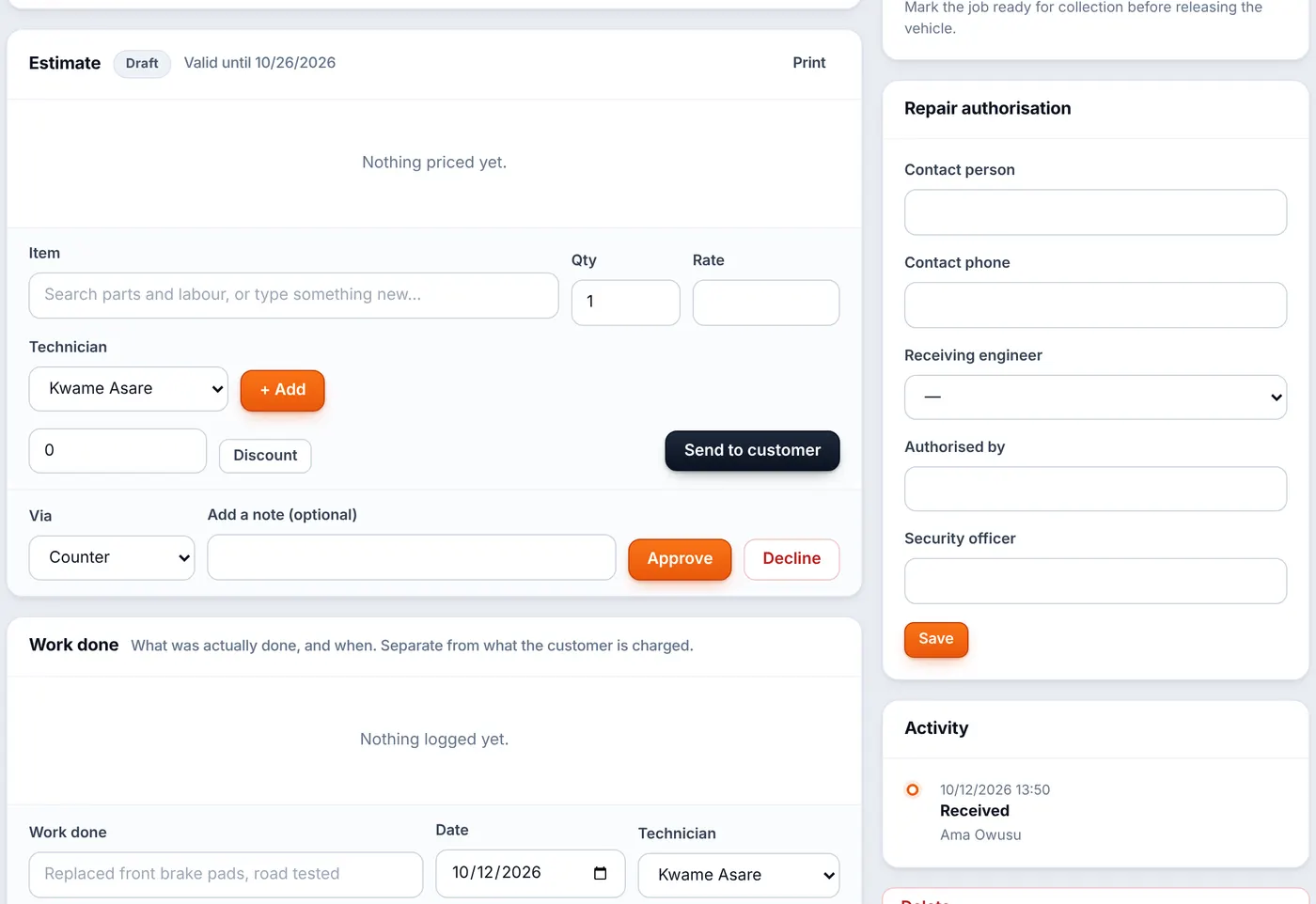
- Open the job card and click + Estimate. A draft estimate opens on the job, valid for the number of days set in Workshop settings.
- Add each line: the part or labour Item, the Qty, the Rate and the Technician. The parts list shows what is in stock at your branch; nothing leaves stock yet.
- Add a Discount if you are giving one.
Get the customer's answer
- Send to customer: the customer gets a link to see the estimate and approve or decline it themselves.
- Or, if they answered at the counter, on the phone or on WhatsApp, choose how under Via, add a note and click Approve or Decline.
The job waits in Awaiting Approval until there is an answer. Work found halfway through gets its own additional estimate and its own approval, so the customer is never surprised by the bill.
Only approved work is invoiced. Declined lines stay on the job card as a record of what was offered.
Common questions
Can I print the estimate?
Yes, with Print on the estimate.
Was this article helpful?
Thanks — your answer helps us improve this article.
Still need help?
Can’t find the answer you’re looking for? Our support team in Accra can help.