
All help topics
Help topics
- Getting Started
- Sales & POS
- Products & Inventory
- Purchases & Suppliers
- Customers
- Staff & Permissions
- Reports
- Branches
- Hardware
- Payments
- Settings
- Troubleshooting
- Billing & Subscription
- Workshop
- Training
- Sales Agents
- Laundry
- Accounting
- HR & Payroll
- Hotel
- Services
- Communication Center
- Online Store
- CRM
- Restaurant
- F&B Manager
- Production
- Projects
- Asset Management
- All topics
How to Sell Products in Sizes and Colours with Variations
Create the variation once under Inventory → Variations, such as Size with S, M and L. Then add the product with Product Type set to Variable, choose the variation and its values, and give each one its own SKU, purchase price and selling price. Each value has its own stock.
When one product comes in several sizes, colours or flavours, each with its own price or stock, make it a variable product. The shirt is one product; small, medium and large are its variations.
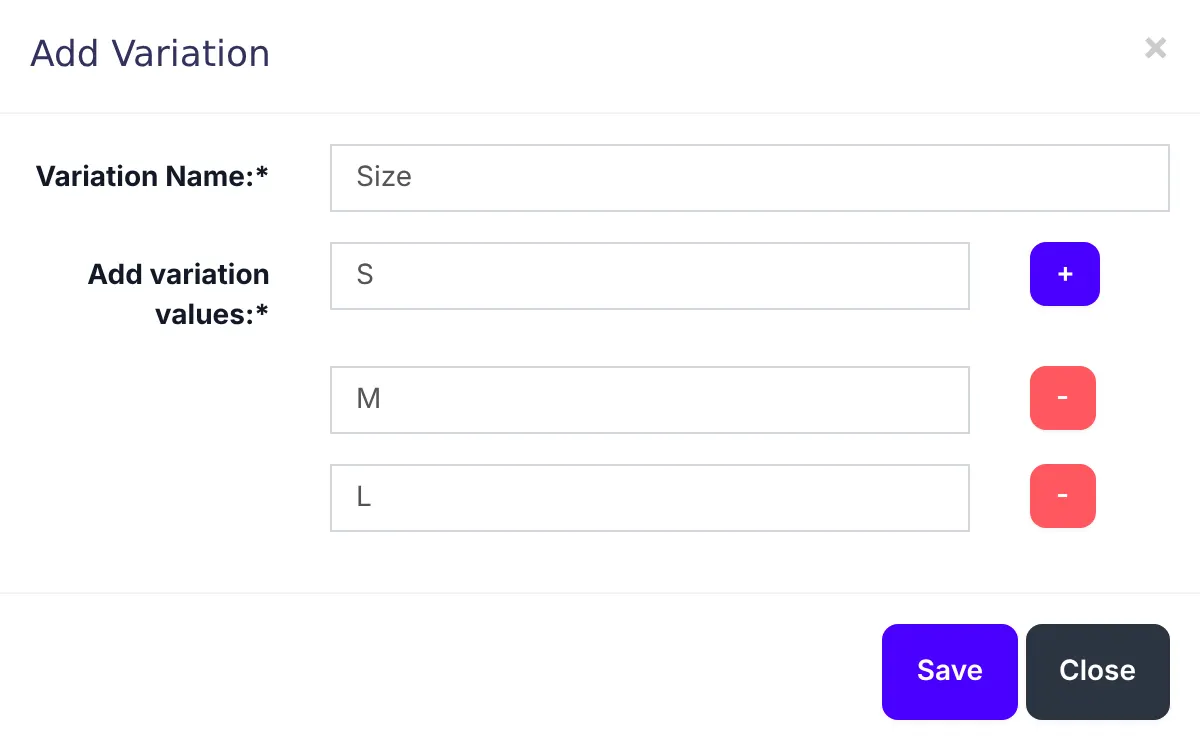
Step 1: create the variation
- Open Inventory → Variations and click Add.
- Type the Variation Name, such as "Size".
- Under Add variation values, type each value (S, M, L). Click + for another.
- Save.
Step 2: add the product
- Open Inventory → Products and click Add. Fill in the name, unit and category as usual.
- Set Product Type to Variable.
- Under Variation, choose the variation you made, then choose which of its values this product comes in.
- For each value, enter its SKU (or leave it to be made for you), its Default Purchase Price and its Default Selling Price.
- Click Save, or Save & Add Opening Stock to enter the quantity of each size.
What happens next
On the POS, searching for the product lists every variation by name, such as "Polo shirt - M". Each variation has its own stock, its own price and its own line in reports.
Only use variations when the versions differ in price or are counted separately. One price and one count is simpler as a single product.
Was this article helpful?
Thanks — your answer helps us improve this article.
Still need help?
Can’t find the answer you’re looking for? Our support team in Accra can help.