
All help topics
Help topics
- Getting Started
- Sales & POS
- Products & Inventory
- Purchases & Suppliers
- Customers
- Staff & Permissions
- Reports
- Branches
- Hardware
- Payments
- Settings
- Troubleshooting
- Billing & Subscription
- Workshop
- Training
- Sales Agents
- Laundry
- Accounting
- HR & Payroll
- Hotel
- Services
- Communication Center
- Online Store
- CRM
- Restaurant
- F&B Manager
- Production
- Projects
- Asset Management
- All topics
On this page
How to Pay a Supplier
Short answer
To pay one purchase, open Purchases, click Actions and choose Add payment. To pay off a supplier's balance, open Customers & Suppliers → Suppliers, click Actions and choose Pay. The money clears their oldest purchases first.
Every purchase you have not fully paid is owed to the supplier. Record payments as you make them so you always know what you owe.
Pay one purchase
- Open Purchases, click Actions on the purchase and choose Add payment.
- Enter the Amount, the Payment Method and the date, and save.
View Payments on the same menu shows, edits or deletes the payments on that purchase.
Pay off a supplier's balance
- Open Customers & Suppliers → Suppliers.
- Click Actions on the supplier and choose Pay. The window shows their Total Purchase, Total Paid and Total Purchase Due.
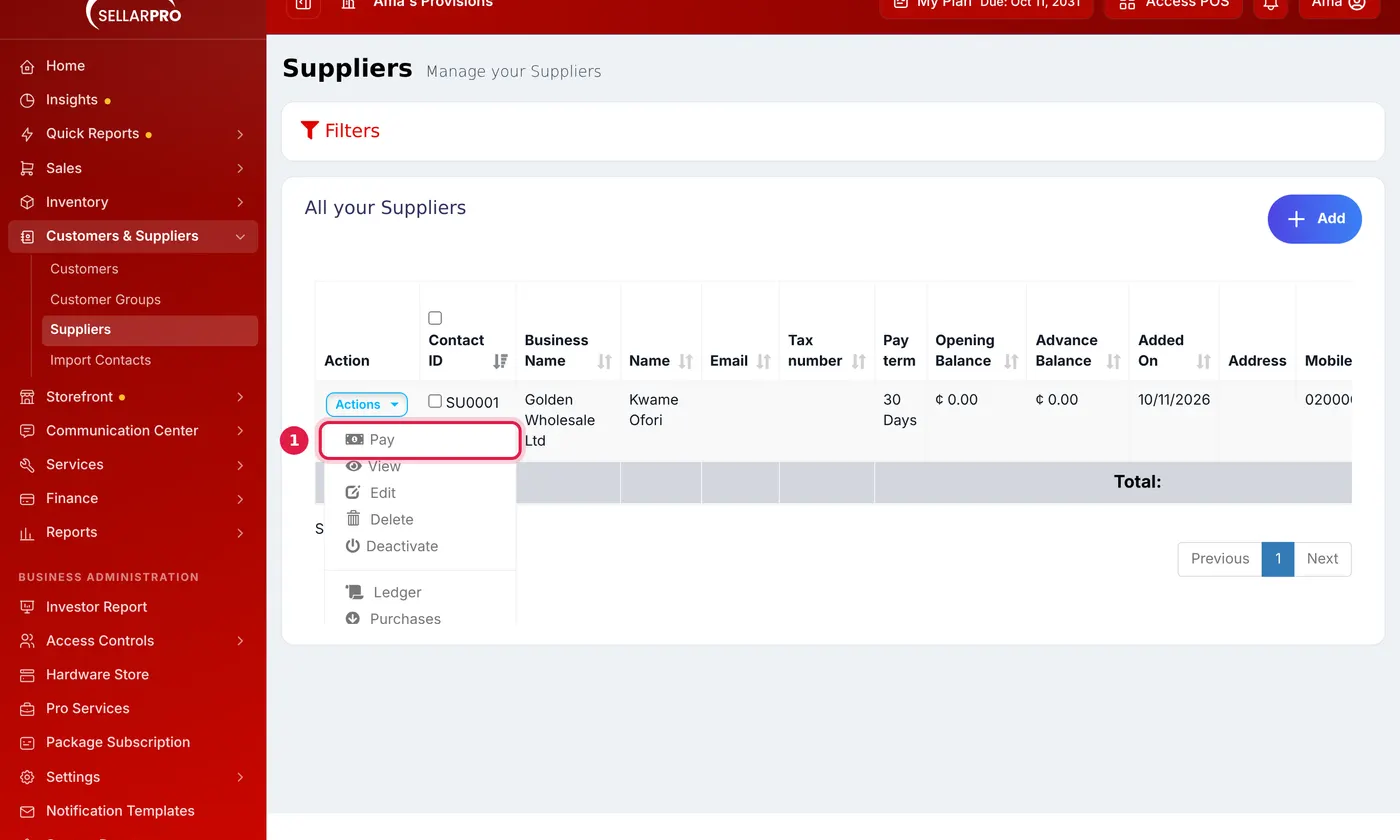
Pay is the first item in the supplier's Actions menu. - Enter the amount, method and date, and save. It pays their oldest purchases first.
See what you owe
- Quick Reports → Supplier Payments lists what you have paid each supplier.
- The dashboard's Receivables & Payables card shows the total you owe, and what is overdue.
- A supplier's Ledger shows every purchase and payment with the running balance.
Common questions
How do I show when payment is due?
Set a Pay term on the supplier or on the purchase. Purchases past their pay term show as overdue.
Was this article helpful?
Thanks — your answer helps us improve this article.
Still need help?
Can’t find the answer you’re looking for? Our support team in Accra can help.