
All help topics
Help topics
- Getting Started
- Sales & POS
- Products & Inventory
- Purchases & Suppliers
- Customers
- Staff & Permissions
- Reports
- Branches
- Hardware
- Payments
- Settings
- Troubleshooting
- Billing & Subscription
- Workshop
- Training
- Sales Agents
- Laundry
- Accounting
- HR & Payroll
- Hotel
- Services
- Communication Center
- Online Store
- CRM
- Restaurant
- F&B Manager
- Production
- Projects
- Asset Management
- All topics
On this page
How to Read Payroll Reports
Short answer
Open HR and Payroll → Payroll Reports, choose the dates and any department, role or employee, and click Apply. You see the totals for gross, deductions and net pay, the monthly trend and the cost by department. Export a CSV or the full PDF.
Payroll Reports show what your staff cost, how that changes month to month, and where the money goes.
Steps
- Open HR and Payroll → Payroll Reports.
- Choose From and To, and narrow by Status, Department, Role or Employee if you like. Click Apply.
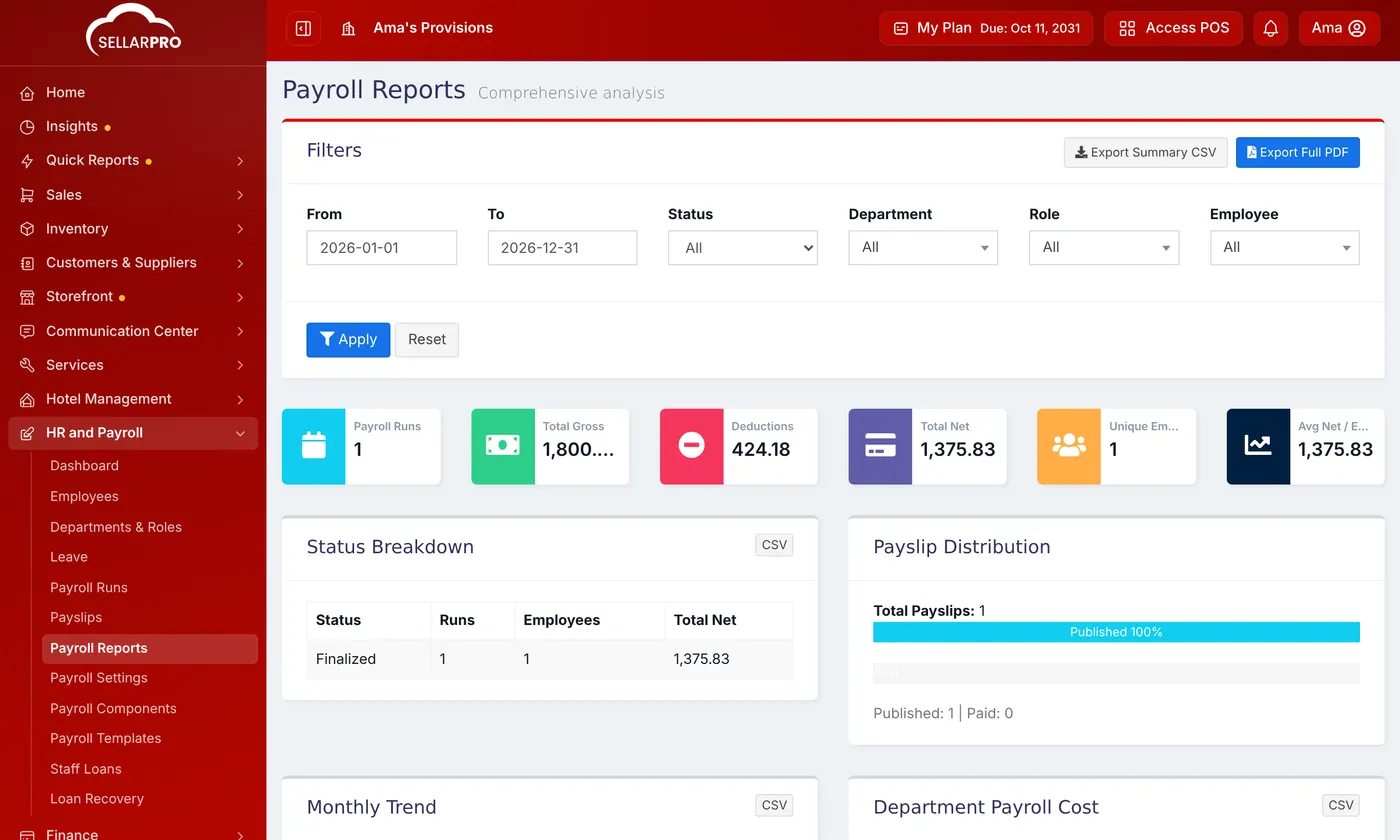
The headline totals for the period, with the breakdowns below.
What you see
- The number of payroll runs, total gross, deductions and net pay, and the average net pay per employee.
- Status Breakdown and Payslip Distribution (how many payslips were published and paid).
- Monthly Trend, Department Payroll Cost, Top Employees By Net Pay and the Role (Designation) Breakdown.
Click Export Summary CSV or Export Full PDF, or the CSV button on any one section.
Common questions
A run I expected is missing.
Check the dates: a run is included by its pay period. Widen From and To and apply again.
Was this article helpful?
Thanks — your answer helps us improve this article.
Still need help?
Can’t find the answer you’re looking for? Our support team in Accra can help.